USB Resistive Touch Calibration Method
Document classification: □ Top secret □ Secret □ Internal information ■ Open
Copyright
The copyright of this manual belongs to Baoding Folinx Embedded Technology Co., Ltd. Without the written permission of our company, no organizations or individuals have the right to copy, distribute, or reproduce any part of this manual in any form, and violators will be held legally responsible.
Forlinx adheres to copyrights of all graphics and texts used in all publications in original or license-free forms.
The drivers and utilities used for the components are subject to the copyrights of the respective manufacturers. The license conditions of the respective manufacturer are to be adhered to. Related license expenses for the operating system and applications should be calculated/declared separately by the related party or its representatives.
Overview
USB touch screens generally use universal touch drivers and can be used directly after connection. However, the parameters for touch position may not always be accurate, so a more universal screen calibration method is provided here.
The following screenshots and tests are based on the FCU2601.
Linux System
Enter the system and use the following command to enable the calibration function:
vi /etc/xdg/weston/weston.ini
Delete the # symbols and spaces from these two entries in the image below, carry out the standard configuration, and then restart.
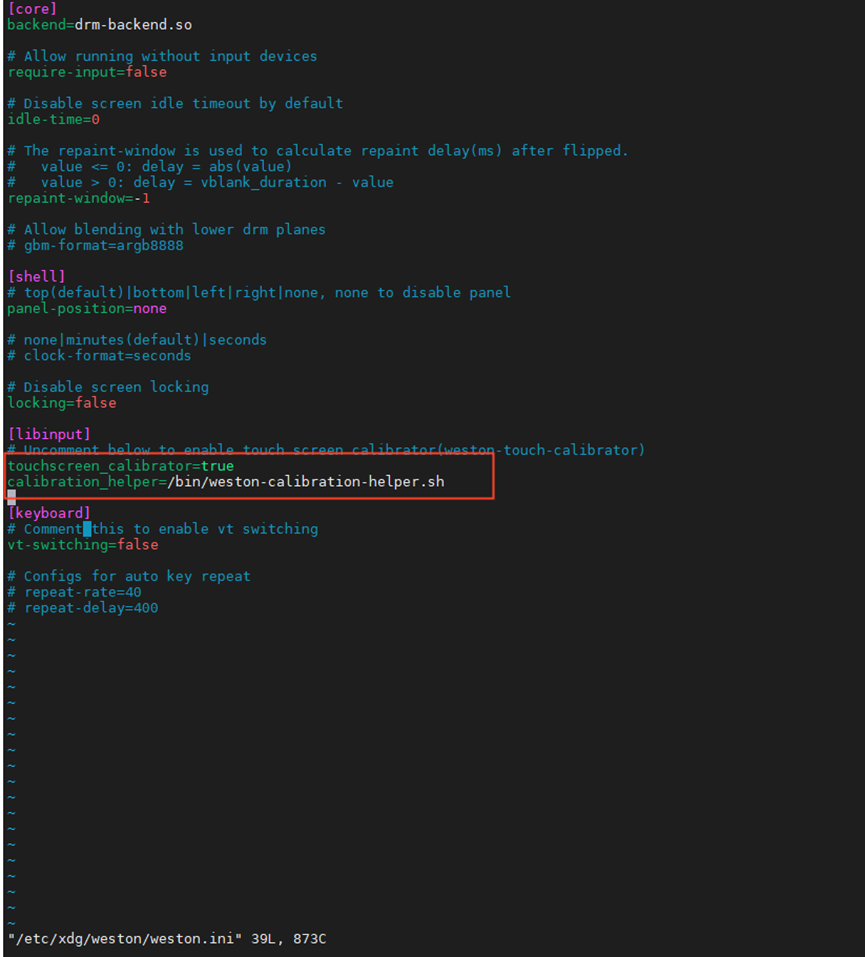
After restarting, use the command below to launch the calibration programme and calibrate the four points; the touch position will then return to normal without the need for any further configuration.
weston-touch-calibrator
After restarting again, the calibration matrix parameters will be automatically added to the environment variables.
Ubuntu System
Touch input is managed via libinput; the path to the default configuration file is as follows:
/usr/share/X11/xorg.conf.d/40-libinput.conf
To manually configure libinput for touch rotation, you must first create the following path on the board:
mkdir -p /etc/X11/xorg.conf.d/
Copy 40-libinput.conf to the directory where you created it.
Open the file, locate the field labelled “libinput touchscreen catchall”, and add the following content to the field:
Section "InputClass"
        Identifier "libinput touchscreen catchall"
        Option "CalibrationMatrix" "0 1 0 -1 0 1 0 0 1
        Option "TransformationMatrix" "1.02 0 -0.003 0 1.09666775 -0.055 0 0 1"
        MatchIsTouchscreen "on"
        MatchDevicePath "/dev/input/event*"
        Driver "libinput"
EndSection
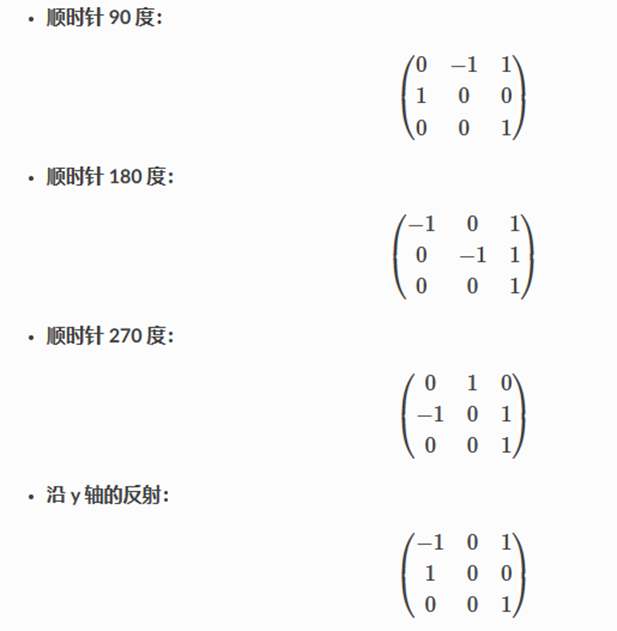
The nine numbers below form a rotation matrix:
Option "CalibrationMatrix" "0 1 0 -1 0 1 0 0 1
It can be modified according to the following form as required:
The following shows the fine-tuned scaling matrix:
Option "TransformationMatrix" "1.02 0 -0.003 0 1.09666775 -0.055 0 0 1"
The number in the top-left of the matrix represents the x-axis scaling, whilst the number in the top-right represents the x-axis offset.
The middle number on the left represents the y-axis scaling, and the middle number on the right represents the y-axis offset.
The system recommends using the calibration program xinput-calibrator. After calibration is completed, it will report the touch parameters and the total parameters.
Based on the ratio, calculate the values and fill them into the scaling matrix above.
apt-get update
apt-get install xinput-calibrator