Yocto5.0_Kernel-6.1_User’s Manual_V1.0
Document classification: □ Top secret □ Secret □ Internal information ■ Open
Copyright
The copyright of this manual belongs to Baoding Forlinx Embedded Technology Co., Ltd. Without the written permission of our company, no organizations or individuals have the right to copy, distribute, or reproduce any part of this manual in any form, and violators will be held legally responsible.
Forlinx adheres to copyrights of all graphics and texts used in all publications in original or license-free forms. The drivers and utilities used for the components are subject to the copyrights of the respective manufacturers. The license conditions of the respective manufacturer are to be adhered to. Related license expenses for the operating system and applications should be calculated/declared separately by the related party or its representatives.
Open Box
1. Overview
1.1 Application Scope
This document primarily focuses on the OK3588-C platform (Linux 6.1.118-yocto operating system). While other platforms may also serve as references, due to variations across different platforms, please adjust and adapt according to your specific requirements.
1.2 Revision History
Date |
Version |
SoM Version |
Carrier Board Version |
Revision History |
|---|---|---|---|---|
03/04/2026 |
V1.0 |
3588-C V1.1 / 3588S2-C V1.0 / 3588-C2 V1.0 |
V1.1 and above |
OK3588-C_Yocto5.0_Kernel-6.1_User’s Manual_V1.0 |
1.3 OK3588-C Description
It is designed based on the Rockchip RK3588 processor. The RK3588 is built on the ARM64 architecture, featuring four high-performance Cortex-A76 cores alongside four energy-efficient Cortex-A55 cores. It also features an independent NEON coprocessor and a dedicated Neural Processing Unit (NPU), which ensures a balance between high performance and low power consumption. It makes the RK3588 suitable for edge computing, artificial intelligence, multimedia processing, mobile internet devices, and a variety of digital multimedia applications.
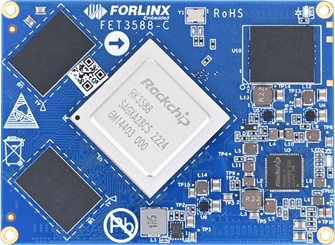
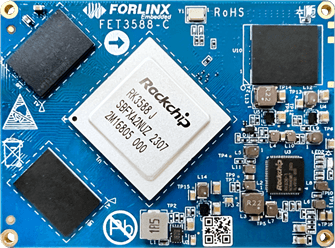
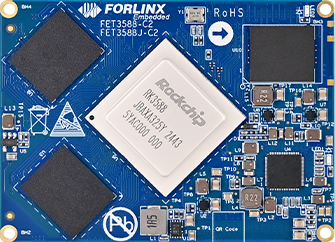
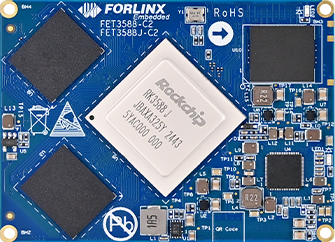
The FET3588 SoM series includes the following models:
SoM |
Main Control Chip |
Memory |
Level |
|---|---|---|---|
FET3588-C |
RK3588 |
LPDDR4/LPDDR4x |
Commercial Level |
FET3588J-C |
RK3588J |
LPDDR4/LPDDR4x |
Industrial Level |
FET3588-C2 |
RK3588 |
LPDDR5 |
Commercial Level |
FET3588J-C2 |
RK3588J |
LPDDR5 |
Industrial Level |
FET3588S2-C |
RK3588S2 |
LPDDR5 |
Commercial Level |
⚠️Note: The performance of RK3588 and RK3588S2 is nearly identical; however, the RK3588S2 has fewer interfaces compared to the RK3588 (e.g., lacking PCIe 3.0, USB OTG1, HDMI RX 2.0, ETH1, etc.).
Key Differences Table:
Function Model |
RK3588 |
RK3588S2 |
Key Differences |
|---|---|---|---|
GPU |
Mali-G610 MC4 |
Mali-G610 MP4 |
Suffixes differ (MC4 vs MP4), but both feature a quad-core configuration. |
Memory Support |
LPDDR4/LPDDR4X/LPDDR5 |
LPDDR4/LPDDR4X/LPDDR5/LPDDR5X |
RK3588S2 supports LPDDR5X |
USB Interface |
• USB OTG0 3.1/2.0/Typec |
• USB OTG 3.1/2.0/Typec |
Only 1 x USB OTG interface is retained on RK3588S2. |
PCIe/SATA |
• SATA3/PCIe2.1/USB3Host(1 group) |
• SATA3/PCIe2.1/USB3Host(1 group) |
1 x SATA/PCIe combined interface and the independent PCIe 3.0 controller are removed from the RK3588S2. |
Ethernet |
2x Giga-Ethernet |
1x Giga-Ethernet |
1 x single Gigabit Ethernet MAC is reserved on the RK3588S2. |
Multimedia Interfaces |
• 2x MIPI-CSI D/CPHY |
• 1x MIPI-CSI DPHY 4L/CPHY 3L |
The RK3588 features a unique HDMI RX input function, which is not supported on the RK3588S2. |
There are differences in the combination of CSI/DSI interfaces.
FET3588-C SoM
FET3588J-C SoM
FET3588-C2 SoM
FET3588J-C2 SoM
FET3588S2-C SoM
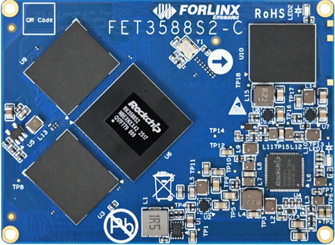
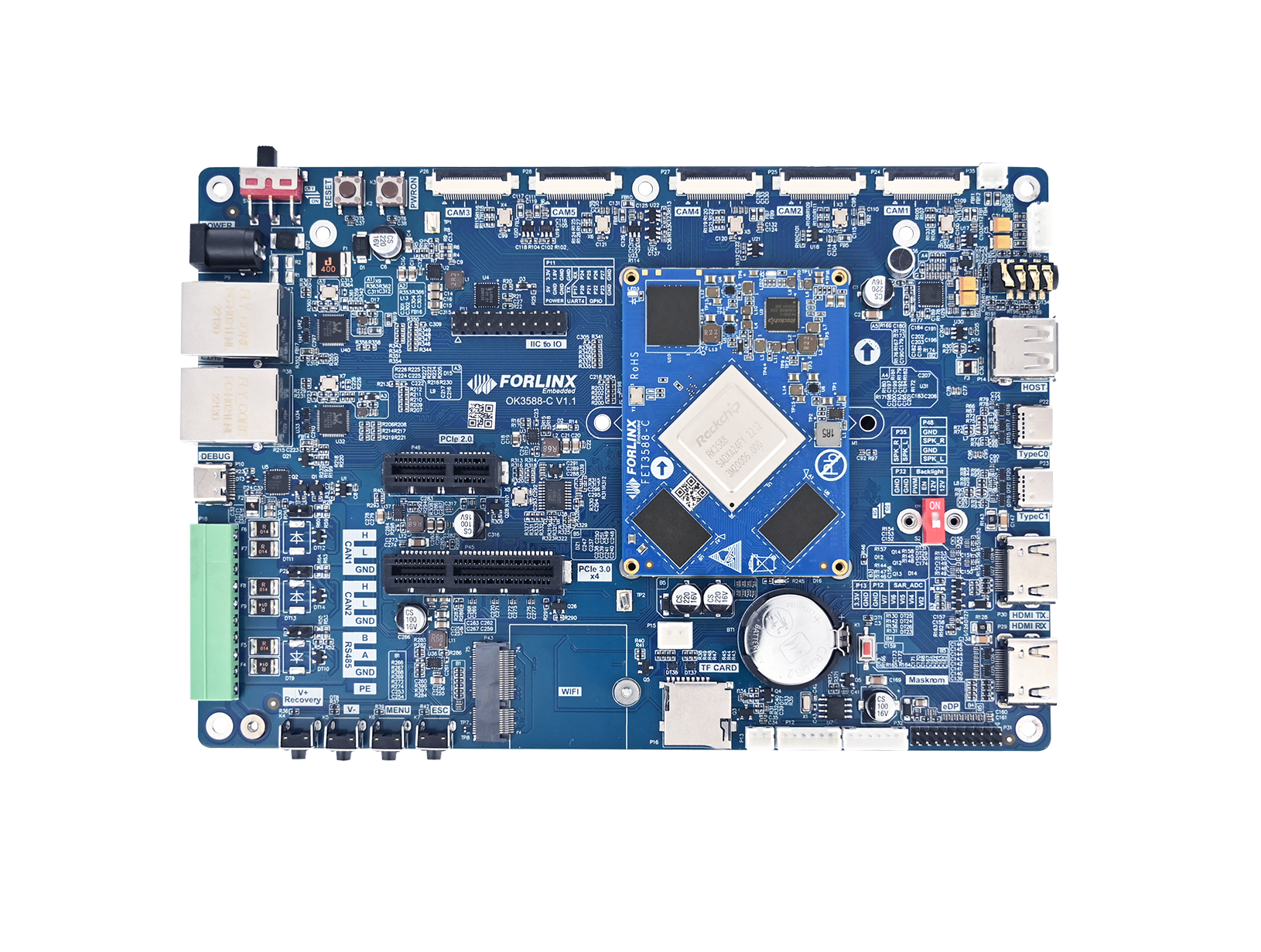
Board-to-board connections enable extensive peripheral interfaces such as RTC, MIPI, USB, DISPLAY, CAN, and PCIe. These resources can be directly utilized for product development and validation, significantly accelerating the R&D process. Some of the peripheral FET3588S2-C cannot be used. Refer to the Peripheral Access chapter for details.
OK3588-C
1.4 Main Frequency Setting Description
FET3588J-C and FET3588J-C2 SoM frequency description:
Normal Mode |
Overclock Mode |
|
|---|---|---|
Maximum CPU A76 Frequency (GHz) |
1.6 |
2.0 |
Maximum CPU A55 Frequency (GHz) |
1.3 |
1.7 |
Maximum GPU Frequency(MHz) |
700 |
850 |
Maximum NPU Frequency(MHz) |
800 |
950 |
Normal Mode refers to the chip operating within safe voltage and frequency limits. For industrial environments, it is recommended to maintain Normal Mode to ensure the longevity of the chip.
Overclocking Mode increases frequency and voltage. Long-term operation, especially at high temperatures, may shorten the longevity of the chip.
Frequency Specifications for RK3588 and RK3588S2 Commercial-Grade SoMs:
Maximum CPU A76 Frequency |
2.2-2.4 GHz |
|---|---|
Maximum CPU A55 Frequency |
1.8 GHz |
Maximum GPU Frequency |
1 GHz |
Maximum NPU Frequency |
1 GHz |
⚠️Note: The default factory firmware and source code for the industrial-grade RK3588J System-on-Module (SoM) are configured to operate in overclocking mode. This setting is intended for maximum performance testing of the System-on-Chip (SoC). If you do not have specific performance requirements, it is advisable to switch to normal mode to ensure long-term stability.
Switch to “normal mode”. You just need to add #include "rk3588j.dtsi" in the reference within the kernel device tree. The path is: arch/arm64/boot/dts/rockchip/OK3588-C-common.dtsi.
1.5 Rockchip Documentation
Download from the Resource Download (https://www.forlinx.net/resources/download-center.html).
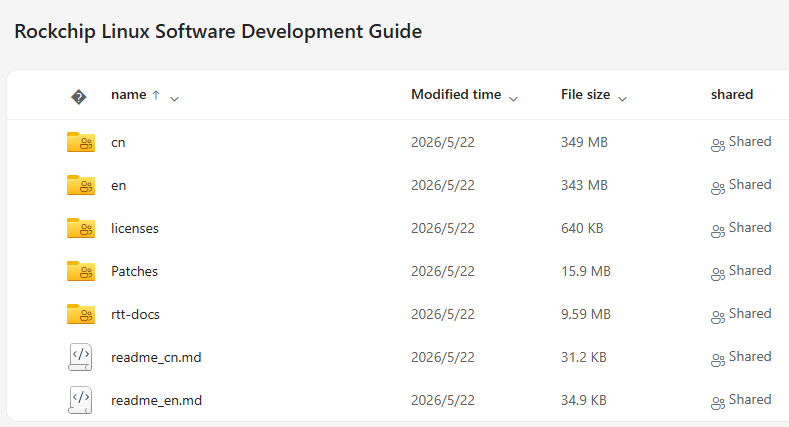
Select either the “OK3588-C/C2” or “OK3588S2-C” page based on the SoM model. There is corresponding Rockchip documentations under Software Resources”->“Rockchip Linux Software Development” .
Please read the readme _ en. md for details.
1.6 Overview
This manual is designed to help you quickly familiarize yourselves with the product.
It covers:
Source code structure and compilation methods;
Firmware flashing methods;
Usage and testing of development board interfaces;
Troubleshooting approaches for common issues.
Chapter 1: Open Box
Introduces the OK3588-C platform interface resources, hardware configurations of the five compatible SoMs, and system login methods.
Chapter 2: Upgrade Firmware
Describes how to obtain and flash the firmware.
Chapter 3: OS Development
Details how to obtain the source code, its structure, and compilation steps.
Chapter 4: Application Development
Explains the OK3588 interface resources and their testing methods.
Chapter 5: Development Guides
Summarizes common issues encountered during development and their corresponding solutions.
Chapter 6: Resource Download & Technical Support
Links to download the materials can be found in this section.
2. Packing List
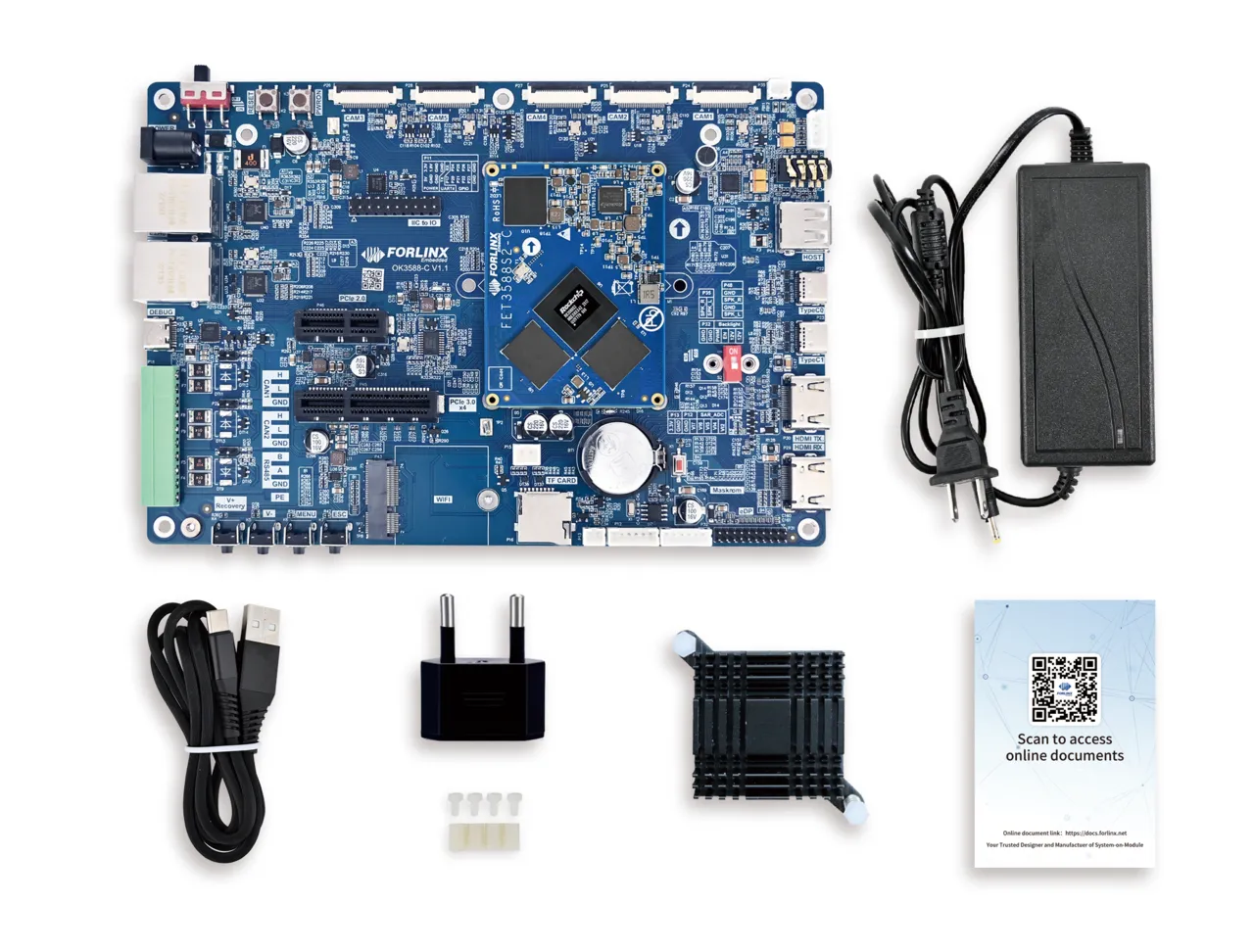
Packing List: FET3588-C SoM, OK3588-C development board and accessory kit.
As shown in the figure:
3. Quick Start
3.1 Interface resources
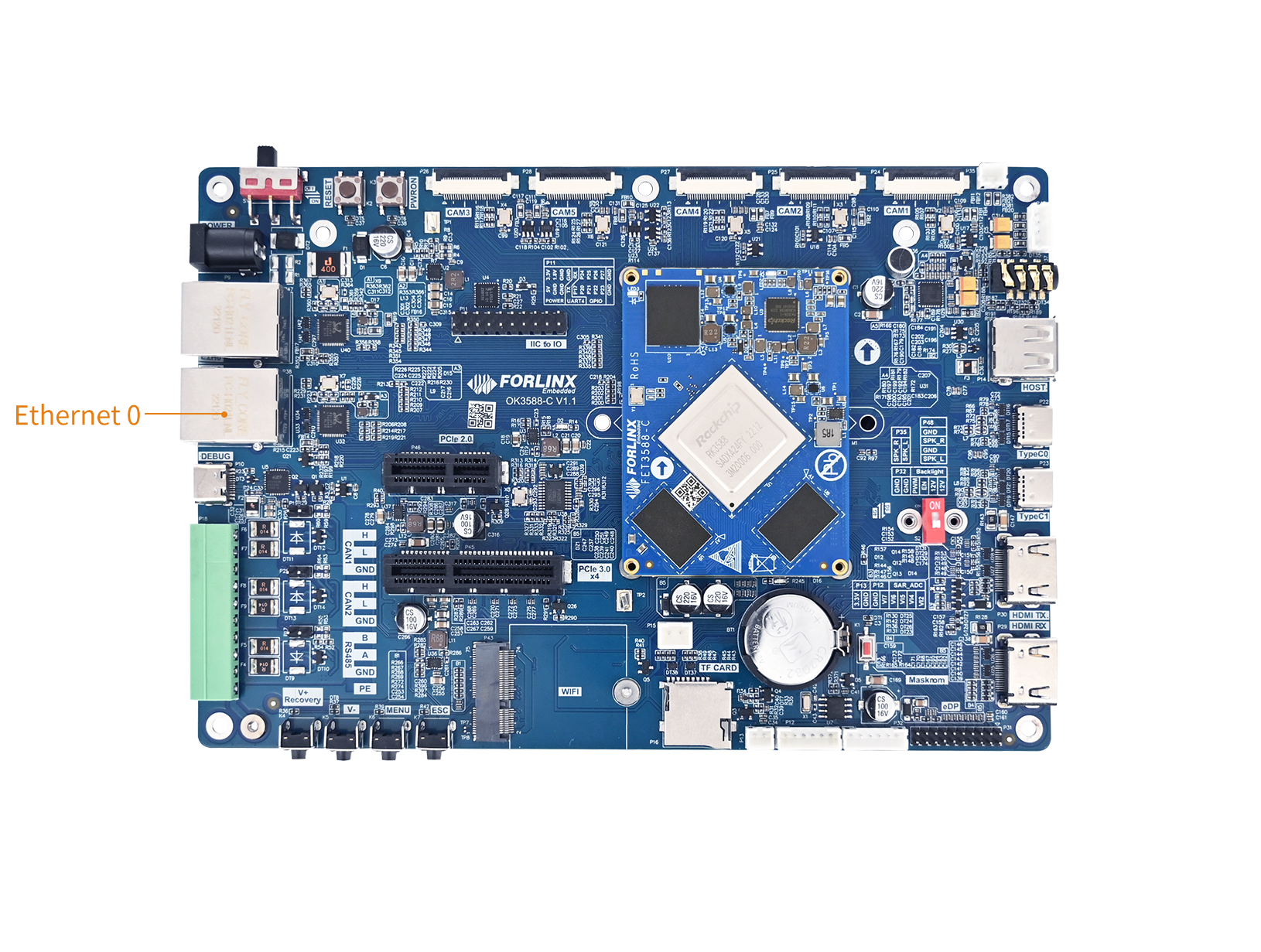
OK3588-C Interface Diagram:
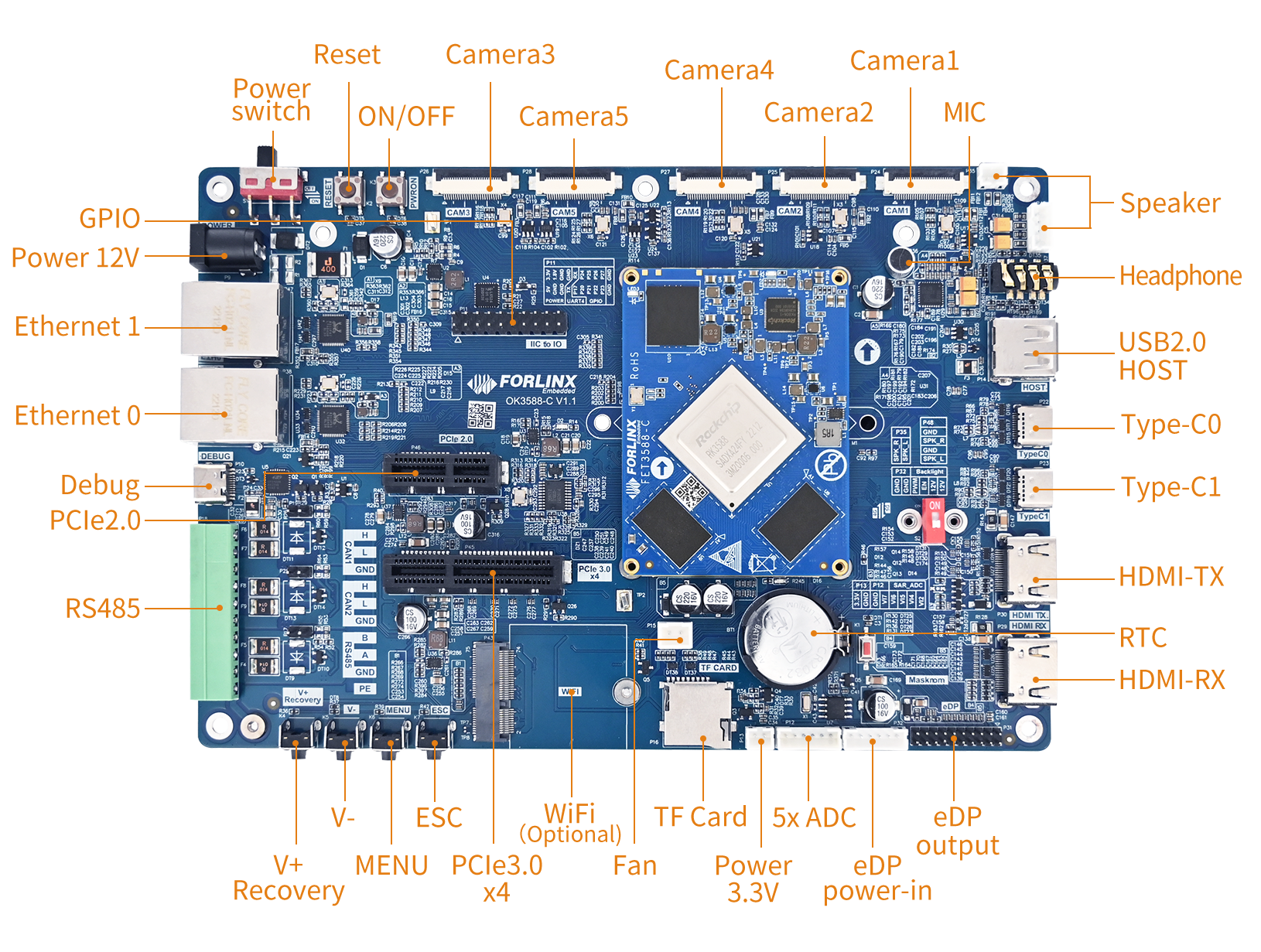
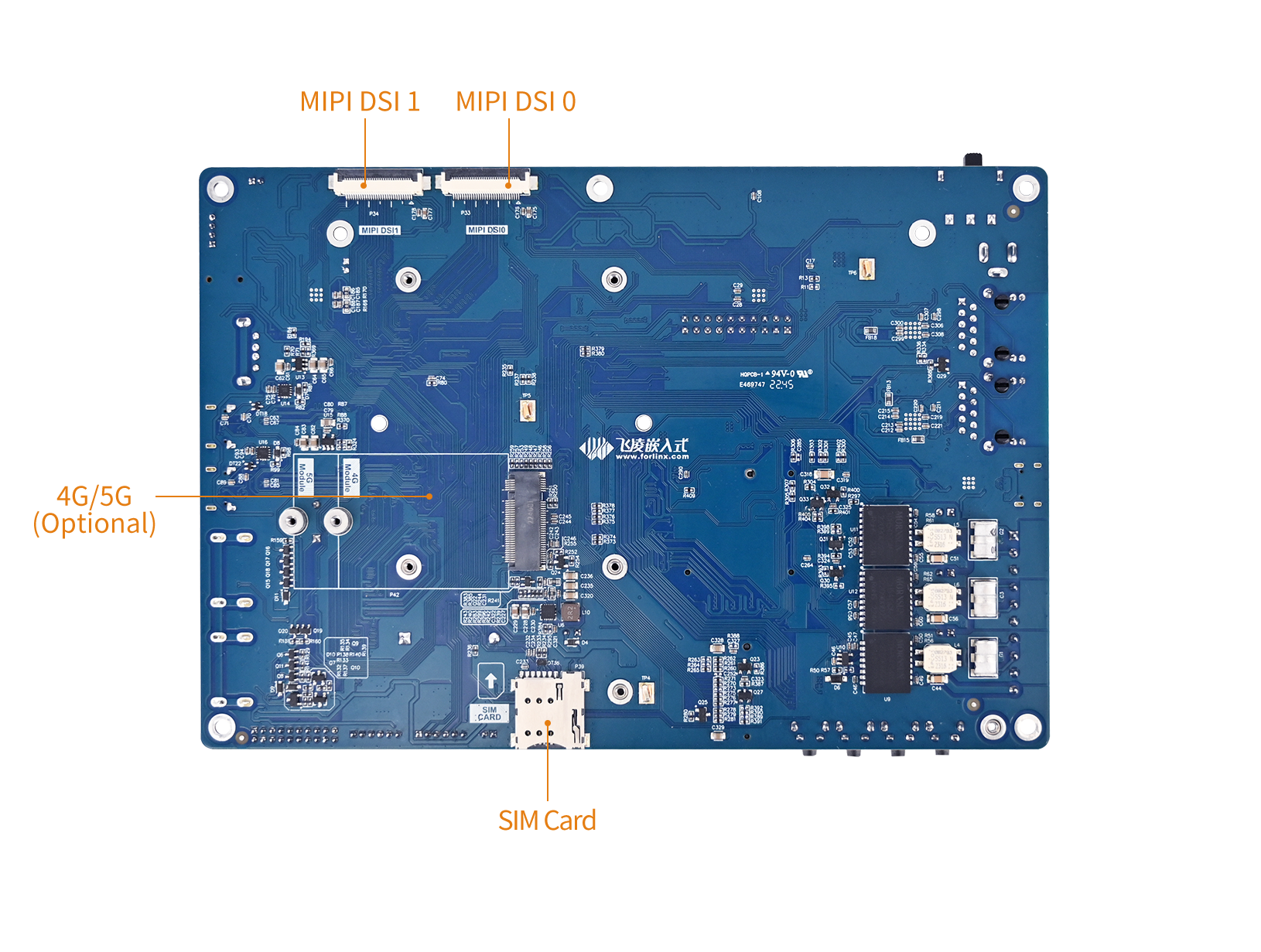
3.2 Debug Methods
There are two ways to interact with the OK3588 platform: via Serial Port and via Ethernet SSH.
3.2.1 Serial Port
The OK3588 platform uses a Type-C interface for its debug serial port, featuring an onboard USB-to-UART chip (CP210x). This eliminates the need for customers to purchase an external USB-to-serial debug tool, making the setup extremely simple and convenient.
Hardware Requirements: Type-C cable, 12V power supply;
Software Requirements: A terminal emulator is required on the PC side (Windows OS). Various terminal software options are available; you may use any serial terminal tool you are familiar with. Here we are using Putty;
Serial Port Settings: Baud rate 115200, 8 data bits, 1 stop bit, no parity, no flow control.
3.2.1.1 Installing Serial Driver
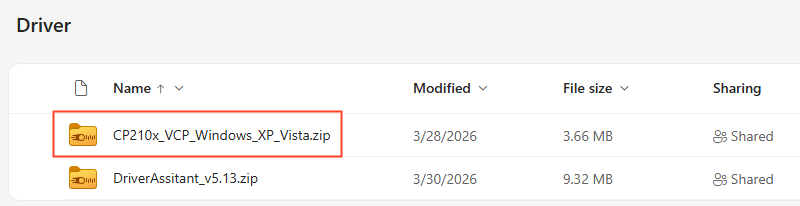
Please download from the Resource Download page (https://www.forlinx.net/resources/download-center.html). On this page, select the “OK3588-C/C2” or “OK3588S2-C” page based on your processor board model. Under “TOOLS” -> “Driver Tool”, you will find the tool “CP210x_VCP_Windows_XP_Vista.zip”. Download this compressed package and extract it to the current directory. Depending on your computer’s configuration, run either CP210xVCPInstaller_x64.exe or CP210xVCPInstaller_x86.exe. This will install the corresponding driver on your computer.
3.2.1.2 Installing PuTTY Terminal Software
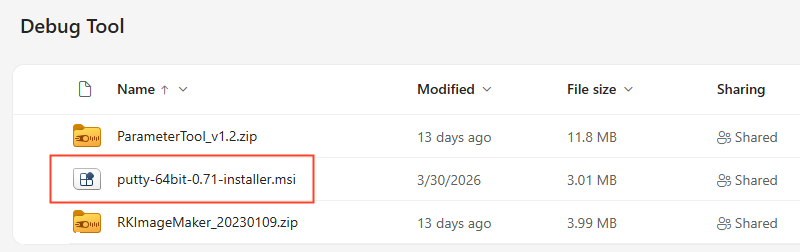
Please download it from the Resource Download page (https://www.forlinx.net/resources/download-center.html). On this page, select the “OK3588-C/C2” or “OK3588S2-C” page based on your processor board model. Under “TOOLS” -> “Debug Tool”, you will find the installation package for the PuTTY terminal software: “putty-64bit-0.71-installer”. Download it to your computer and install PuTTY.
3.2.1.3 PuTTY Usage
The following describes the serial login method using the PuTTY terminal software as an example:
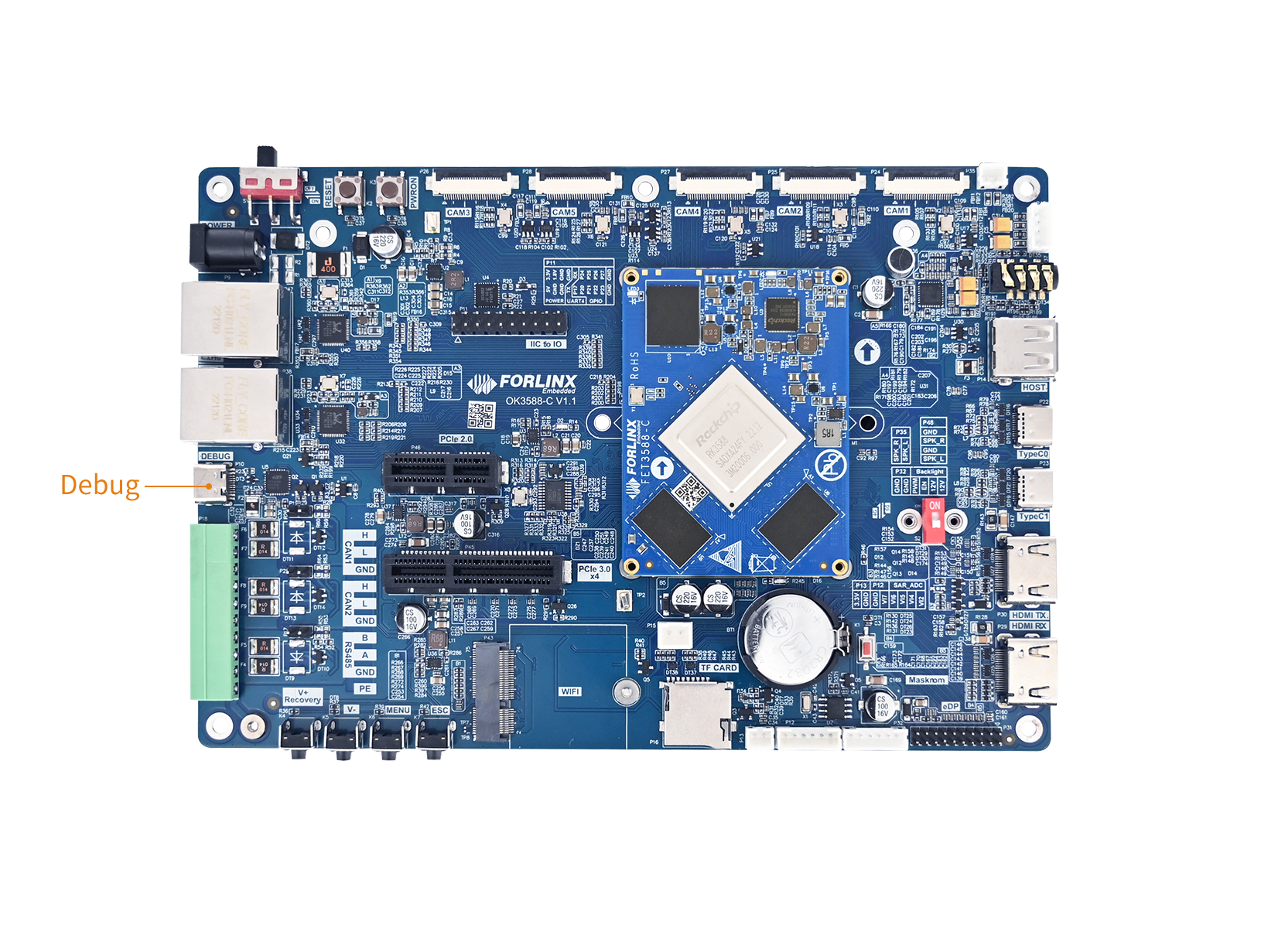
Step 1 : Use a Type-C cable to connect the PC to the debug serial port of the OK3588-C. The debug interface is located on the board as shown in the following position:
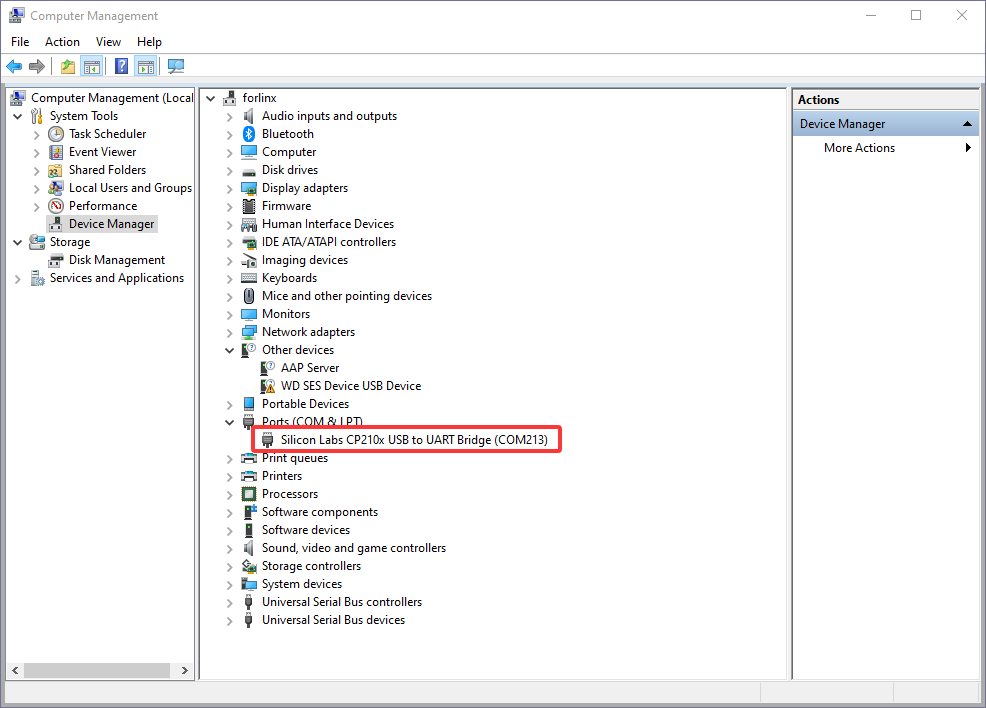
 Open Windows Device Manager and check the recognized COM port number (e.g., COM3) under “Ports (COM & LPT)”. The actual displayed port shall prevail.
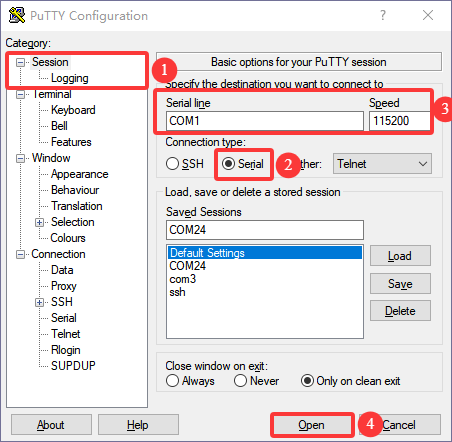
Step 2 : Open the PuTTY terminal software, select “Session”, set the “Serial line” according to the COM port used by your computer, and set the baud rate to 115200.
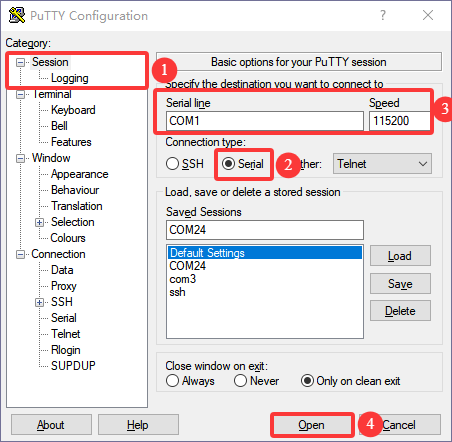
Step 3: After completing the above settings, you can enter the COM port used by your computer in the “Saved Sessions” field. The figure below uses COM24 as an example. Save the settings. When opening the serial port again later, you can directly click the saved port number.
Step 4: Turn on the power switch of the development board. The startup information shown below indicates a successful boot. Login and Password is forlinx.
Press Enter to create a new command line:
ok3588 login: forlinx
Password:
Forlinx Embedded Linux (Poky-based Yocto)
https://www.forlinx.com/
forlinx@ok3588:~$
3.2.2 Ethernet (SSH)
The OK3588-C supports SSH login over Ethernet.
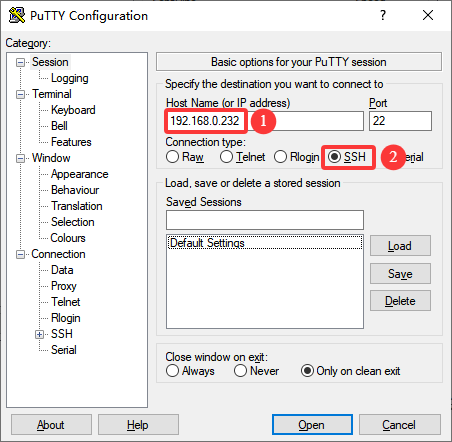
Connect the ETH0 network port on the development board. Ensure that your PC can ping the development board;
The network interface is configured with a static IP address by default: 192.168.0.232;
Login and password are “forlinx”.
SSH login to the development board:
After successful login, the following prompt is displayed:
login as: forlinx
[email protected]'s password:
Forlinx Embedded Linux (Poky-based Yocto)
https://www.forlinx.com/
forlinx@ok3588:~$
Upgrade Firmware
1. Introduction
This article explains how to write the firmware image to the board flash memory. The OK3588-C development board currently supports flashing via OTG and TF Card. The corresponding programming tool is provided in the user profile, and you can choose any one of the methods for image programming.
2. Obtaining the Image
Download from the Resource Download (https://www.forlinx.net/resources/download-center.html).
Select either the “OK3588-C/C2” or “OK3588S2-C” page based on the SoM model. There is corresponding standard images under “FIRMWARE”->“Yocto”.
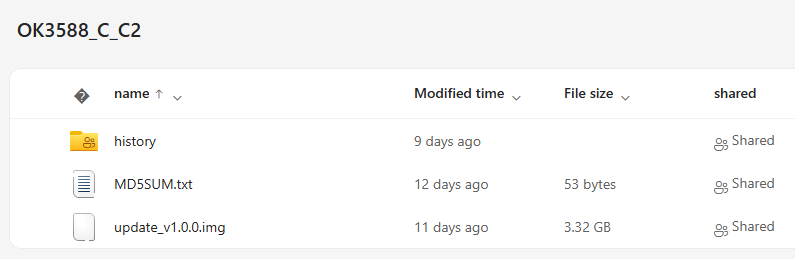
3. Image Flashing
3.1 Flashing via OTG (Windows)
Before flashing firmware via USB OTG, ensure you have the following hardware ready:
12V DC power supply
Type-C data cable
3.1.1 Installing Rockchip USB Driver
Download the driver from the Resource Download page (https://www.forlinx.net/resources/download-center.html).
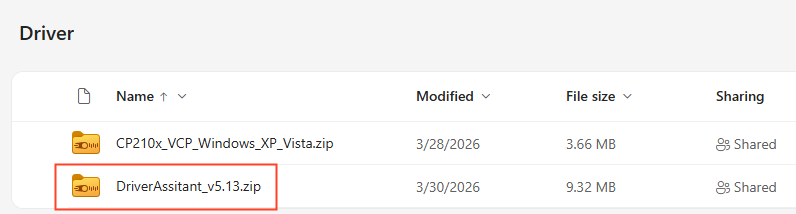
Select either the “OK3588-C/C2” or “OK3588S2-C” page based on your SoM model. There is DriverAssistant_v5.13.zip under “TOOLS”->“Driver Tool”. Download the zip package, extract it to any directory, and run the DriverInstall.exe with administrator privileges.
Click Driver Installation.
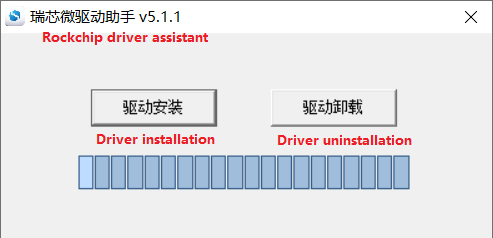
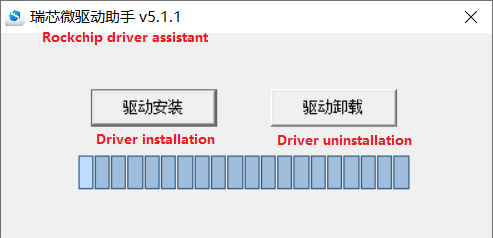
The driver is installed successfully. Click OK.
3.1.2 Complete OTG Flashing
Please download from the Resource Download (https://www.forlinx.net/resources/download-center.html). Navigate to either the “OK3588-C/C2” or “OK3588S2-C” section based on your SoM model, . There is “RKDevTool_Release_v3.37.zip” under “TOOLS”->“Flashing Tool”. Download the zip package and extract it to the current directory.
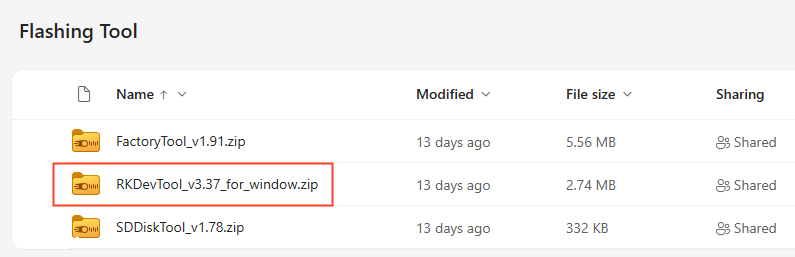
It is a development tool provided by Rockchip. Launch the application and connect the development board Type-C0 port to your computer host using a Type-C cable.
The Type-C0 port, Recovery button, and Reset button are located on the board as shown in the following position:
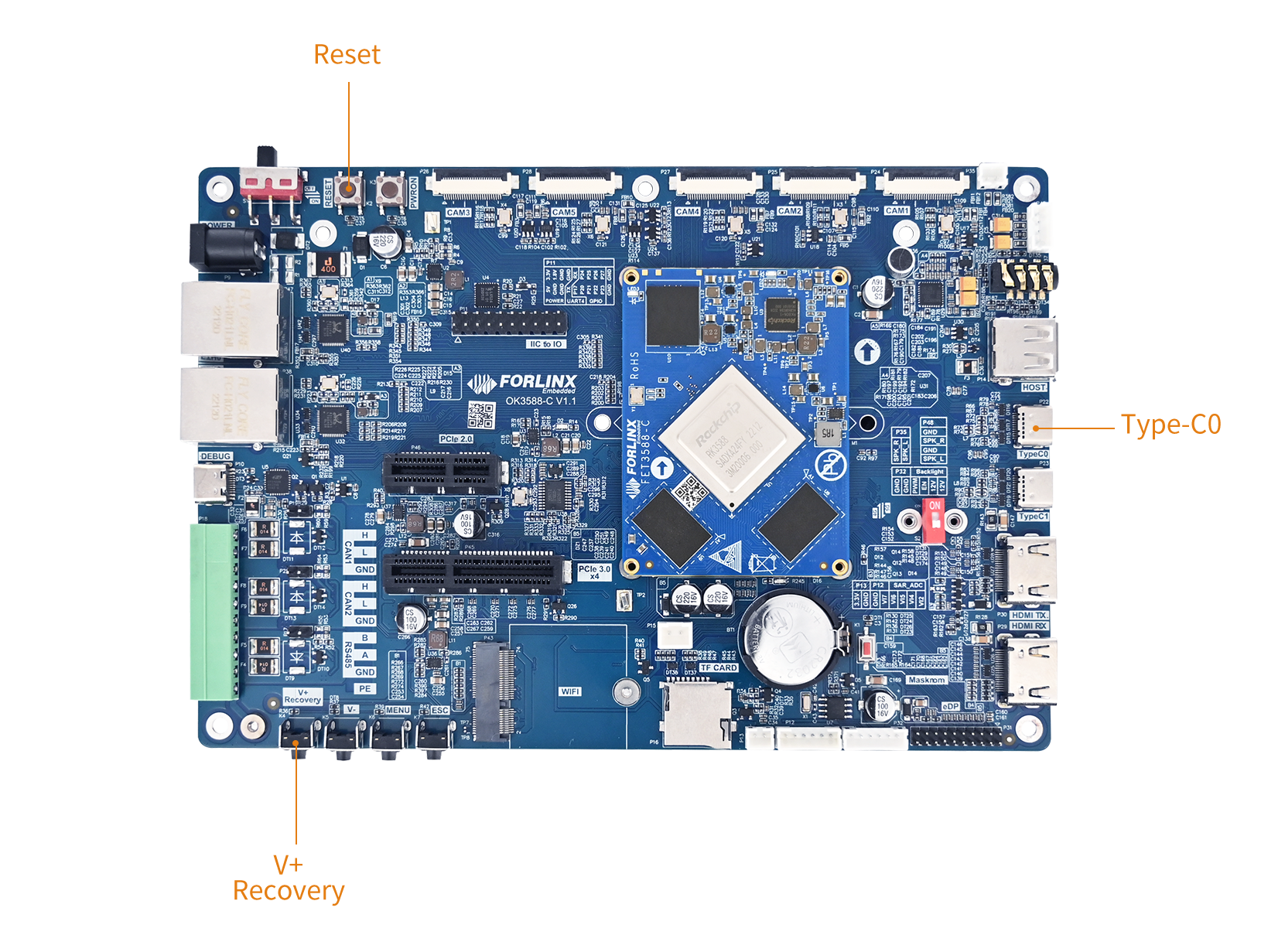
Press and hold the Recovery button on the development board. Then, press the Reset button to reboot the system. Once the Rockchip development tool displays “Found One LOADER Device”, you can release the Recovery button.
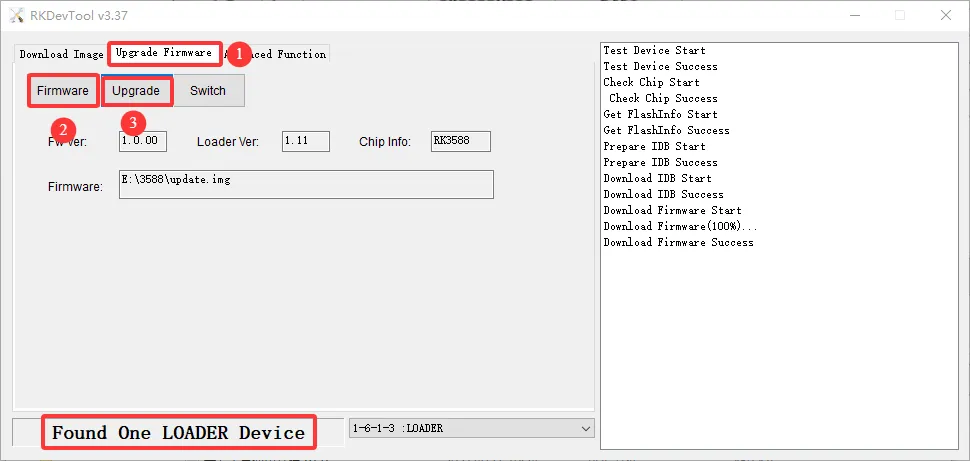
Step1: Click “Upgrade Firmware”;
Step2: Click “Firmware” and browse to locate the update.img file you wish to flash;
Step3: Click “Upgrade” to flash.
If the loader is damaged and cannot enter Loader Mode, you can force the board into Maskrom Mode by holding down the Maskrom button (located to the right of the RTC battery holder on the carrier board) and then pressing the Reset button. At this point, the system will indicate that a MaskROM device has been detected. You can then proceed with the flashing process, which is the same.
⚠️Note: Do not click “Device Partition Table” while in Maskrom Mode, as this operation is invalid. Flashing individually in Maskrom Mode will not clear the U-Boot environment variables.
3.1.3 OTG Step-by-Step Flashing
During R&D, full reflashing is time-consuming. This section introduces OTG-based individual partition flashing. (Note: This function is only applicable in the Loader Flashing Mode.)
After a full compilation, individual partition images can be found in the build/latest.
OK-yocto-source/build/latest$ tree
.
├── boot.img -> boot.img--6.1-r0-ok3588-20260428031547.bin
├── boot.img--6.1-r0-ok3588-20260428031547.bin
├── forlinx-image-weston-ok3588.rootfs.update.img
├── forlinx-image-weston-ok3588.rootfs-20260429062903.ext4
├── forlinx-image-weston-ok3588.rootfs.ext4 -> forlinx-image-weston-ok3588.rootfs-20260429062903.ext4
├── rootfs.img -> forlinx-image-weston-ok3588.rootfs.ext4
├── uboot.img -> uboot-ok3588-2017.09-r0.bin
├── uboot-ok3588-2017.09-r0.bin
├── update.img -> forlinx-image-weston-ok3588.rootfs.update.img
├── userdata.img
Function Description
Image File |
Function Description |
|---|---|
|
Complete System Image (Used for whole-device flashing.) |
|
Linux Kernel & Device Tree Image |
|
U-Boot Bootloader Image |
|
Root Filesystem Image |
|
User Data Partition Image |
Take the separate burning userdata partition as an example to demonstrate the burning method, which also uses the RKDevTool _ Release _ v3.37 for burning.
Step 1: Connect the board’s TypeC0 interface to the host computer’s USB port using a Type-C data cable;
Step 2: Press and hold the Recovery button on the development board. Then, while holding it, short press the Reset button to trigger a system reboot;
Step 3: After the system reboots, when the RKDevTool displays the ‘Loader Device Found’ prompt, release the Recovery button. This indicates that the board has successfully entered Loader mode for firmware flashing.
Step 4: Copy the compiled userdata.img image file to the local directory on the host computer where it is to be flashed, and prepare to flash the device.
Step 5: Change the name field in the last row to userdata and click Dev Partition. The system will automatically read the corresponding partition address.
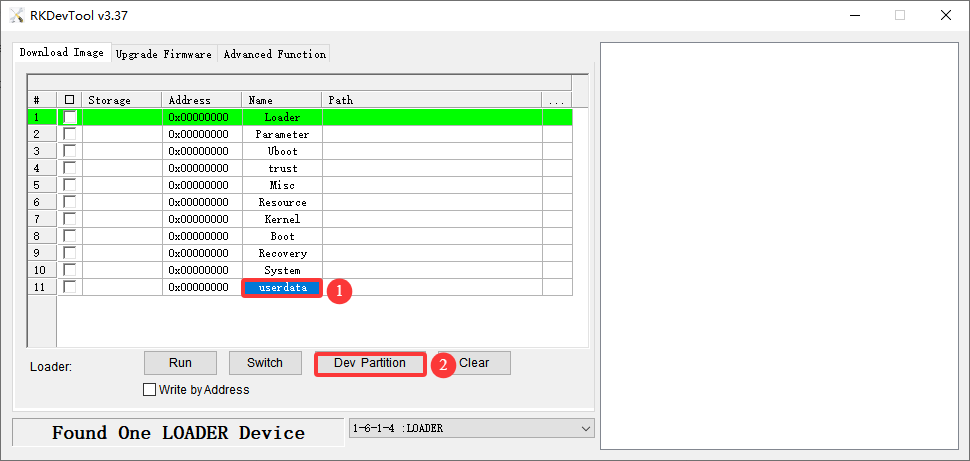
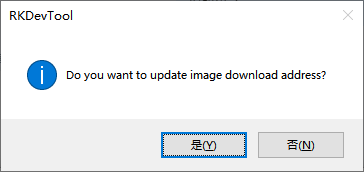
A prompt asking whether to update the download link will appear; click “Yes”.
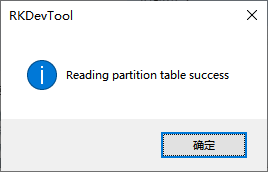
A message appears indicating that the partition table has been successfully read. Click “Yes”.
Check the partition and check the address. The address is required to be consistent with the userdata partition address 0x0007a000 read from the partition. Click ② to select the partition image for the selected area. Click the Run to automatically flash and restart.
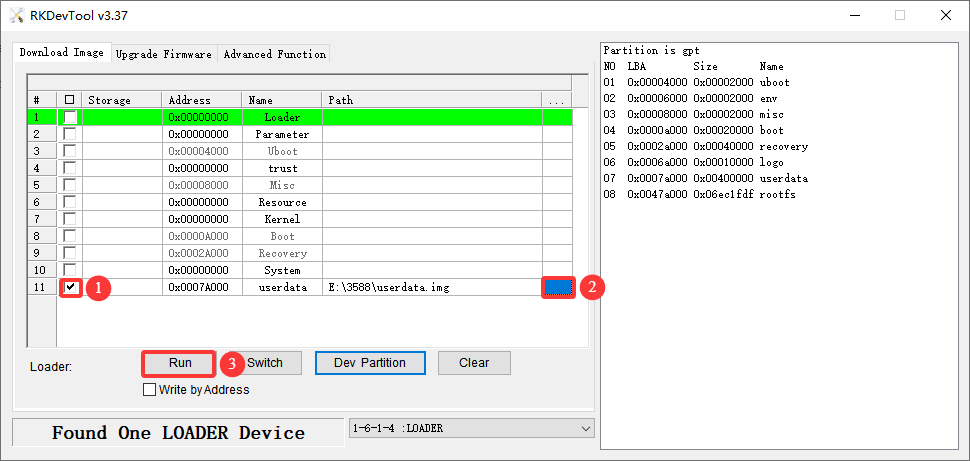
If you encounter any issues, please check the USB connection and restart the device, and check whether the partition is too small or the image is too large.
3.2 Flashing Firmware via TF Card
⚠️Note:
Testing indicates that the maximum supported TF card capacity is 16 GB. Using a TF card of 32 GB or larger may result in flashing failure;
The device will also enter command-line mode while the TF card is being programmed. Please wait until the process is complete.
Before flashing firmware via USB OTG, ensure you have the following hardware ready:
12V DC power supply
Type-C cable
TF card(16G)
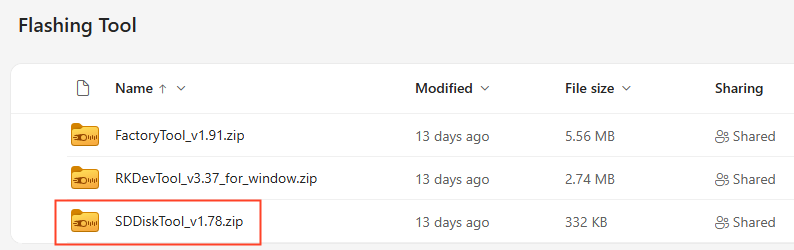
Please download from the Resource Download (https://www.forlinx.net/resources/download-center.html). Navigate to either the “OK3588-C/C2” or “OK3588S2-C” section based on your SoM model, . There is “SDDiskTool_v1.78.zip” under “TOOLS”->“Flashing Tool”. Download the zip package and extract it to the current directory.
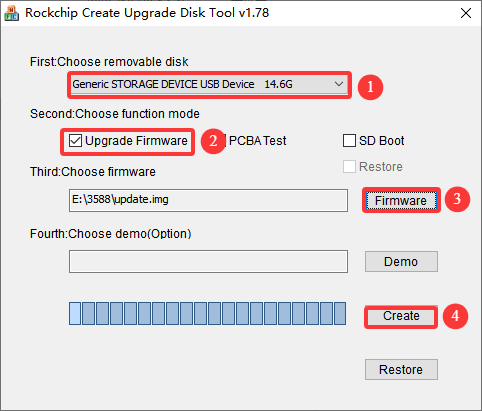
Run it:
Select the disk device, tick “Create”.
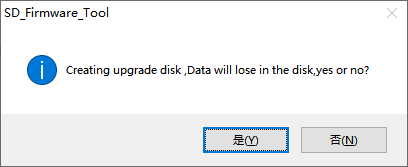
Creating upgrade disk, Data will lose in the disk, yes or no? select “Yes”.
After successfully creating the card, the following prompt will appear:
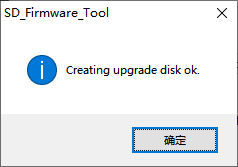
Step1: Connect the DEBUG serial port of the development board to the host using a Type‑C data cable, and open a serial terminal tool to monitor the flashing progress;
Step2: Insert the prepared TF flashing card into the the development board, then power up. The system will automatically enter the flashing process;
Step3: After flashing is complete, the serial terminal and display will output the following prompt information:
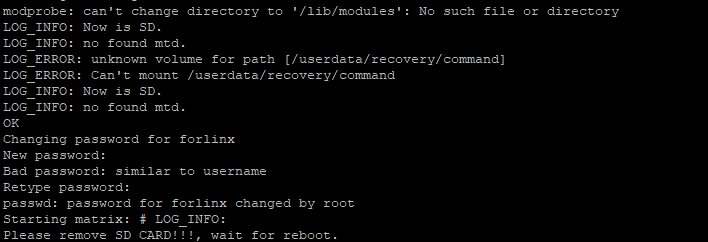
When prompted, pull out the TF card, and the system will automatically restart (please do not power off directly).
OS Development
1. Yocto Introduction
1.1 Yocto Project Overview
The Yocto Project is an open-source collaborative initiative led by the Linux Foundation, designed to provide developers with a complete toolchain for building customized embedded Linux systems tailored to specific hardware platforms, without being constrained by hardware architecture.
The project offers a flexible toolset and collaboration platform, enabling embedded developers worldwide to share technical solutions, software stacks, configuration parameters, and best practices. This allows for the efficient creation of Linux images for embedded devices, IoT terminals, and other customized scenarios.

1.2 Core Components
The Yocto Project primarily consists of the following core tools and subprojects:
BitBake: The build engine, similar to
makea task scheduler, responsible for parsing metadata and executing build tasks;OpenEmbedded-Core: A collection of fundamental meta-layers that contain the metadata required for software building (excluding the source code itself);
BSP (Board Support Package) Layer: Maintained by SoC manufacturers and community contributors, providing board-level hardware support;
Poky: The official reference distribution of Yocto, integrating multiple core projects and tools, serving as a starting point for building new distributions.
The Yocto source directory structure for OK3588-C is as follows:
OK-yocto-source$ tree -L 2
.
├── setup-environment -> sources/base/setup-environment
└── sources
    ├── base
    ├── meta-browser
    ├── meta-clang
    ├── meta-forlinx-rk
    ├── meta-lts-mixins
    ├── meta-openembedded
    ├── meta-qt6
    ├── meta-rockchip
    ├── openembedded-core
    └── poky
1.2.1 Core Components of the Build System
Directory / Files |
Function Description |
|---|---|
bitbake |
The BitBake build engine source code directory, serving as Yocto’s task scheduler and metadata interpreter. |
setup-environment |
Create an environment initialisation script. Once executed |
scripts |
Used to store various utility scripts provided by the Yocto project. |
build |
The actual working directory for the build process. |
1.2.2 Core Meta Layers
Meta Layer Name |
Function Description |
|---|---|
openembedded-core |
OpenEmbedded Core Layer: Provides the most fundamental system component recipes (e.g., glibc, busybox, systemd, coreutils), class files( |
meta-poky |
Configuration layer for the Poky reference distribution. |
poky |
The ‘superset’ directory for multiple components typically already contains submodules such as: |
1.2.3 Hardware BSP Layer
Meta Layer Name |
Function Description |
|---|---|
meta-rockchip |
Community-maintained Rockchip SoC support layer. |
meta-forlinx-rk |
Forlinx Embedded BSP layer, deeply customised for the RK3588 core board. |
1.2.4 Other Directories
Directory Name |
Function Description |
|---|---|
core-image-weston |
Store custom patches and configuration files related to the Wayland/Weston desktop environment. |
packages |
Store pre-downloaded third-party source code packages. |
1.3 OK3588 BSP Layer for Yocto Project
meta-forlinx-rk is a Yocto BSP Layer customized for the OK3588-C development board, based on the Rockchip RK3588 platform from Forlinx Embedded. This layer encompasses board-level configuration, custom distribution settings, and integration with the Weston desktop environment. Developers can quickly generate a complete system image that can be flashed using the Yocto build system.
1.3.1 Dependency
To build meta-forlinx-rk ,the following Yocto Layers are required:
Layer |
Repository URL |
Description |
|---|---|---|
|
git://git.yoctoproject.org/poky |
Yocto core layer(including |
|
git://git.openembedded.org/meta-openembedded |
OpenEmbedded Extension Layer(Use |
|
Rockchip SoC Supporting Layer |
1.3.2 Layer Directory Structure
meta-forlinx-rk directory structure:
meta-forlinx-rk/
├── conf/                                # Configuration files directory
├── recipes-bsp/                         # BSP-related recipes
│   ├── logo/logo-forlinx.bb             # Boot logo partition image
│   ├── misc/misc-forlinx.bb             # Misc partition image
│   └── u-boot/                          # U-Boot related recipes
│       ├── env-forlinx.bb               # U-Boot environment partition image
│       └── u-boot-rockchip.bbappend     # U-Boot customization patch
├── recipes-core/                        # Core system recipes
│   ├── base-files/                      # Login prompt customization
│   ├── images/                          # Image definitions
│   │   ├── core-image-minimal.bbappend  # Minimal console image extension
│   │   ├── core-image-weston.bbappend   # Weston desktop image extension
│   │   ├── forlinx-recovery-image.bb    # Recovery image
│   │   └── forlinx-recovery-initramfs.bb # Recovery initramfs
│   └── userdata/userdata-forlinx.bb     # Userdata partition image
├── recipes-graphics/                    # Graphics-related recipes
│   └── wayland/weston-init/             # Weston configuration files
│       ├── weston.ini                   # Compositor configuration
│       ├── weston.env                   # Environment variables
│       └── weston.service               # Systemd service unit
├── recipes-kernel/                      # Kernel customization recipes
│   └── linux/
└── wic/
    └── forlinx-gptdisk.wks.in            # GPT partition layout definition
1.3.3 Version Features
The Forlinx distribution is customised based on Poky, with the following key features:
Feature |
Configuration: |
|---|---|
Init System |
systemd(replaces sysvinit) |
Basic tool set |
coreutils(replaces busybox) |
PAM Support |
Enabled (satisfies systemd and Weston run dependencies) |
The Forlinx distribution is currently built on Yocto version 5.0.16.
2. Download Yocto Source Code
The Forlinx OK3588 BSP uses a manifest repository for management. Please contact Forlinx to be added to our project before use. You can visit the repository link to check whether you have the necessary permissions. You will also need to configure your GitHub credentials correctly on your local machine.
# manifest repository address
https://github.com/FLembedded/manifests_yocto
2.1 Configuring GitHub Authentication
You must configure GitHub authentication on your local machine for the repo tool to pull code successfully. This source repository is managed via SSH, so only the SSH authentication method is described here.
2.1.1 Generating an SSH key pair
Generate an SSH key pair.
forlinx@ubuntu:~$ ssh-keygen -t ed25519 -C "user_email"
After executing the command, you can press Enter all the way to use the default path. Two files will be generated:
forlinx@ubuntu:~$ ls ~/.ssh/
id_ed25519                      // Private key — do not share
id_ed25519.pub                  // Public key — used for uploading to GitHub
2.1.2 Adding the Public Key to GitHub
Log in to your GitHub account. Click your profile picture in the top-right corner and go to Settings->SSH and GPG keys.
Click the New SSH key.
Fill in, copy the public key content generated in the above steps to the Key field, and add.
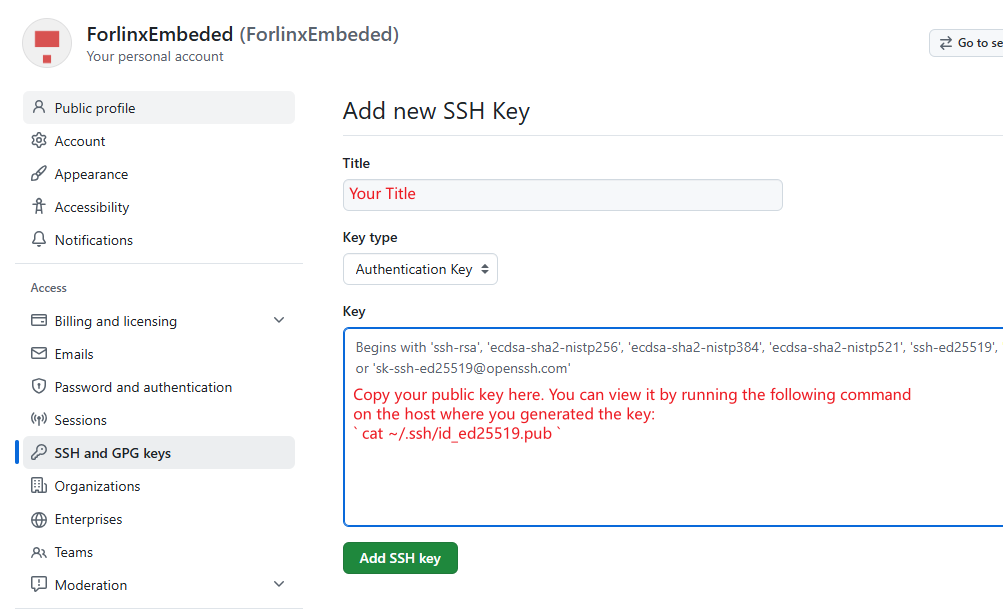
2.1.3 Verifying the GitHub Connection
Test if you can connect to GitHub via SSH using the following command:
forlinx@ubuntu:~$ ssh -T [email protected]
2.2 Repo Tool Installation
repo is a Google-based command-line tool based on Python for managing large projects consisting of multiple Git repositories.
2.2.1 System Requirements
repo based onPython3 (3.6+) and Git (2.x+). Please check the version before use.
forlinx@ubuntu:~$ python3 --version
forlinx@ubuntu:~$ git --version
If it is not installed, install it using the following command.
forlinx@ubuntu:~$ sudo apt-get update && sudo apt-get install python3 git -y
2.2.2 Installing
Refer to the following steps forrepoinstallation.
2.2.2.1 Getting Repo Source Code
Update the package list and install thecurlnetwork tools.
forlinx@ubuntu:~$ sudo apt-get update && sudo apt-get install curl
Download therepotool to the user directory./bin.
forlinx@ubuntu:~$ mkdir -p ~/.bin
forlinx@ubuntu:~$ curl https://storage.googleapis.com/git-repo-downloads/repo > ~/.bin/repo
2.2.2.2 Environment Setup
Grant repo execution permissions.
forlinx@ubuntu:~$ chmod a+rx ~/.bin/repo
Will write ~/.binto PATH.
forlinx@ubuntu:~$ echo PATH=~/.bin:$PATH >> ~/.bashrc
Apply the changes immediately.
forlinx@ubuntu:~$ source ~/.bashrc
2.3 Fetching Source Code Using repo
The Forlinx OK3588 BSP uses the manifest repository for management. The steps for cloning the source code are as follows:
2.3.1 Creating a Working Directory
Create a working directory and navigate to it.
forlinx@ubuntu:~$ mkdir rk3588
forlinx@ubuntu:~$ cd rk3588
2.3.2 Initializing the Repo Repository
Initialise the project repository; once this has been successfully completed, a hidden folder will be created.repo.
forlinx@ubuntu:~/rk3588$ repo init -u [email protected]:Forlinx-Embedded/manifests_yocto.git -b refs/tags/rk3588_release_v1.0 -m soc/rockchip/forlinx-rk.xml
2.3.3 Synchronizing the Code
Use therepo synccommand to synchronise the code.
forlinx@ubuntu:~/rk3588$ repo sync
⚠️Note:
The first synchronization may take a long time, depending on the project size and your network conditions;
If synchronization is interrupted, simply re-run repo sync
repo sync; it supports resumption from the point of failure;If your network is unstable, it is recommended to reduce the concurrency (e.g.
-j4). Excessive concurrency may lead to connection failures.
2.4 Pre-downloaded Software Packages
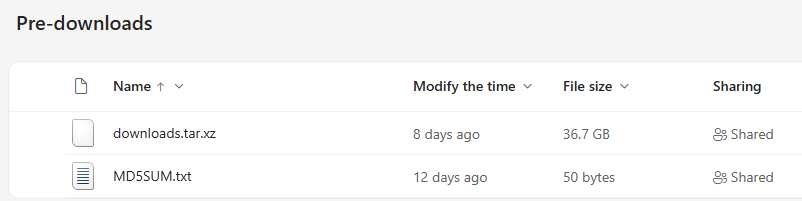
As Yocto needs to fetch the source code for the required packages during compilation, the process takes quite a long time. To reduce compilation time, Forlinx provides pre-downloaded source code packages, which you can use as follows:
Please go to Resource Download(https://www.forlinx.net/resources/download-center.html. On that page, select “ OK3588-C/C2” or “OK3588S2-C” page. Under “RESOURCES” -> “Yocto Packages”, you will find “downloads.tar.xz”. Extract the downloaded source package into the OK-yocto-source directory.
2.5 Utility Tools
The SDK contains executable tools for Linux, macOS, and Windows. However, the tools directory fetched in the previous step only includes the tools for Linux. To use the tools on macOS or Windows, please download via the link below:
https://github.com/FLembedded/buildroot_dl/releases/download/tools/tools.tar.xz
3. Step-by-Step Guide to Building Yocto
3.1 Host Setup
It is recommended to use Ubuntu 22.04 or a later version for compilation.
Execute the following commands in your build environment (the installation commands apply to Ubuntu 22.04):
sudo apt update
sudo apt-get -f -y install \
  git build-essential diffstat texinfo gawk chrpath socat doxygen \
  dos2unix python3 bison flex libssl-dev u-boot-tools mono-devel \
  mono-complete curl python3-distutils repo pseudo python3-sphinx \
  g++-multilib libc6-dev-i386 jq git-lfs pigz zstd liblz4-tool \
  cpio file lz4 debianutils iputils-ping python3-git python3-jinja2 \
  python3-subunit locales libacl1 unzip gcc python3-pip python3-pexpect \
  xz-utils wget \
3.2 Compilation
3.2.1 Starting the Build
Before compiling, you need to set the shell environment variables. You need to do this every time you open a new shell to start a build:
source setup-environment

========================================
  Forlinx Yocto Build Environment Setup
========================================

Available Rockchip chips:
  1) rk3588  (default)
  2) rk3588s2
  3) rk3568
  4) rk3568up4

Select chip [1-4]:
Select the appropriate option based on the target core board:
If compiling for OK3588-C or OK3588-C2, enter the number 1 to select the “rk3588” option;
If compiling for OK3588S2-C, enter the number 2 to select the “rk3588s2” option.
Once executed, the current working directory will automatically switch to build/.
Before the initial build, you should check the following two configuration files, using the rk3588 as an example.
Check
build/conf/local.conf:
# Forlinx Add
MACHINE = "ok3588"
CHIP = "rk3588"
DISTRO = "forlinx"
BB_DANGLINGAPPENDS_WARNONLY = "1"
Variables: |
Description |
|---|---|
|
Target machine, designated as the OK3588-C platform |
CHIP |
Target chip model |
|
Distribution, using the Forlinx distribution customised by Forlinx |
|
When set to |
Open
build/conf/bblayers.confand checkBBLAYERSwhether it contains the necessary layers, such as meta-forlinx-rk:
BBLAYERS ?= " \
  ${TOPDIR}/../sources/poky/meta \
  ${TOPDIR}/../sources/poky/meta-poky \
  ${TOPDIR}/../sources/meta-rockchip \
  ${TOPDIR}/../sources/meta-clang \
  ${TOPDIR}/../sources/meta-openembedded/meta-oe \
  ${TOPDIR}/../sources/meta-openembedded/meta-python \
  ${TOPDIR}/../sources/meta-openembedded/meta-networking \
  ${TOPDIR}/../sources/meta-openembedded/meta-multimedia \
  ${TOPDIR}/../sources/meta-browser/meta-chromium \
  ${TOPDIR}/../sources/meta-lts-mixins \
  ${TOPDIR}/../sources/meta-forlinx-rk \
  "
3.2.2 Full Compilation
Forlinx offers two types of distribution versions for specifying the target image; their configuration is located in the OK-yocto-source/sources/meta-forlinx-rk/recipes-core/images directory. This distribution definition determines the specific combination of Linux kernel variants, system tools, runtime libraries and additional software packages used in the final image.
OK3588 distribution versions:
Target distribution |
Description |
|---|---|
forlinx-image-weston |
Integration with Weston desktop environment, wayland components, glmark2GPU testing tools, etc. |
core-image-minimal |
Systems with no graphical requirements |
Build an image with the Weston desktop:
OK-yocto-source/build$ bitbake forlinx-image-weston
Build a minimal image without the Weston desktop:
OK-yocto-source/build$ bitbake core-image-minimal
Once compilation is complete, the system image update.img will be generated in the build/latest directory. The specific directory structure is as follows (where each image file is a symbolic link pointing to the source file):
OK-yocto-source/build/latest$ tree
.
├── boot.img -> boot.img--6.1-r0-ok3588-20260428031547.bin
├── boot.img--6.1-r0-ok3588-20260428031547.bin
├── forlinx-image-weston-ok3588.rootfs.update.img
├── forlinx-image-weston-ok3588.rootfs-20260429062903.ext4
├── forlinx-image-weston-ok3588.rootfs.ext4 -> forlinx-image-weston-ok3588.rootfs-20260429062903.ext4
├── rootfs.img -> forlinx-image-weston-ok3588.rootfs.ext4
├── uboot.img -> uboot-ok3588-2017.09-r0.bin
├── uboot-ok3588-2017.09-r0.bin
├── update.img -> forlinx-image-weston-ok3588.rootfs.update.img
├── userdata.img
Function Description
Image File |
Function Description |
|---|---|
|
Complete System Image (Used for whole-device flashing.) |
|
Linux Kernel & Device Tree Image |
|
U-Boot Bootloader Image |
|
Root Filesystem Image |
|
User Data Partition Image |
3.2.3 Partial Compilation
3.2.3.1 Build u-boot
If you compile only u-boot, you will get uboot.img. The file path is:
OK-yocto-source/build/latest/uboot.img.
The command is:
OK-yocto-source/build$ bitbake u-boot-rockchip
Compiling u-boot alone takes approximately one minute.
The u-boot source directory is:
OK-yocto-source/build/tmp/work/ok3588-forlinx-linux/u-boot-rockchip/2017.09/git
The u-boot configuration file is:
configs/OK3588-C_defconfig or OK3588S2-C_defconfig.
These are the board-level default configuration files for u-boot, which define the runtime parameters for U-Boot on OK3588-C.
The u-boot device tree file is:
arch/arm/dts/OK3588-C-Linux.dts.
3.2.3.2 Build Kernel
If you compile only the kernel, you will get boot.img. The file path is:
OK-yocto-source/build/latest/boot.img.
The command is:
OK-yocto-source/build$ bitbake linux-rockchip
Compiling the kernel alone takes approximately two minutes.
The kernel source directory is:
OK-yocto-source/build/tmp/work-shared/ok3588/kernel-source
The kernel device tree file directory is:
arch/arm64/boot/dts/rockchip.
The device tree files are:
Platform |
Device Tree File Path |
Description |
|---|---|---|
OK3588-C/OK3588-C2 |
OK3588-C-linux.dts |
Main device tree for OK3588-C/OK3588-C2. The corresponding .dtb file is generated from the compilation. |
OK3588-C-common.dtsi |
Common hardware definitions for the OK3588-C/OK3588-C2, such as USB controller, I2C, and UART interfaces, are included in the main device tree. |
|
OK3588-C-Camera.dtsi |
Configuration for the OK3588-C/OK3588-C2 camera interface. This file is included in the main device tree. is included in the main device tree. |
|
OK3588S2-C |
OK3588S2-C-linux.dts |
Main device tree for OK3588S2-C. The corresponding .dtb file is generated from the compilation. |
OK3588S2-C-common.dtsi |
Common hardware definitions for OK3588S2-C, such as USB controllers, I2C and UART interfaces, are included in the main device tree. |
|
OK3588S2-C-Camera.dtsi |
Configuration for the OK3588S2-C camera interface . This file is included by the main device tree. |
The kernel configuration file is:arch/arm64/configs/OK3588-C-linux_defconfig.
3.2.3.3 Build Rootfs
To add additional packages to the image, compile build/conf/local.confand use the IMAGE_INSTALL:append command to add the package name.
Take adding libraw as an example:
IMAGE_INSTALL:append = " libraw"
⚠️Note: The space before the"libraw" must not be omitted; this is a requirement of the BitBake append syntax. Omitting the space will result in an error when concatenating the package name with the previous entry.
Once saved, rebuild the image; the new packages will be automatically included in the root filesystem. After flashing the image, check whether the package is present in the /usr/lib directory:
forlinx@ok3588:/usr/lib$ ls libraw
libraw.so.23        libraw.so.23.0.0    libraw_r.so.23      libraw_r.so.23.0.0
3.3 Compiling Application
This section outlines Forlinx hardware testing fileforlinx-demoand explains how to install a cross-compilation toolchain and compile custom applications; it is intended for scenarios where you need to deploy your own business code onto the development board.
3.3.1 Forlinx Test Programm Procedure
The board-level hardware test programs provided by Forlinx (ADC, GPIO, SPI, UART, Watchdog, RPMSG, etc.) are uniformly packaged in the forlinx-demo recipe, with source code hosted in a GitHub repository. If you wish to compile and add your own applications, you can refer to this recipe. Path:meta-forlinx-rk/recipes-bsp/forlinx-demo/forlinx-demo_1.0.bb.
SUMMARY     = "Forlinx demo tools (hardware test binaries)"
DESCRIPTION = "Collection of board hardware-test programs (ADC/GPIO/SPI/UART/\
watchdog/rpmsg) shipped as one package."
LICENSE = "CLOSED"
SRC_URI = "git://[email protected]/FLembedded/forlinx-demo.git;protocol=ssh;branch=master"
SRCREV  = "3ecc539f6bd869a3b624901f9d4d5703fb70afe9"

S = "${WORKDIR}/git"

COMPATIBLE_HOST = "aarch64.*-linux"

DEMO_DIRS = "\
    fltest_adctest \
    fltest_keytest \
    fltest_rpmsg \
    fltest_spidev_test \
    fltest_uarttest \
    fltest_watchdog \
    fltest_watchdogrestart \
"
do_compile() {
    for d in ${DEMO_DIRS}; do
        [ -f "${S}/$d/Makefile" ] || continue
        oe_runmake -C "${S}/$d"
    done
}

do_install() {
    install -d ${D}${bindir}

    for d in ${DEMO_DIRS}; do
        case "$d" in
            # Makefile emits fltest_pingpang, not fltest_rpmsg.
            fltest_rpmsg)
                bin=fltest_pingpang
                dest=fltest_pingpang
                ;;
            *)
                bin="$d"
                dest="$d"
                ;;
        esac
        [ -f "${S}/$d/$bin" ] || continue
        install -m 0755 "${S}/$d/$bin" "${D}${bindir}/$dest"
    done

    # Loose shell script (not in a subdir, so outside the DEMO_DIRS loop).
    install -m 0755 ${S}/fltest_extgpio.sh ${D}${bindir}/
}
Add this recipe to forlinx-image-packages.inc, the path is OK-yocto-source/sources/meta-forlinx-rk/recipes-core/images:
# Forlinx test demos.
IMAGE_INSTALL:append = " forlinx-demo"
You can compile this recipe using the following command:
bitbake forlinx-demo
Once the full image has been compiled and flashed to the development board, the test programme mentioned above will be automatically installed in the /usr/bin/ directory and can be invoked directly from the command line.
3.3.2 Compiling using a Cross-compilation Toolchain
3.3.2.1 Installing the Cross-compilation Toolchain
Please download the cross-compilation toolchain via the following link:
Copy the downloaded SDK installation script forlinx-glibc-x86_64-forlinx-image-weston-cortexa76-cortexa55-ok3588-toolchain-v1.0.sh to the user’s home directory on the host machine, then run the following command to install it:
./forlinx-glibc-x86_64-forlinx-image-weston-cortexa76-cortexa55-ok3588-toolchain-v1.0.sh
During the installation process, you will be prompted to select an installation path. Simply press Enter to use the default path.
Forlinx Embedded Linux (Poky-based Yocto) SDK installer version v1.0
====================================================================
Enter target directory for SDK (default: /opt/forlinx/v1.0):
You are about to install the SDK to "/opt/forlinx/v1.0". Proceed [Y/n]? y
Once installation is complete, the toolchain will be located in the /opt/forlinx/v1.0/ directory
3.3.2.2 Compiling the Application
Configure the cross-compilation environment using the following command:
source /opt/forlinx/v1.0/environment-setup-cortexa76-cortexa55-forlinx-linux
⚠️Note: This command sets environment variables such asCC, CFLAGS, ARCH and others to point to the ARM64 cross-compiler. This configuration is only effective in the current terminal. Once the terminal is closed, the setup needs to be re-executed.
Taking a Hello World program as an example, create the file helloworld.c:
#include <stdio.h>

int main(void)
{
    printf("Hello, Embedded World!\n");
    return 0;
}
Compile it using the following command:
$CC -o helloworld helloworld.c
Copy the compiled helloworld program to the board for execution:
./helloworld
Hello, Embedded World!
If you want to put the compiled application in the system image, you can create a bin directory under theOK-yocto-source/sources/meta-forlinx-rk/overlay/overlay-ok3588/usr:
OK-yocto-source/sources/meta-forlinx-rk/overlay/overlay-ok3588/usr$ mkdir bin
Copy the compiled application to theOK-yocto-source/sources/meta-forlinx-rk/overlay/overlay-ok3588/usr/bin, and then proceed with the overall build.
Application Development
Peripheral Access
⚠️Note: The source code used in this section is located in the BSP at OK-yocto-source/build/tmp/work-shared/ok3588/kernel-source/. All subsequent references to the kernel path are based on this location and will not be repeated.
1. ADC
1.1 Introduction
An ADC (analog-to-digital converter) is an electronic device or circuit that converts a continuous analog signal into a discrete digital signal.
The OK3588-C development board features 8 x ADC: saradc2, saradc4, saradc5, saradc6 and saradc7 are led out from the carrier board, whilst the saradc1 is used for the ADC button detection circuit.
5 x ADC and ADC button locations:

⚠️Note: The OK3588S2-C does not support saradc6 and saradc7.
The ADC button driver source code are located in:drivers/input/keyboard/adc-keys.c.
1.2 Device Tree
The ADC device tree definitions are located in:arch/arm64/boot/dts/rockchip/rk3588s.dtsi.
saradc: saradc@fec10000 {
    compatible = "rockchip,rk3588-saradc";
    reg = <0x0 0xfec10000 0x0 0x10000>;
    interrupts = <GIC_SPI 398 IRQ_TYPE_LEVEL_HIGH>;
    #io-channel-cells = <1>;
    clocks = <&cru CLK_SARADC>, <&cru PCLK_SARADC>;
    clock-names = "saradc", "apb_pclk";
    resets = <&cru SRST_P_SARADC>;
    reset-names = "saradc-apb";
    status = "disabled";
};
By default, SARADC is disabled. Please enable saradc in the corresponding device tree:
OK3588-C/3588-C2 :arch/arm64/boot/dts/rockchip/OK3588-C-common.dtsi
OK3588S2-C:arch/arm64/boot/dts/rockchip/OK3588S2-C-common.dtsi
&saradc {
	status = "okay";
	vref-supply = <&vcc_1v8_s0>;
};
In this case, the saradc1 channel is used for ADC button detection, and the device tree node is:
adc_keys: adc-keys {
		compatible = "adc-keys";
		io-channels = <&saradc 1>;
		io-channel-names = "buttons";
		keyup-threshold-microvolt = <1800000>;
		poll-interval = <100>;

		vol-up-key {
			label = "volume up";
			linux,code = <KEY_VOLUMEUP>;
			press-threshold-microvolt = <17000>;
		};

		vol-down-key {
			label = "volume down";
			linux,code = <KEY_VOLUMEDOWN>;
			press-threshold-microvolt = <417000>;
		};

		menu-key {
			label = "menu";
			linux,code = <KEY_MENU>;
			press-threshold-microvolt = <890000>;
		};

		back-key {
			label = "back";
			linux,code = <KEY_BACK>;
			press-threshold-microvolt = <1235000>;
		};
};
1.3 Application
1.3.1 Voltage Input Test
Select the SARADC2 for testing. The ADC pins are shown in the hardware diagram below. Currently, the chip uses a 1.8 V reference voltage for the 12-bit ADC, with a maximum value of 4095.
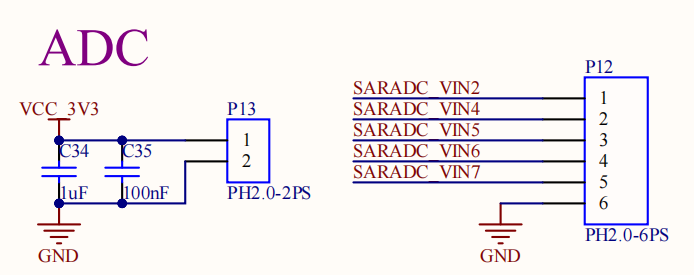
Connect pin 1 on P12 to pin 2 on P13. The right-hand pin on P12 is pin 1, and the left-hand pin on P13 is also pin 1.
View saradc2 value:
forlinx@ok3588:~$ cd /sys/bus/iio/devices/iio\:device0/
forlinx@ok3588:/sys/bus/iio/devices/iio:device0$ cat in_voltage2_raw
2
Short pin 1 of P12 and pin 1 of P13 to see the value of saradc2:
forlinx@ok3588:/sys/bus/iio/devices/iio:device0$ cat in_voltage2_raw
4095
1.3.2 ADC Key Test
The saradc1 channel is used as an ADC key detection circuit, employing a resistor voltage divider structure. When different keys are pressed, the voltage division ratio changes, resulting in different voltages read by the ADC. The program identifies specific keys by determining the voltage range. The principle is illustrated in the diagram below:
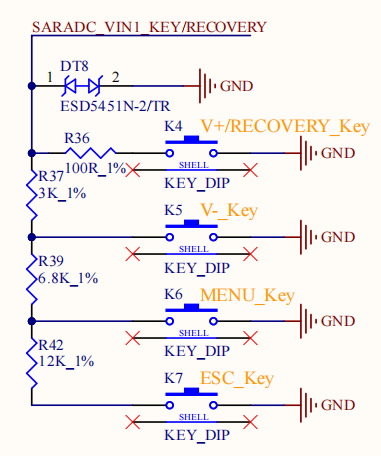
Use the fltest_keytest command-line tool for key testing. Currently, fltest_keytest supports testing the four keys on the carrier board: VOL+, VOL-, MENU, and ESC, with key codes 115, 114, 139, and 158 respectively. Execute the following command:
forlinx@ok3588:~$ fltest_keytest
Available devices:
/dev/input/event5:    adc-keys
At this point, press and release the button sequentially, and the terminal will output the followings:
key115 Presse
key115 Released
key114 Presse
key114 Released
key139 Presse
key139 Released
key158 Presse
key158 Released
fltest_keytest source code path: OK-yocto-source/build/tmp/work/cortexa76-cortexa55-forlinx-linux/forlinx-demo/1.0/git/fltest_keytest
1.3.3 Application Programming
In OK3588, the input event node for the ADC button is located at /dev/input/eventX (where X is the specific number). The application must include the header file <linux/input.h>, which defines the structures and macros related to input events.
The core data structure struct input_event is defined as follows:
struct input_event {
    struct timeval time;  // Event timestamp
    __u16 type;           // Event type (e.g., EV_KEY)
    __u16 code;           // Key code
    __s32 value;          // 0 = released, 1 = pressed, 2 = held (repeat)
};
Common values for the type field are defined by the following macros:
Macro Definition |
Value |
Description |
|---|---|---|
EV_KEY |
1 |
Key event |
EV_SYN |
0 |
Synchronization events |
The ioctl command used to get the device name:
ioctl(fd, EVIOCGNAME(sizeof(name)), name);
1.3.3.1 Scanning and Locating Key Devices
The input device corresponding to the OK3588 ADC keys is named "adc-keys". Since there may be multiple event devices under /dev/input/, it is necessary to first scan and find the correct device node:
ndev = scandir(DEV_INPUT_EVENT, &namelist, is_event_device, alphasort);
if (ndev <= 0)
	return NULL;
is_event_device serves as a filter function, retaining only device files whose names begin with “event”:
static int is_event_device(const struct dirent *dir) {
    return strncmp(EVENT_DEV_NAME, dir->d_name, 5) == 0;
}
Traverse all event devices, read the device name via ioctl, and filter out the device named "adc-keys":
ioctl(fd, EVIOCGNAME(sizeof(name)), name);
if (strncmp(name, "adc-keys", strlen("adc-keys")) != 0)
	continue;
1.3.3.2 Opening the Key Device
Use the open function to open the key device and obtain the file descriptor:
keys_fd = open(event_name, O_RDONLY);
if(keys_fd<=0)
{
	printf("open %s device error!\n", event_name);
	return 0;
}
Where event_name is the device node path obtained during the scanning phase, for example /dev/input/event3.
1.3.3.3 Reading Key Events
After opening the device, use the read function in a loop to read the struct input_event structure and obtain key events:
while(1)
{
	if(read(keys_fd,&t,sizeof(t))==sizeof(t)) {
		if(t.type==EV_KEY)
			if(t.value==0 || t.value==1)
			{
				printf("key%d %s\n",t.code, (t.value)?"Presse":"Released");
			}
	 }
}
read reads one complete input_event structure each time (typically 16 or 24 bytes). It is necessary to check whether the return value equals sizeof(t) to ensure data integrity.
1.3.3.4 Closing the Device
After key monitoring is complete, close the device file descriptor to release resources:
close(keys_fd);
2. Frequency
The RK3588 features a big.LITTLE architecture, combining four Cortex-A55 (small cores) and four Cortex-A76 (big cores). The core counts and clock speed specifications are as follows:
SoM Type |
SoM ID |
Tuning Strategy |
|---|---|---|
Cortex-A55 (small cores) |
cpu0 ~ cpu3 |
Share the same frequency domain; adjusting the frequency of any one core causes the other three cores to change synchronously |
Cortex-A76 (large cores) |
cpu4 ~ cpu7 |
Each core is tuned independently, without affecting the others. |
⚠️Note: The operating frequency of the A55 small core must not be lower than that of the A76 large core; please bear this constraint in mind when configuring.
Taking the configuration of CPU4 frequency as an example:
View all supported cpufreq governor types:
forlinx@ok3588:~$ cat /sys/devices/system/cpu/cpu4/cpufreq/scaling_available_governors
interactive conservative ondemand userspace powersave performance schedutil
governor types |
Description |
|---|---|
interactive |
Designed specifically for mobile devices (such as Android). |
ondemand |
Adjusts dynamically based on current CPU utilisation. |
conservative |
Similar to ondemand, but with smoother frequency adjustments. The frequency increases or decreases gradually, rather than jumping directly to the maximum. |
userspace |
Delegate control of the frequency to the user-space programme. |
powersave |
Set the CPU frequency to the minimum. |
performance |
Set the CPU frequency to the maximum. |
schedutil |
It is tightly coupled with the Linux scheduler (such as CFS) and uses the CPU utilisation information (util_avg) provided by the scheduler to dynamically adjust the frequency. |
View the frequency steps supported by your current CPU:
forlinx@ok3588:~$ cat /sys/devices/system/cpu/cpu4/cpufreq/scaling_available_frequencies
408000 600000 816000 1008000 1200000 1416000 1608000 1800000 2016000 2208000 2256000
Set the current mode to user mode:
forlinx@ok3588:~$ echo userspace | sudo tee /sys/devices/system/cpu/cpu4/cpufreq/scaling_governor
View current frequency:
forlinx@ok3588:~$ sudo cat /sys/devices/system/cpu/cpu4/cpufreq/cpuinfo_cur_freq
2352000
Set the frequency of CPU4 to 1,800,000:
forlinx@ok3588:~$ echo 1800000 | sudo tee /sys/devices/system/cpu/cpu4/cpufreq/scaling_setspeed
1800000
Check if the modified frequency is 1,800,000.
forlinx@ok3588:~$ sudo cat /sys/devices/system/cpu/cpu4/cpufreq/cpuinfo_cur_freq
1800000
3. GPIO
3.1 Introduction
GPIO (General-Purpose Input/Output) is a type of general-purpose digital signal pin found on microcontrollers or System-on-Chip (SoC) devices in embedded systems. Its core feature is that its functionality can be flexibly configured by software at runtime, thereby enabling simple digital signal interaction with external devices.
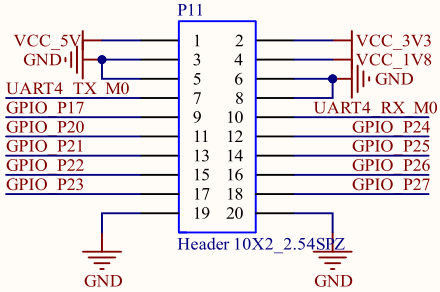
The extended I/O pins are led out from the carrier board, located on P11. The location on the board:

The schematic is shown below:
3.2 Device Tree
3.2.1 Native GPIO
The native GPIO device tree node is located in arch/arm64/boot/dts/rockchip/rk3588s.dtsi. Taking gpio3 as an example:
gpio3: gpio@fec40000 {
		compatible = "rockchip,gpio-bank";
		reg = <0x0 0xfec40000 0x0 0x100>;
		interrupts = <GIC_SPI 280 IRQ_TYPE_LEVEL_HIGH>;
		clocks = <&cru PCLK_GPIO3>, <&cru DBCLK_GPIO3>;

		gpio-controller;
		#gpio-cells = <2>;
		gpio-ranges = <&pinctrl 0 96 32>;
		interrupt-controller;
		#interrupt-cells = <2>;
};
If you need to configure an IO pin as an external interrupt pin, you can refer to the device tree node configuration of the GT911 touchscreen. For example, you can set GPIO3_C0 as an interrupt pin and designate GPIO3_B7 as the reset pin for the touchscreen.
gt9xx_dsi0: gt9xx@14 {
compatible = "goodix,gt911";
reg = <0x14>;
pinctrl-names = "gt9xx_default";
pinctrl-0 = <>911_dsi0_gpio>;
interrupt-parent = <&gpio3>;
interrupts = <RK_PC0 IRQ_TYPE_EDGE_FALLING>;
irq-gpio = <&gpio3 RK_PC0 GPIO_ACTIVE_HIGH>;
reset-gpio = <&gpio3 RK_PB7 GPIO_ACTIVE_HIGH>;
touchscreen-size-x = <1024>;
touchscreen-size-y = <600>;
is-mutex;
filter-reg = <0x38>;
bus-reg = <0x02>;
status = "okay";
};
&pinctrl {
gt911_dsi0_gpio:gt911-dsi0-gpio {
rockchip,pins = <3 RK_PB7 RK_FUNC_GPIO &pcfg_pull_none>,
<3 RK_PC0 RK_FUNC_GPIO &pcfg_pull_none>;
};
interrupt-parent: Specifies the interrupt controller as the GPIO3 module.
interrupts: Indicates the interrupt number and trigger type. RK_PC0 refers to pin PC0 of GPIO3, with interrupt trigger mode set to falling edge.
irq-gpio: Specifies the interrupt GPIO pin.
pinctrl node: <3 RK _ PB7 RK _ FUNC _ GPIO & pcfg _ pull _ none> indicates that GPIO3 _ B7 is configured as an IO function.
3.2.2 Extend GPIO
The OK3588-C carrier board features a TCA6424 chip acting as an I/O expander, which provides an additional 24 x general-purpose input/output pins via the I²C bus to address the issue of insufficient GPIO pins on the host controller (such as a CPU or MCU).
The device tree nodes for the GPIO expansion are located at:
OK3588-C/3588-C2 : arch/arm64/boot/dts/rockchip/OK3588-C-common.dtsi
OK3588S2-C: arch/arm64/boot/dts/rockchip/OK3588S2-C-common.dtsi.
&i2c2 {
	status = "okay";
        //extend GPIO: TCA6424
	extio: tca6424@23 {
		compatible = "ti,tca6424";
		reg = <0x23>;
		interrupt-parent = <&gpio1>;
		interrupts = <RK_PA4 IRQ_TYPE_EDGE_FALLING>;
		gpio-controller;
		interrupt-controller;
		#interrupt-cells = <2>;
		pinctrl-0 = <&extio_int_gpio>;
		pinctrl-names = "default";
		#gpio-cells = <2>;
		status = "okay";
	};
};
3.3 Application
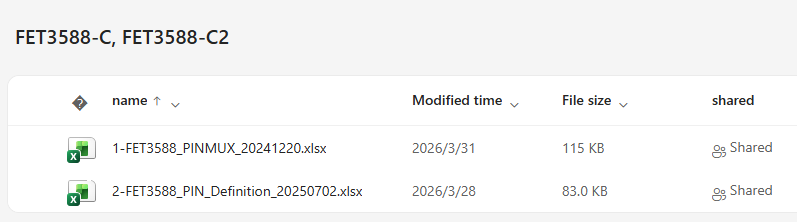
Please refer to the PinMUX table for the usage of the OK3588’s GPIO pins.
Download from the Resource Download (https://www.forlinx.net/resources/download-center.html).
Select the “OK3588-C/C2” or “OK3588S2-C” page according to the model no., then go to “DOCUMENTS” -> “PinMUX” to view the pin multiplexing configuration.
3.3.1 Native GPIO
3.3.1.1 Pin Calculation Method
RK3588 features 5 GPIO groups: GPIO0 to GPIO4. Each group has pins numbered from A0 to A7, B0 to B7, C0 to C7, and D0 to D7.
The naming rule for GPIO is GPIOn_xy. Here, x can take one of four forms: A, B, C, or D. In the GPIO numbering calculation, A corresponds to 1, B to 2, C to 3, and D to 4.
The calculation formula is:
GPIOn_xy = n × 32 + (x - 1) × 8 + y
Here is an example using GPIO3_B0 to demonstrate the calculation of its GPIO number.
GPIO3_B0 = 3 × 32 + (2 − 1) × 8 + 0 = 104
3.3.2 Extend GPIO
OK3588 is equipped with an extended IO chip that supports one GPIO group: gpiochip6, which provides 24 GPIO pins.
The naming rule for the extended GPIO is EXTIO_GPIO_Pxx, with pin numbers ranging from P00 to P27 and a corresponding GPIO numbering range of 485 to 508.
forlinx@ok3588:~$ sudo cat /sys/kernel/debug/gpio | grep i2c
gpiochip6: GPIOs 485-508, parent: i2c/2-0023, 2-0023, can sleep:
3.3.3 GPIO Test Demo
3.3.3.1 Native GPIO
Use the script to test the OK3588 native fltest_gpio.sh pins.
forlinx@ok3588:~$ fltest_gpio.sh -h
/usr/bin/fltest_gpio.sh <GPIO_NAME> <1/0>
User:/usr/bin/fltest_gpio.sh GPIO3_A7 1
forlinx@ok3588:~$ sudo fltest_gpio.sh GPIO3_A7 1
===GPIO3_A7===1
3.3.3.2 Extend GPIO
To test the extended IO of OK3588, use the fltest_extgpio.sh script.
Taking GPIO_P17 pin as an example for testing, to set GPIO_P17 to high level:
forlinx@ok3588:~$ sudo fltest_extgpio.sh GPIO_P17 1
485
17
500
===GPIO_P17===1
To set GPIO_P17 to a low level:
forlinx@ok3588:~$ sudo fltest_extgpio.sh GPIO_P17 0
485
17
500
===GPIO_P17===0
4. PWM
4.1 Introduction
PWM is the abbreviation for Pulse Width Modulation. It is a technology that uses a digital signal (high and low levels) to produce analog-like effects. The core idea is to control the average output voltage or power by varying the proportion of time the signal stays high within a fixed period (i.e., the duty cycle).
The OK3588-C features 4 x PWM: PWM2, PWM4, PWM5 and PWM6. Specifically, PWM4, PWM5 and PWM6 are used for backlight control of EDP, DSI0 and DSI1 respectively, whilst PWM2 is used for fan control.
Location of the backlight driver source code in the kernel:drivers/video/backlight/pwm_bl.c.
4.2 Device Tree
The device tree node for the PWM of the OK3588-C/3588-C2 is located at:
kernel-6.1/arch/arm64/boot/dts/rockchip/OK3588-C-common.dtsi.
The device tree node for the OK3588S2-C PWM is located at:
kernel-6.1/arch/arm64/boot/dts/rockchip/OK3588S2-C-common.dtsi:
&pwm2 { 										// FAN
	status = "okay";
};

&pwm4 { 										// edp
	status = "okay";
};

&pwm5 {											// dsi0
	pinctrl-0 = <&pwm5m1_pins>;
	status = "okay";
};

&pwm6 {											// dsi1
	status = "okay";
};

fan: pwm-fan {
		compatible = "pwm-fan";
		#cooling-cells = <2>;
		pwms = <&pwm2 0 50000 0>;
};

backlight_dsi0: backlight-dsi0 {
		compatible = "pwm-backlight";
		pwms = <&pwm5 0 50000 0>;
		status = "okay";
};
4.3 Application
4.3.1 Screen Backlight Control
The backlight brightness setting range is (0-255), where 255 represents the highest brightness and 0 indicates the backlight is turned off. Connect a MIPI display to MIPI DSI0 and power on the board.
Use the following command to view all backlight devices:
forlinx@ok3588:~$ ls /sys/class/backlight/
backlight-dsi0  backlight-dsi1  backlight-edp1
Here, backlight-dsi0 corresponds to the DSI0 interface.
To check the current backlight brightness value of the backlight-dsi0 device:
forlinx@ok3588:~$ cat /sys/class/backlight/backlight-dsi0/brightness
200
To set the backlight brightness of the DSI0 screen to 0 (i.e., turn off the backlight), write 0 to the backlight device:
forlinx@ok3588:~$ sudo bash -c 'echo 0 > /sys/class/backlight/backlight-dsi0/brightness'
To restore the backlight brightness of the DSI0 screen to 200, write 200 to the backlight device:
forlinx@ok3588:~$ sudo bash -c 'echo 200 > /sys/class/backlight/backlight-dsi0/brightness'
5. UART
5.1 Introduction
There are 4 x UART interfaces: UART2, UART4, UART6, and UART9. They are defined as follows: UART2 (System Debug Console), UART4 (General-purpose TTL UART), UART6 (Bluetooth-dedicated UART), and UART9 (RS-485 Communication UART). On the development board, the default device names for UART4 and UART9 are /dev/ttyS4 and /dev/ttyS9, respectively.
UART |
Device Nodes |
Description |
|---|---|---|
UART2 |
/dev/ttyS2 |
The serial port cannot be directly used for this test. |
UART4 |
/dev/ttyS4 |
TTL level, P11 led out, can be used for test. |
UART6 |
/dev/ttyS6 |
Used for Bluetooth, not led out separately, cannot be used directly for this test. |
UART9 |
/dev/ttyS9 |
RS485 |
UART4 (P11 pins 7 and 10) and 485 are located on the board as follows:
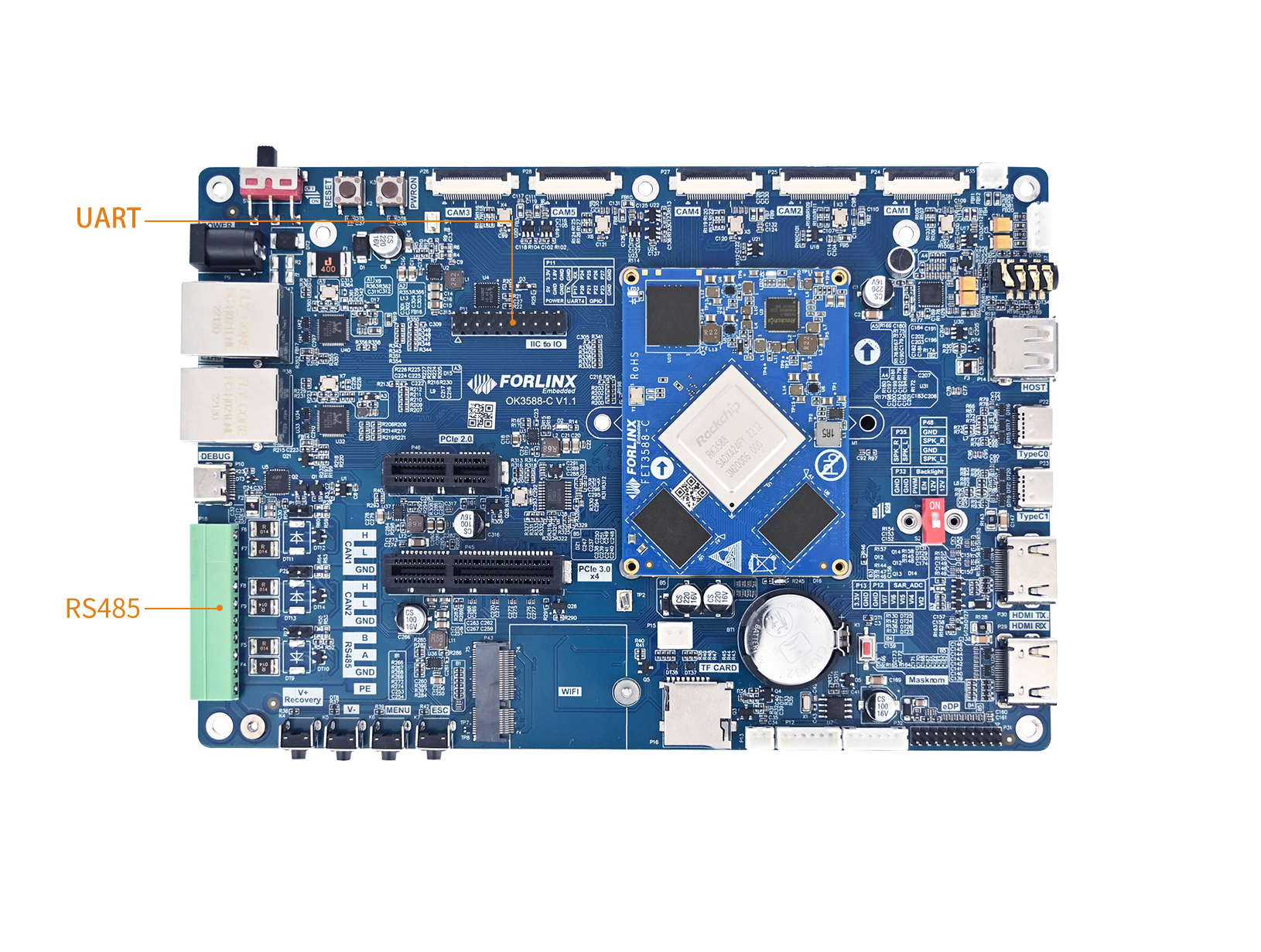
The driver source code within the kernel are located in: drivers/tty/serial/8250/8250_dw.c.
5.2 Device Tree
The UART device tree node is located in: arch/arm64/boot/dts/rockchip/rk3588s.dtsi.
Take uart4 as example:
uart4: serial@feb70000 {
    compatible = "rockchip,rk3588-uart", "snps,dw-apb-uart";
    reg = <0x0 0xfeb70000 0x0 0x100>;
    interrupts = <GIC_SPI 335 IRQ_TYPE_LEVEL_HIGH>;
    clocks = <&cru SCLK_UART4>, <&cru PCLK_UART4>;
    clock-names = "baudclk", "apb_pclk";
    reg-shift = <2>;
    reg-io-width = <4>;
    dmas = <&dmac1 9>, <&dmac1 10>;
    pinctrl-names = "default";
    pinctrl-0 = <&uart4m1_xfer>;
    status = "disabled";
};
It is not enabled by default, and you need to open UART in the corresponding device tree:
OK3588-C/3588-C2 : arch/arm64/boot/dts/rockchip/OK3588-C-common.dtsi。
OK3588S2-C: arch/arm64/boot/dts/rockchip/OK3588S2-C-common.dtsi
&uart4 {
	pinctrl-names = "default";
	pinctrl-0 = <&uart4m0_xfer>;
	status = "okay";
};
5.3 Application
5.3.1 Test Method
This test utilises UART4 (ttyS4) and employs a loopback method to test the serial port. In accordance with the development board schematic, the transmit and receive pins of UART4—corresponding to PIN7 and PIN10 respectively—are short-circuited.
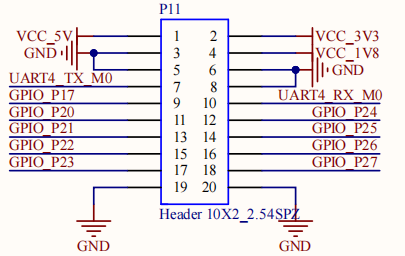
After completing the short-circuit, launch the test program.
forlinx@ok3588:~$ fltest_uarttest -d /dev/ttyS4
Welcome to uart test
Send test data:
forlinx_uart_test.1234567890...
Read Test Data finished,Read:
forlinx_uart_test.1234567890...
The source code path for fltest_uarttest is located at: OK-yocto-source/build/tmp/work/cortexa76-cortexa55-forlinx-linux/forlinx-demo/1.0/git/fltest_uarttest.
5.3.2 Application Programming
In OK3588, the device node for UART is /dev/ttySx (where x is the serial port number, e.g., /dev/ttyS4). Applications need to include the header file <termios.h>, which defines structures and functions related to serial port configuration.
5.3.2.1 Opening the Serial Port
Use the open function to open the serial port device and obtain a file descriptor:
int fd;
fd = open("/dev/ttyS4", O_RDWR | O_NOCTTY);
if (fd == -1) {
    perror("Failed to open UART device");
    return -1;
}
Parameter description:
Logo |
Description |
|---|---|
|
Open in read-write mode. |
|
Do not use this serial port as the process’s control terminal. |
5.3.2.2 Configuring Serial Port Parameters
Use the struct termios structure to configure parameters such as baud rate, data bits, stop bits, and parity:
struct termios options;

// Get current serial port configuration
tcgetattr(fd, &options);

// Set baud rate
cfsetispeed(&options, B115200);
cfsetospeed(&options, B115200);

// Enable receiver and set local mode
options.c_cflag |= (CLOCAL | CREAD);

// Set 8 data bits
options.c_cflag &= ~CSIZE;
options.c_cflag |= CS8;

// Set no parity bit
options.c_cflag &= ~PARENB;

// Set 1 stop bit
options.c_cflag &= ~CSTOPB;

// Disable hardware flow control
options.c_cflag &= ~CRTSCTS;

// Raw input mode
options.c_lflag &= ~(ICANON | ECHO | ECHOE | ISIG);

// Raw output mode
options.c_oflag &= ~OPOST;

// Set read timeout: minimum 1 byte read, timeout 10*100ms
options.c_cc[VMIN] = 1;
options.c_cc[VTIME] = 10;

// Apply configuration
tcsetattr(fd, TCSANOW, &options);
Common baud rate macro definitions:
Macro |
Baud Rate |
|---|---|
|
9600 |
|
19200 |
|
38400 |
|
57600 |
|
115200 |
|
460800 |
|
921600 |
|
1500000 |
|
3000000 |
|
4000000 |
5.3.2.3 Sending Data
Use the write function to send data to the serial port:
char test[100]="forlinx_uart_test.1234567890...";
printf("Send test data:\n%s\n",test);
write(fd, test, strlen(test) + 1);
5.3.2.4 Receiving Data
Use the read function to read data from the serial port:
while(1)
{
	int ret;
	nread = read(fd, &buffer[n], 1);
	if (strlen(test) == strlen(buffer))
	{
		printf("Read Test Data finished,Read:\n%s\n",buffer);
		memset(buffer,0,sizeof(buffer));
		tcflush(fd, TCIOFLUSH);
		break;
	}
	n += nread;
}
5.3.2.5 Closing the Serial Port
Close the file descriptor after use:
close(fd);
6. I2C
6.1 Introduction
The Rockchip series of chips provides customers with a standard I2C bus that allows customers to control and access different external devices. The I2C bus controller transfers information between devices connected to the bus via serial data (SDA) lines and serial clock (SCL) lines. Each device has a unique address identification (whatever it is a microcontroller - MCU, LCD driver, memory or keyboard interface) and it can be used as a transmitter or receiver (depending on the implement of the device).
6.2 Device Tree
I2C device tree node path: arch/arm64/boot/dts/rockchip/rk3588s.dtsi.
i2c7: i2c@fec90000 {
    compatible = "rockchip,rk3588-i2c", "rockchip,rk3399-i2c";
    reg = <0x0 0xfec90000 0x0 0x1000>;
    clocks = <&cru CLK_I2C7>, <&cru PCLK_I2C7>;
    clock-names = "i2c", "pclk";
    interrupts = <GIC_SPI 324 IRQ_TYPE_LEVEL_HIGH>;
    pinctrl-names = "default";
    pinctrl-0 = <&i2c7m0_xfer>;
    resets = <&cru SRST_I2C7>, <&cru SRST_P_I2C7>;
    reset-names = "i2c", "apb";
    #address-cells = <1>;
    #size-cells = <0>;
    status = "disabled";
};
It is not enabled by default, and please enable I2C in the corresponding device tree.
OK3588-C/3588-C2 : arch/arm64/boot/dts/rockchip/OK3588-C-common.dtsi.
OK3588S2-C: arch/arm64/boot/dts/rockchip/OK3588S2-C-common.dtsi
&i2c7 {
	status = "okay";
	nau8822: nau8822@1a { 	// Using the I2C7 bus to communicate with the NAU8822
		status = "okay";
		#sound-dai-cells = <0>;
		compatible = "nuvoton,nau8822";
		reg = <0x1a>;
		clocks = <&mclkout_i2s0>;
		clock-names = "mclk";
		assigned-clocks = <&mclkout_i2s0>;
		assigned-clock-rates = <12288000>;
		pinctrl-names = "default";
		pinctrl-0 = <&i2s0_mclk>;
	};
};
6.3 Application
I2C tools (often referred to as i2c-tools) is a toolkit designed for debugging I2C (Inter-Integrated Circuit) buses and peripherals in Linux environments. It includes a set of command-line tools that allow you to communicate directly with I2C devices in user space without having to write and compile driver code for each test.
6.3.1 i2cdetect
Scans an I2C bus and displays detected device addresses in a tabular format.
--: No device detected.UU: Address occupied by a kernel driver.
For example, to view devices on the I2C5 bus:
forlinx@ok3588:~$ sudo i2cdetect -y 5
     0  1  2  3  4  5  6  7  8  9  a  b  c  d  e  f
00:                         -- -- -- -- -- -- -- --
10: -- -- -- -- -- -- -- -- -- -- -- -- -- -- -- --
20: -- -- UU -- -- -- -- -- -- -- -- -- -- -- -- --
30: -- -- -- -- -- -- -- -- -- -- -- -- -- -- -- --
40: -- -- -- -- -- -- -- -- -- -- -- -- -- -- -- --
50: -- UU -- -- -- -- -- -- -- -- -- -- -- -- -- --
60: -- -- -- -- -- -- -- -- -- -- -- -- -- -- -- --
70: -- -- -- -- -- -- -- --
If you wish to manually operate a device using tools like i2cget or i2cset, you may first need to unload the corresponding kernel driver, or use the -f option to force access (this carries some risk).
6.3.2 i2cget
Read the 8-bit value of a single register in a specified device; for example, read the value of register 0x10 in the device located at address 0x50 on bus 1.
forlinx@ok3588:~$ sudo i2cget -y 1 0x50 0x10
⚠️Note: This specific I2C device is not present on the OK3588-C board. This section only demonstrates the command usage.
6.3.3 i2cset
Writes a value to a single register of a specified device.
Example: Write value 0xAB to register 0x10 of the device with address 0x50 on bus 1:
forlinx@ok3588:~$ sudo i2cset -y 1 0x50 0x10 0xAB
⚠️Note: This specific I2C device is not present on the OK3588-C board. This section only demonstrates the command usage.
7. RTC
7.1 Introduction
RTC (Real-Time Clock) is a critical component that ensures the system maintains an accurate time reference, and it is widely used in fields such as IoT devices, industrial control, consumer electronics, and automotive electronics.
OK3588 RTC uses the PCF8563 real-time clock module. The chip connects to the main processor via I2C5, with an I2C device address of 0x51.
The schematic for the RTC is as follows:
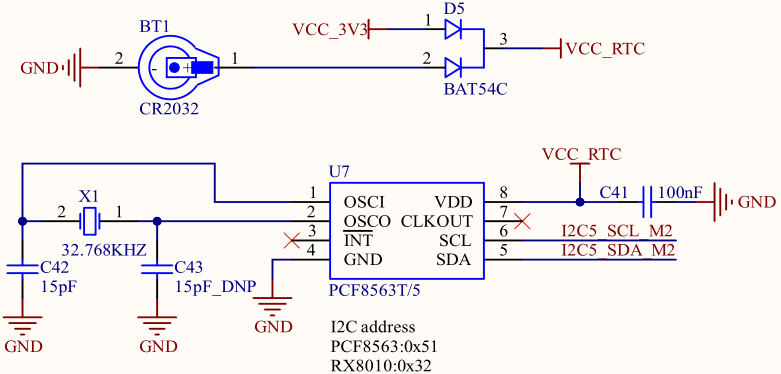
The RTC driver source code is located in the kernel at: drivers/rtc/rtc-pcf8563.c.
7.2 Device Tree
The pcf8563 is connected under I2C5, so the RTC device node is placed under the i2c5 node in the device tree.
OK3588-C / OK3588-C2 device tree path:
arch/arm64/boot/dts/rockchip/OK3588-C-common.dtsiOK3588S2-C device tree path:
arch/arm64/boot/dts/rockchip/OK3588S2-C-common.dtsi
&i2c5 {
	status = "okay";
	pinctrl-names = "default";
	pinctrl-0 = <&i2c5m2_xfer>;

	rtc: pcf8563@51 {
		compatible = "nxp,pcf8563";
		reg = <0x51>;
		status = "okay";
	};
};
If your custom carrier board connects the RTC chip to a different I2C bus, you need to move the rtc: pcf8563@51 node in the device tree under the corresponding I2C bus node and ensure the I2C address matches the hardware design.
Example: If the RTC is connected to I2C2, modify the device tree as follows:
7.3 Application
Before testing the RTC, ensure that the button cell battery is installed on the board and that its voltage is normal.
The RTC test primarily involves using the date and hwclock tools to set software/hardware time, verifying whether the software clock reads the RTC clock correctly after the board is powered off and on again.
Set the system software time:
forlinx@ok3588:~$ sudo date -s "2025-10-27 10:05:02"
Mon Oct 27 10:05:02 UTC 2025
Synchronize system time to hardware clock:
forlinx@ok3588:~$ sudo hwclock -wu
Display the current hardware clock time:
forlinx@ok3588:~$ sudo hwclock -r
2025-10-27 10:06:32.161747+00:00
Then, power off the board and turn it back on. After entering the system, read the system time again to verify that the time has been synchronized correctly.
forlinx@ok3588:~$ date
Mon Oct 27 10:07:16 UTC 2025
8. Watchdog
8.1 Introduction
Watchdog is essentially a decrementing counter driven by a hardware clock. During normal system operation, the application must write a specific value (i.e., “feed the dog”) to the watchdog’s dedicated register within the set timeout period (e.g., 1 second) to reset the counter to its initial value. If the program enters an infinite loop, crashes, or fails to feed the dog before the timeout for any reason, the counter decrements to 0, triggering predefined actions such as a system reset or software exception alert.
The OK3588-C development board integrates an on-chip watchdog.
The watchdog driver source code is located in the kernel at:
drivers/watchdog/dw_wdt.c
8.2 Device Tree
The watchdog device tree node is located in:
arch/arm64/boot/dts/rockchip/rk3588s.dtsi
Example Device Tree Node (rk3588s.dtsi):
wdt: watchdog@feaf0000 {
    compatible = "snps,dw-wdt";
    reg = <0x0 0xfeaf0000 0x0 0x100>;
    clocks = <&cru TCLK_WDT0>, <&cru PCLK_WDT0>;
    clock-names = "tclk", "pclk";
    interrupts = <GIC_SPI 315 IRQ_TYPE_LEVEL_HIGH>;
    status = "disabled";
};
By default, it is disabled; you need to enable the watchdog in the corresponding device tree:
OK3588-C/3588-C2:arch/arm64/boot/dts/rockchip/OK3588-C-common.dtsi。
OK3588S2-C:arch/arm64/boot/dts/rockchip/OK3588S2-C-common.dtsi
&wdt {
	status = "okay";
};
8.3 Application
8.3.1 Test Methods
This test provides two test programs; you can choose one based on your actual needs.
Use
fltest_watchdog:
This command opens the watchdog and performs feeding operations, so the system will not restart.
forlinx@ok3588:~$ sudo fltest_watchdog
Watchdog Ticking Away!
When terminating the test program with ctrl + c, feeding stops while the watchdog remains enabled, causing a system reset after 10 seconds.
To avoid the reset, enter the command to disable the watchdog within 10 seconds after ending the program:
forlinx@ok3588:~$ sudo fltest_watchdog -d
Watchdog card disabled.
Start the watchdog with a 10-second reset timeout, no feeding:
Execute the command fltest_watchdogrestart, which opens the watchdog but does not perform feeding operations; the system will restart after 10 seconds.
forlinx@ok3588:~$ sudo fltest_watchdogrestart
Restart after 10 seconds
The source code paths for these two test routines are:
OK-yocto-source/build/tmp/work/cortexa76-cortexa55-forlinx-linux/forlinx-demo/1.0/git/fltest_watchdog
and
OK-yocto-source/build/tmp/work/cortexa76-cortexa55-forlinx-linux/forlinx-demo/1.0/git/fltest_watchdogrestart.
8.3.2 Application Programming
In OK3588, the watchdog device node is /dev/watchdog. In applications, include the header file linux/watchdog.h, which defines the ioctl command macros for the watchdog. Each different command macro represents a request to perform a different operation on the device, as shown below:
#define	WDIOC_GETSUPPORT	_IOR(WATCHDOG_IOCTL_BASE, 0, struct watchdog_info)
#define	WDIOC_GETSTATUS		_IOR(WATCHDOG_IOCTL_BASE, 1, int)
#define	WDIOC_GETBOOTSTATUS	_IOR(WATCHDOG_IOCTL_BASE, 2, int)
#define	WDIOC_GETTEMP		_IOR(WATCHDOG_IOCTL_BASE, 3, int)
#define	WDIOC_SETOPTIONS	_IOR(WATCHDOG_IOCTL_BASE, 4, int)
#define	WDIOC_KEEPALIVE		_IOR(WATCHDOG_IOCTL_BASE, 5, int)
#define	WDIOC_SETTIMEOUT        _IOWR(WATCHDOG_IOCTL_BASE, 6, int)
#define	WDIOC_GETTIMEOUT        _IOR(WATCHDOG_IOCTL_BASE, 7, int)
#define	WDIOC_SETPRETIMEOUT	_IOWR(WATCHDOG_IOCTL_BASE, 8, int)
#define	WDIOC_GETPRETIMEOUT	_IOR(WATCHDOG_IOCTL_BASE, 9, int)
#define	WDIOC_GETTIMELEFT	_IOR(WATCHDOG_IOCTL_BASE, 10, int)
Common Command Macros Include:
WDIOC_SETOPTIONS, WDIOC_KEEPALIVE, WDIOC_SETTIMEOUT, and WDIOC_GETTIMEOUT. Descriptions are as follows:
Common Instructions: |
Description |
|---|---|
WDIOC_SETOPTIONS |
Enable or disable the watchdog. |
WDIOC_KEEPALIVE |
Perform the “petting” (keep-alive) operation. |
WDIOC_SETTIMEOUT |
Set the timeout period. |
WDIOC_GETTIMEOUT |
Get the current timeout period. |
8.3.2.1 Opening the Watchdog
The watchdog device can be opened using the open() function to obtain a file descriptor:
fd = open("/dev/watchdog", O_WRONLY);
if (fd == -1) {
fprintf(stderr, "Watchdog device not enabled.\n");
8.3.2.2 Setting the Timeout
The WDIOC_SETTIMEOUT command macro can be used to set the watchdog timeout. Usage is as follows:
ioctl(fd,WDIOC_SETTIMEOUT,&flags);
For details on the timeout setting mechanism for RK3588, refer to the next section.
8.3.2.3 Feeding the Watchdog
After the watchdog timer is started, it must be “fed” before the timeout expires; otherwise, a timer overflow will cause a system reset or generate an interrupt signal. Feeding can be performed using the WDIOC_KEEPALIVE command macro as follows:
ioctl(fd, WDIOC_KEEPALIVE, &dummy);
8.3.3 Timeout Mechanism
Regarding the timeout mechanism: The timeout set by user space is not directly passed to the hardware. The watchdog driver internally maintains a table of 16 preset timeout values and selects the closest match according to the following rules as the actual timeout:
The timeout period of the request |
Final timeout set by watchdog |
|---|---|
timeout_request > 89 |
timeout_set = timeout_request |
44 < timeout_request <= 89 |
timeout_set = 89 |
22 < timeout_request <= 44 |
timeout_set = 44 |
11 < timeout_request <= 22 |
timeout_set = 22 |
5 < timeout_request <= 11 |
timeout_set = 11 |
2< timeout_request <= 5 |
timeout_set = 5 |
timeout_request = 2 |
timeout_set = 2 |
timeout_request = 1 |
timeout_set = 1 |
9. MMC
9.1 Introduction
The on-board eMMC storage chip on the OK3588 platform is connected to a dedicated high-speed SDHCI bus. Its features are as follows:
Feature |
Description |
|---|---|
Bus Type |
SDHCI(Dedicated High-Speed Bus) |
Data Width |
8 bit |
Specification |
eMMC 5.1 |
Supported Speed Mode |
HS400 (Up to 200MHz, theoretical bandwidth ~200MB/s) |
Command Queue Engine |
Supported (CQE) |
Device Nodes |
/dev/mmcblk0 |
Comparison with TF Card |
Higher throughput, more stable read/write performance, serves as the primary system storage medium. |
mmc0 is the device node for the eMMC:
forlinx@ok3588:~$ dmesg | grep mmc0
[    5.305417] mmc0: CQHCI version 5.10
[    5.336474] mmc0: SDHCI controller on fe2e0000.mmc [fe2e0000.mmc] using ADMA
[    5.449117] mmc0: Command Queue Engine enabled
[    5.449129] mmc0: new HS400 Enhanced strobe MMC card at address 0001
[    5.449480] mmcblk0: mmc0:0001 88A19C 57.6 GiB
[    5.455569] mmcblk0boot0: mmc0:0001 88A19C 4.00 MiB
[    5.456188] mmcblk0boot1: mmc0:0001 88A19C 4.00 MiB
[    5.456773] mmcblk0rpmb: mmc0:0001 88A19C 4.00 MiB, chardev (234:0)
Based on the system initialization profile, the controller utilizes Advanced DMA (ADMA) and dynamically negotiates to operate in the ultra-high-speed HS400 Enhanced Strobe mode. Additionally, the Command Queue Engine (CQE, version 5.10) is fully enabled, which significantly optimizes random read/write efficiency by allowing multiple command requests to be queued.
Within the Linux system, the eMMC device is enumerated as mmcblk0 and exposes its internal hardware partitions:
User Data Area: The primary storage partition for the root filesystem and user data.
Boot Partitions(mmcblk0boot0 and mmcblk0boot1): Dedicated hardware partitions typically used for storing bootloaders.
RPMB(mmcblk0rpmb, 4 MiB): Replay Protected Memory Block for secure data storage.
The location of the driver source code in the kernel:drivers/mmc/host/dw_mmc-rockchip.c
9.2 Device Tree
Device tree configuration for the eMMC interface can be found here: arch/arm64/boot/dts/rockchip/rk3588s.dtsi.
sdhci: mmc@fe2e0000 {
    compatible = "rockchip,rk3588-dwcmshc", "rockchip,dwcmshc-sdhci";
    reg = <0x0 0xfe2e0000 0x0 0x10000>;
    interrupts = <GIC_SPI 205 IRQ_TYPE_LEVEL_HIGH>;
    assigned-clocks = <&cru BCLK_EMMC>, <&cru TMCLK_EMMC>, <&cru CCLK_EMMC>;
    assigned-clock-rates = <200000000>, <24000000>, <200000000>;
    clocks = <&cru CCLK_EMMC>, <&cru HCLK_EMMC>,
    <&cru ACLK_EMMC>, <&cru BCLK_EMMC>,
    <&cru TMCLK_EMMC>;
    clock-names = "core", "bus", "axi", "block", "timer";
    resets = <&cru SRST_C_EMMC>, <&cru SRST_H_EMMC>,
    <&cru SRST_A_EMMC>, <&cru SRST_B_EMMC>,
    <&cru SRST_T_EMMC>;
    reset-names = "core", "bus", "axi", "block", "timer";
    max-frequency = <200000000>;
    supports-cqe;
    status = "disabled";
};
It is not enabled by default, and you need to open MMC in the corresponding device tree:
OK3588-C/3588-C2: arch/arm64/boot/dts/rockchip/OK3588-C-common.dtsi。
OK3588S2-C: arch/arm64/boot/dts/rockchip/OK3588S2-C-common.dtsi
&sdhci {
    bus-width = <8>;
    no-sdio;
    no-sd;
    non-removable;
    max-frequency = <200000000>;
    mmc-hs400-1_8v;
    mmc-hs400-enhanced-strobe;
    status = "okay";
};
9.3 Application
9.3.1 Extended CSD Register
eMMC devices have an extensive amount of extra information and settings that are available via the Extended CSD registers. For a detailed list of the registers, please see manufacture datasheets.
In the Linux userspace, you can query the registers and see:
forlinx@ok3588:~$ sudo mmc extcsd read /dev/mmcblk0
=============================================
  Extended CSD rev 1.8 (MMC 5.1)
=============================================

Card Supported Command sets [S_CMD_SET: 0x01]
HPI Features [HPI_FEATURE: 0x01]: implementation based on CMD13
...
9.3.2 Resizing ext4 Root Filesystem
By default, the standard system images for the OK3588 platform have already automatically expanded the rootfs partition to the maximum available capacity on the eMMC, and the filesystem is resized accordingly. Therefore, manual resizing is generally not required when using the default firmware.
This section is provided primarily to describe the methodology for resizing an ext4 root filesystem. If you flash a custom, unexpanded rootfs image during development, or if you manually modify the underlying partition table, you can follow the standard procedures below to adjust the filesystem size and fully utilize any remaining storage space.
Checking the physical partition table:
forlinx@ok3588:~$ parted /dev/mmcblk0 print
WARNING: You are not superuser.  Watch out for permissions.
Model: MMC A3A561 (sd/mmc)
Disk /dev/mmcblk0: 61.9GB
Sector size (logical/physical): 512B/512B
Partition Table: gpt
Disk Flags:

Number  Start   End     Size    File system  Name      Flags
 1      8389kB  12.6MB  4194kB               uboot
 2      12.6MB  16.8MB  4194kB               env
 3      16.8MB  21.0MB  4194kB               misc
 4      21.0MB  38.2MB  17.3MB               boot
 5      38.2MB  85.6MB  47.3MB               recovery
 6      85.6MB  89.8MB  4194kB               logo
 7      89.8MB  2237MB  2147MB  ext4         userdata
 8      2240MB  61.9GB  59.6GB  ext4         rootfs
You can resize the root partition to fully occupy the remaining disk space.
forlinx@ok3588:~$ sudo parted /dev/mmcblk0 resizepart 8 100%
Checking filesystem mounts:
forlinx@ok3588:~$ df -h
Filesystem      Size  Used Avail Use% Mounted on
/dev/root        53G  898M   49G   2% /
devtmpfs        7.7G     0  7.7G   0% /dev
tmpfs           7.8G     0  7.8G   0% /dev/shm
tmpfs           3.2G   11M  3.1G   1% /run
tmpfs           7.8G     0  7.8G   0% /tmp
tmpfs           7.8G     0  7.8G   0% /var/volatile
/dev/mmcblk0p7  2.0G  536K  1.8G   1% /userdata
tmpfs           1.6G  8.0K  1.6G   1% /run/user/1001
10. SD Card
10.1 Introduction
The OK3588-C development board features 1 x TF card (Micro SD) slot, which utilizes the SDMMC controller interface of the RK3588 for connecting external removable storage cards. This interface supports hot-plug. After inserting it, the SD card is managed as a standard block device.
TF Card interface:

⚠️ Note: Although the hardware supports hot-plugging, before physically removing the SD card, you must first perform an umount unmount operation. Otherwise, it may lead to data loss or filesystem corruption.
The driver source code is located in the kernel directory: drivers/mmc/host/dw_mmc-rockchip.c.
10.1.1 Device Node & Mount Path
After the SD card is inserted, the kernel will generate the corresponding device node in the /dev directory. The entire SD card can be accessed via the device node /dev/mmcblk1, and its partitions will be displayed as:
/dev/mmcblk1p<Y>
The partition number Y ranges from 1 to the maximum number of partitions supported by this device. Each partition can be formatted as any type of filesystem and supports standard filesystem operations such as mounting and unmounting.
The default mount path is: /run/media/mmcblk1p1.
10.1.2 Actual Configuration
The actual configuration parameters for the SD Card on the OK3588-C development board are:
Parameter |
Actual Configuration |
|---|---|
Maximum Clock frequency |
150 MHz |
Data Bit Width |
4-bit |
Rate mode enabled |
DS, HS, SDR104 |
IO voltage |
3.3V / 1.8V automatic switching |
Write protection |
Disabled |
Hot plug detect |
Support |
10.2 Device Tree
The SD Card device tree node for OK3588-C/3588-C2 is located at: kernel-6.1/arch/arm64/boot/dts/rockchip/OK3588-C-common.dtsi.
The SD Card device tree node for OK3588S2-C is located at: kernel-6.1/arch/arm64/boot/dts/rockchip/OK3588S2-C-common.dtsi.
&sdmmc {
    max-frequency = <150000000>;
    no-sdio;
    no-mmc;
    bus-width = <4>;
    cap-mmc-highspeed;
    cap-sd-highspeed;
    disable-wp;
    sd-uhs-sdr104;
    vqmmc-supply = <&vccio_sd_s0>;
    pinctrl-0 = <&sdmmc_clk &sdmmc_cmd &sdmmc_det &sdmmc_bus4 &sdmmc_det>;
    status = "okay";
};
Key DTS property descriptions:
Features |
Description |
|---|---|
|
The maximum clock frequency is 150MHz, and the actual operating frequency does not exceed this value. |
|
Note: This card slot is dedicated to SD cards; |
|
4-bit mode, only set to 1 or 4 is supported (other values are considered illegal and forced to work as 1-bit); |
|
SD High Speed mode(50MHz); |
|
Supports UHS-I SDR104 mode(up to 208MHz limited by max-frequency); |
|
Disable write protect detection, TF card holder normally has no write protect pin; |
|
IO power supply with 3.3 V ↔ 1.8 V automatic switching (required for UHS mode); |
|
SD card insertion/removal detection pin (CD pin), supports hot-swapping. |
10.3 Application
The mount node for the TF card is /run/media/mmcblk1p1. It supports hot-plugging, and the read/write speed of the TF card can be tested using the dd command.
Write test:
forlinx@ok3588:~$ dd if=/dev/zero of=/run/media/mmcblk1p1/test bs=1M count=500 conv=fsync
500+0 records in
500+0 records out
524288000 bytes (524 MB, 500 MiB) copied, 36.5128 s, 14.4 MB/s
Read test:
To ensure that the data is accurate, restart the board and retest the read speed.
forlinx@ok3588:~$ dd if=/run/media/mmcblk1p1/test of=/dev/null bs=1M
500+0 records in
500+0 records out
524288000 bytes (524 MB, 500 MiB) copied, 7.93527 s, 66.1 MB/s
After using the TF card, before ejecting it, you need to unmount it using the umount command:
forlinx@ok3588:~$ sudo umount /run/media/mmcblk1p1
11. USB2.0
11.1 Introduction
USB stands for Universal Serial Bus, a standardized interface used to connect computers to various external devices. Its design goal is to simplify device connection, provide data transfer and power supply capabilities, and support hot-plugging (plug-and-play).
The OK3588 supports one USB2.0 interface. Users can connect USB mice, USB keyboards, USB flash drives, and other devices to any onboard USB HOST interface, and hot-plugging of these devices is supported.
The location of the USB2.0 interface is as shown in the following figure:
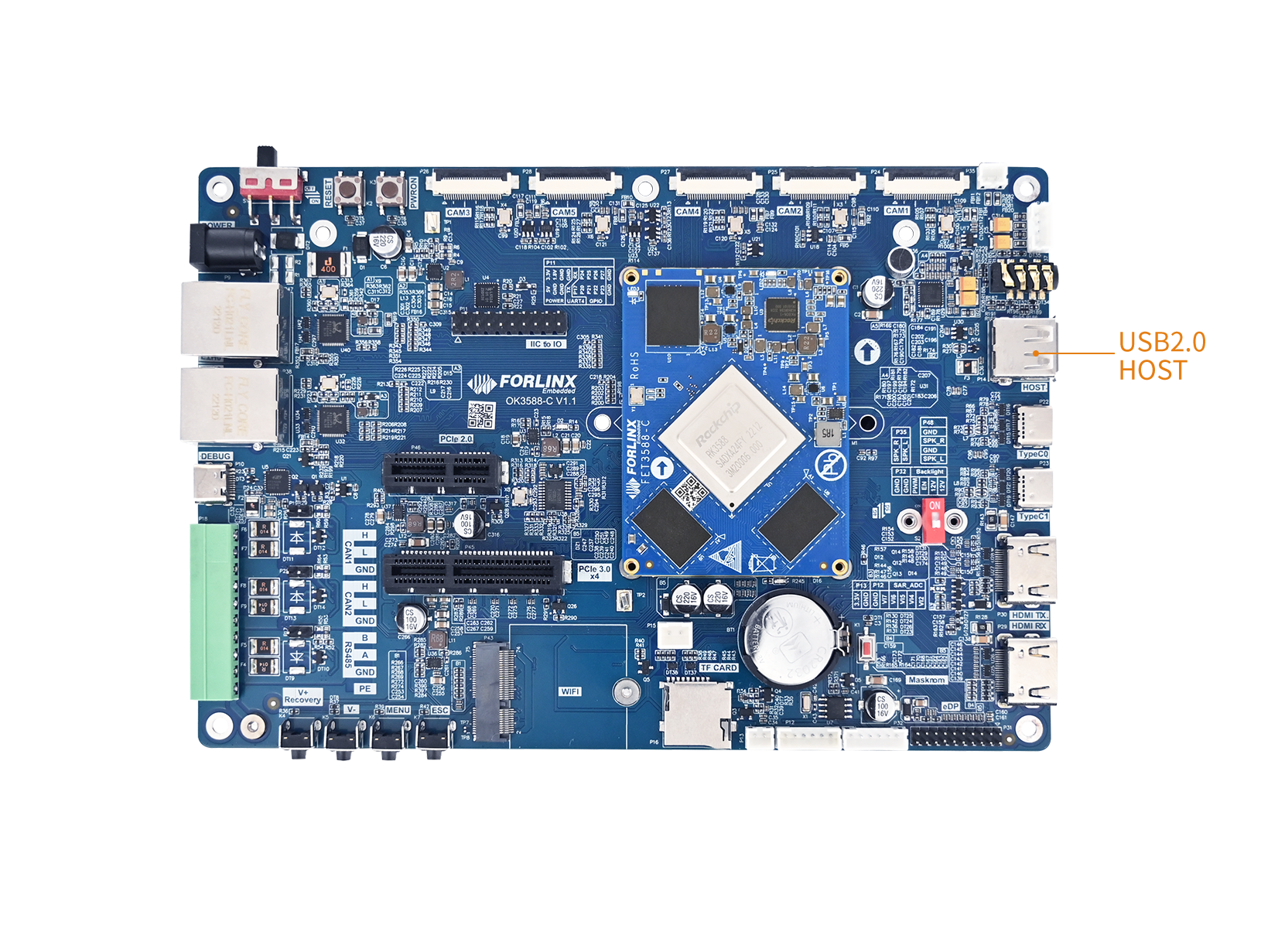
11.2 Device Tree
The USB 2.0 device tree nodes for the OK3588-C/3588-C2 are located in:
arch/arm64/boot/dts/rockchip/OK3588-C-common.dtsi.
The USB 2.0 device tree nodes for the OK3588S2-C are located in:
arch/arm64/boot/dts/rockchip/OK3588S2-C-common.dtsi.
// USB2.0 HOST0 EHCI Controller (USB2.0 protocol)
&usb_host0_ehci {
	status = "okay";
};

// USB2.0 HOST0 OHCI Controller (USB1.0 & USB1.1 protocol)
&usb_host0_ohci {
	status = "okay";
};

// USB2.0 PHY2
&u2phy2 {
	status = "okay";
};
11.3 USB Device Driver Support
11.3.1 Device Types Support
According to Section 3.5 (USB Peripheral CONFIG) of the official Rockchip Linux USB Development Guide, the RK3588 SDK kernel supports the following USB device class drivers. The development board can directly recognize and use the corresponding peripherals without additional configuration: The development board can directly identify and use the corresponding peripherals without additional configuration:
Device Type |
Description |
Typical Equipment |
|---|---|---|
Mass Storage |
Mass Storage Devices |
USB flash drive, portable hard drive, card reader |
HID (Keyboard/Mouse) |
HMI |
USB keyboard, USB mouse, game controller |
UVC(Camera) |
USB video class devices |
USB camera, video capture card |
UAC(Audio) |
USB audio class devices |
USB sound card, USB microphone, USB headset |
USB serial(3G/4G Modem) |
USB-to-serial (Modem) |
3G/4G wireless module |
USB Serial(PL2303) |
PL2303 USB-to-serial converter |
PL2303 adapter cable |
USB Net(Bluetooth) |
USB Bluetooth adapter |
USB Bluetooth Dongle |
USB Net(Ethernet) |
USB NIC |
USB Gigabit/100 Mbps network card |
USB Hub |
USB Hub |
USB Hub |
The default kernel configuration includes support for common drivers. To enable or remove specific drivers, refer to Section 3.2.2.2 in the OS Development guide for configuring and compiling the kernel.
11.3.2 HID Device Support
HID (Human Interface Device) is one of the most widely used USB device classes, covering input devices such as keyboards, mice, touchscreens, and game controllers.
11.3.2.1 Kernel Configuration
According to Section 3.5.3 of the official RK manual, the kernel configuration items for USB HID are as follows:
Device Drivers --->
    [*] HID support
        [*] USB HID transport layer
        [ ] PID device support
        [*] /dev/hiddev raw HID device support
11.3.2.2 VID/PID List and Kernel Source Path
Each USB device is uniquely identified by a VID (Vendor ID) and a PID (Product ID). The kernel loads the appropriate driver by matching the VID/PID.
The definitions for VID/PID and the driver source code related to HID devices are located in the following paths:
File Path |
Description |
|---|---|
|
Macro definitions for VID/PID of all known HID devices |
|
Compatibility handling (quirks list) for special HID devices |
|
Core driver implementation for USB HID |
|
Driver for multi-touch screen HID devices |
|
Generic HID device driver (fallback matching) |
To view the list of supported HID device VID/PID in the kernel source code, use the following command:
# View all defined HID vendor ID
kernel-source$ grep "USB_VENDOR_ID_" kernel/drivers/hid/hid-ids.h | head -20
# View device ID for a specific vendor (using Logitech as an example)
kernel-source$ grep "LOGITECH" kernel/drivers/hid/hid-ids.h
11.4 Application
11.4.1 USB Drive Test
After the development board boots up, connect the USB flash drive to the USB host interface of the development board.
Check the mount directory:
forlinx@ok3588:~$ mount | grep "sda1"
/dev/sda1 on /run/media/sda1 type vfat (rw,relatime,gid=6,fmask=0007,dmask=0007,allow_utime=0020,codepage=936,iocharset=utf8,shortname=mixed,errors=remount-ro)
You can see /run/media/sda1 is the mount path for the USB storage device.
Write test (write speed is limited by the specific storage device):
forlinx@ok3588:~$ dd if=/dev/zero of=/run/media/sda1/test bs=1M count=500 conv=fsync
500+0 records in
500+0 records out
524288000 bytes (524 MB, 500 MiB) copied, 35.7231 s, 14.7 MB/s
Read test (to ensure data accuracy, restart the development board before re-running the read speed test):
forlinx@ok3588:~$ dd if=/run/media/sda1/test of=/dev/null bs=1M iflag=direct
500+0 records in
500+0 records out
524288000 bytes (524 MB, 500 MiB) copied, 16.1044 s, 32.6 MB/s
After using the USB drive, use umount to unmount it before unplugging:
forlinx@ok3588:~$ sudo umount /dev/sda1
11.4.2 Mouse Testing
Connect the USB mouse to the USB port of the OK3588 platform and enter the following command to check the kernel logs:
forlinx@ok3588:~$ dmesg | tail -10
[ 2402.092278] FAT-fs (sda1): utf8 is not a recommended IO charset for FAT filesystems, filesystem will be case sensitive!
[ 2402.096073] FAT-fs (sda1): Volume was not properly unmounted. Some data may be corrupt. Please run fsck.
[ 2891.651368] usb 3-1: USB disconnect, device number 2
[ 2899.345826] usb 4-1: new low-speed USB device number 2 using ohci-platform
[ 2899.577853] usb 4-1: New USB device found, idVendor=413c, idProduct=301a, bcdDevice= 1.00
[ 2899.577870] usb 4-1: New USB device strings: Mfr=1, Product=2, SerialNumber=0
[ 2899.577876] usb 4-1: Product: Dell MS116 USB Optical Mouse
[ 2899.577881] usb 4-1: Manufacturer: PixArt
[ 2899.585321] input: PixArt Dell MS116 USB Optical Mouse as /devices/platform/fc840000.usb/usb4/4-1/4-1:1.0/0003:413C:301A.0001/input/input10
[ 2899.585532] hid-generic 0003:413C:301A.0001: input,hidraw0: USB HID v1.11 Mouse [PixArt Dell MS116 USB Optical Mouse] on usb-fc840000.usb-1/input0
An arrow cursor appears on the screen, and the mouse is now working properly.
12. Type-C
12.1 Introduction
OK3588-C features two Type-C interfaces and supports DP display. Type-C0 supports automatic recognition of HOST/DEVICE mode.
Type-C1 supports HOST mode only. This mode can be used for firmware flashing, ADB file transfer, and debugging. Host mode allows for connecting standard USB peripherals.
The Type-C interfaces are located on the board as indicated in the diagram below:
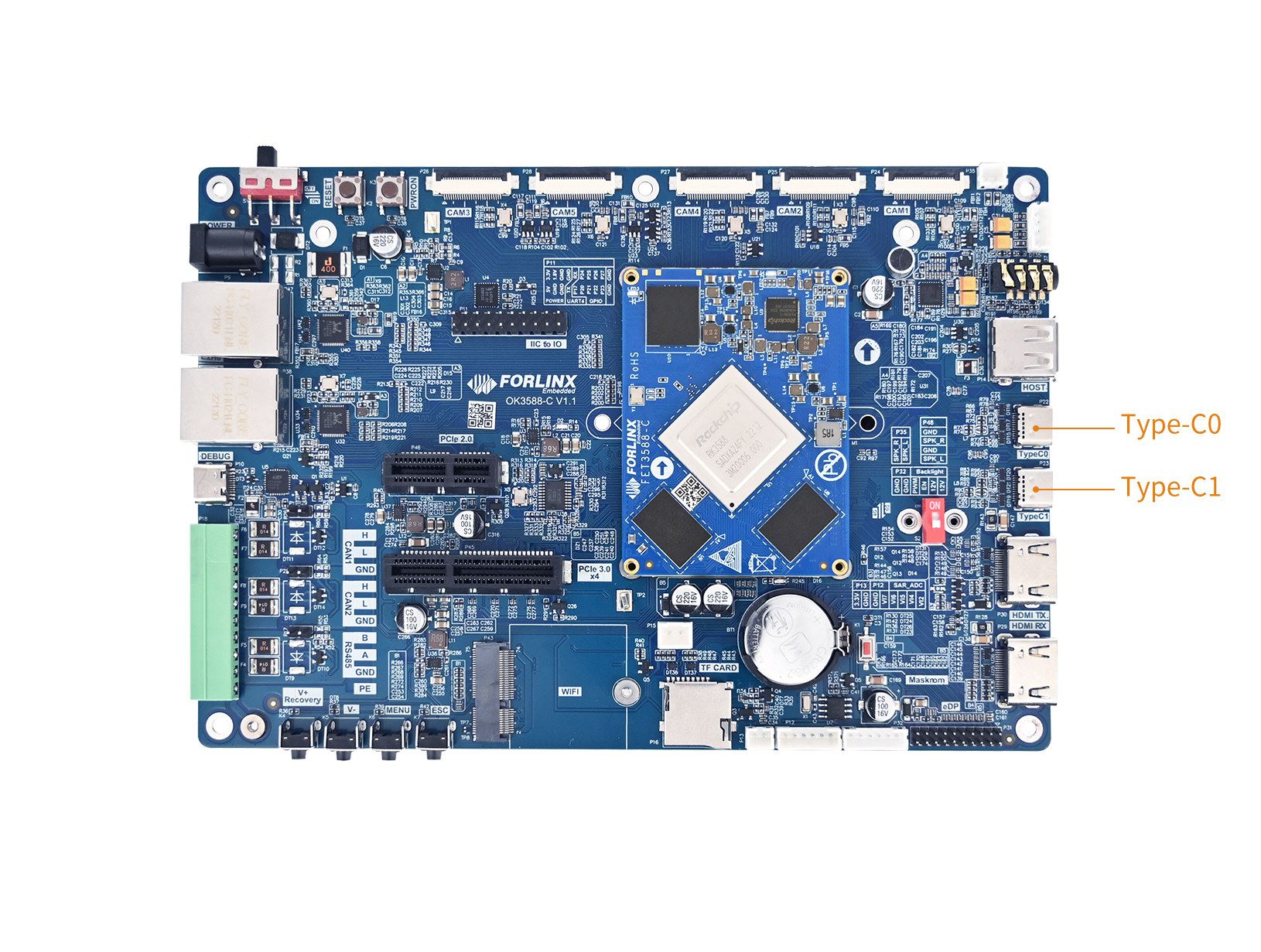
The OK3588-C features two Type-C ports; the functions of these two ports are compared in the table below.
Items |
Type-C0 |
Type-C1 |
|---|---|---|
USB maximum rate |
USB 3.1 Gen1(5Gbps) |
USB 3.1 Gen1(5Gbps) |
OTG Support |
Supports (Host/Device automatic switching) |
Only Host mode |
Device mode(ADB/flashing) |
Yes |
No |
Host mode (USB flash disk/keyboard and mouse) |
Yes |
Yes |
DP Alt Mode video output |
Support(up to 4K@60Hz) |
Support(up to 4K@60Hz) |
Type-C PD protocol |
Support(require FUSB302) |
Support(require FUSB302) |
Plug Orientation Detection |
Support (via CC detection) |
Support (via CC detection) |
USB Flashing |
Support(default flashing port) |
No |
⚠️Note: Since the RK3588S2 chip does not have a Type-C controller, the OK3588S2-C only has one Type-C interface, TypeC0, and P23 is unavailable.
The Type-C interface of RK3588 is composed of the following five core modules:
USB 3.1/DP Combo PHY — Physical layer, responsible for multiplexed transmission of USB SuperSpeed (5Gbps) and DP high-speed signals, supports flexible allocation of 4 lanes, but is not compatible with USB 2.0;
USB 2.0 PHY — Responsible for USB 2.0 (480Mbps) signal transmission (D+/D-). Combined with the Combo PHY, it supports the complete USB protocol (USB 3.1 backward compatible with USB 2.0);
USB Controller (DWC3/xHCI) — Implements the full USB protocol stack, supports OTG mode;
DP Controller — Implements the DisplayPort 1.4 protocol, responsible for video signal output;
Type-C Controller (FUSB302) — External chip, connected to the SoC via I2C, responsible for CC detection, flip orientation recognition, role negotiation, and DP Alt Mode capability exchange.
In the Device Tree, these modules are associated through endpoint connections and property configurations to form a complete Type-C interface functionality description.
12.2 Device Tree
The Device Tree nodes for OK3588-C/3588-C2 are located in arch/arm64/boot/dts/rockchip/OK3588-C-common.dtsi.
The Device Tree nodes for OK3588S2-C are located in arch/arm64/boot/dts/rockchip/OK3588S2-C-common.dtsi.
Taking type-C0 as an example:
// USB3.0 OTG0 DWC3/xHCI Controller
&usbdrd3_0 {
	status = "okay";
};
// DWC3 controller for USB3.0 OTG0 with OTG mode and role-switch support
&usbdrd_dwc3_0 {
	dr_mode = "otg";
	usb-role-switch;
	status = "okay";
	port {
		#address-cells = <1>;
		#size-cells = <0>;
		dwc3_0_role_switch: endpoint@0 {
			reg = <0>;
			remote-endpoint = <&usbc0_role_sw>;
		};
	};
};

// USB3.0/DP Combo PHY1
&usbdp_phy0 {
	status = "okay";
	orientation-switch;
	rockchip,dp-lane-mux = <2 3>;
	svid = <0xff01>;
	sbu1-dc-gpios = <&gpio4 RK_PA0 GPIO_ACTIVE_HIGH>;
	sbu2-dc-gpios = <&gpio4 RK_PB0 GPIO_ACTIVE_HIGH>;

	port {
		#address-cells = <1>;
		#size-cells = <0>;
		usbdp_phy0_orientation_switch: endpoint@0 {
			reg = <0>;
			remote-endpoint = <&usbc0_orien_sw>;
		};

		usbdp_phy0_dp_altmode_mux: endpoint@1 {
			reg = <1>;
			remote-endpoint = <&dp0_altmode_mux>;
		};
	};
};
// Enable DP portion of USB3.0/DP Combo PHY0
&usbdp_phy0_dp {
	status = "okay";
};
// Enable USB3 portion of USB3.0/DP Combo PHY0
&usbdp_phy0_u3 {
	status = "okay";
};

&i2c2 {
	status = "okay";
		// FUSB302 Type-C port controller at address 0x22
		usbc0: fusb302@22 {
		compatible = "fcs,fusb302";
		reg = <0x22>;
		interrupt-parent = <&gpio1>;
		interrupts = <RK_PB0 IRQ_TYPE_LEVEL_LOW>;
		pinctrl-names = "default";
		pinctrl-0 = <&usbc0_int>;
		vbus-supply = <&vbus5v0_typec0>;
		status = "okay";

		ports {
			#address-cells = <1>;
			#size-cells = <0>;

			port@0 {
				reg = <0>;
				usbc0_role_sw: endpoint@0 {
					remote-endpoint = <&dwc3_0_role_switch>;
				};
			};
		};

		usb_con0: connector {
			compatible = "usb-c-connector";
			label = "USB-C";
			data-role = "dual";
			power-role = "dual";
			try-power-role = "sink";
			op-sink-microwatt = <1000000>;
			sink-pdos =
				<PDO_FIXED(5000, 1000, PDO_FIXED_USB_COMM)>;
			source-pdos =
				<PDO_FIXED(5000, 3000, PDO_FIXED_USB_COMM)>;

			altmodes {
				#address-cells = <1>;
				#size-cells = <0>;

				altmode@0 {
					reg = <0>;
					svid = <0xff01>;
					vdo = <0xffffffff>;
				};
			};

			ports {
				#address-cells = <1>;
				#size-cells = <0>;

				port@0 {
					reg = <0>;
					usbc0_orien_sw: endpoint {
						remote-endpoint = <&usbdp_phy0_orientation_switch>;
					};
				};

				port@1 {
					reg = <1>;
					dp0_altmode_mux: endpoint {
						remote-endpoint = <&usbdp_phy0_dp_altmode_mux>;
					};
				};
			};
		};
	};
};
12.3 Application
12.3.1 Device mode
Device mode allows it to be used for flashing, ADB file transfer, and debugging; Host mode enables connection with regular USB devices.
In Device mode, when connected to a computer via a data cable, the Android ADB Interface will be visible in the computer’s Device Manager.
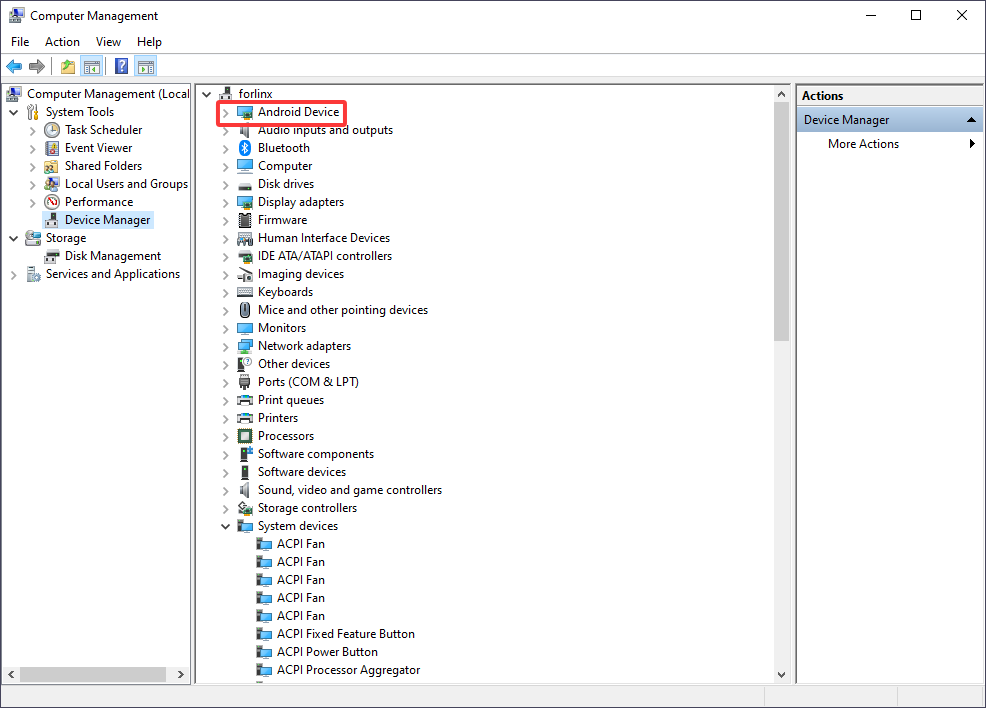
12.3.2 Host mode
In this mode, you can insert a USB drive (Type– C) for read/write tests.
View the mount directory:
forlinx@ok3588:~$ mount | grep sda1
/dev/sda1 on /run/media/sda1 type vfat (rw,relatime,gid=6,fmask=0007,dmask=0007,allow_utime=0020,codepage=936,iocharset=utf8,shortname=mixed,errors=remount-ro)
You can see/run/media/sda1 is the mount path for the USB storage device.
Write test (write speed is limited by the specific storage device):
forlinx@ok3588:~$ dd if=/dev/zero of=/run/media/sda1/test bs=1M count=500 conv=fsync
500+0 records in
500+0 records out
524288000 bytes (524 MB, 500 MiB) copied, 34.7521 s, 15.1 MB/s
Read test (to ensure data accuracy, restart the development board before re-running the read speed test):
forlinx@ok3588:~$ dd if=/run/media/sda1/test of=/dev/null bs=1M iflag=direct
500+0 records in
500+0 records out
524288000 bytes (524 MB, 500 MiB) copied, 13.3956 s, 39.1 MB/s
13. PCIe
13.1 Introduction
PCIe (Peripheral Component Interconnect Express) is a high-speed serial computer expansion bus standard used to connect the motherboard to high-performance external devices.
The OK3588-C board features 1 x PCIe 2.0 x1 and 1 x PCIe 3.0 x4 interface, as shown in the figure below.
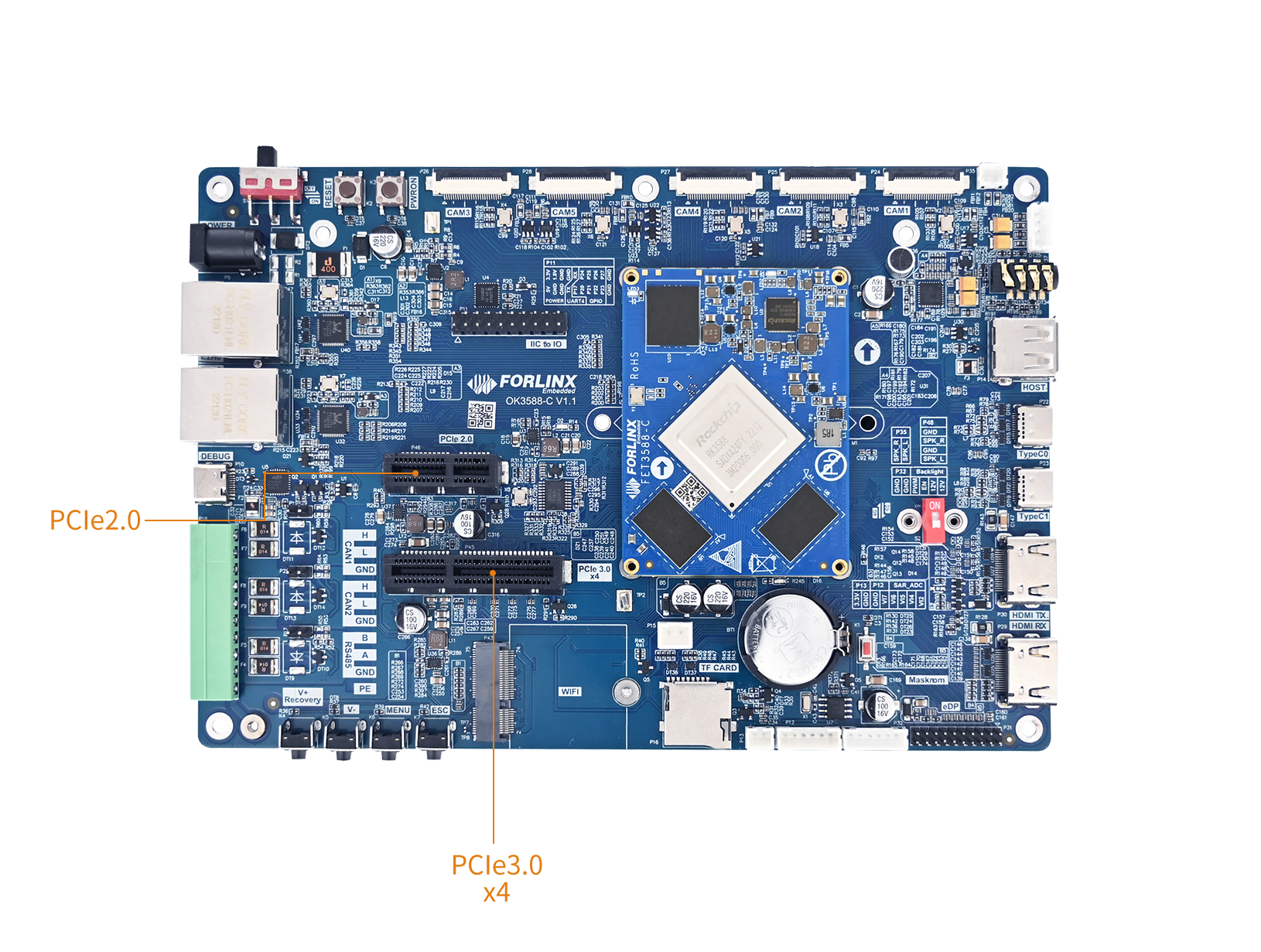
You can design PCIe bifurcation according to your specific requirements. For detailed information, please visit the Resource Download Center page, find the “Rockchip Linux Software Development Guide” document, and locate the file en/Common/PCIe/Rockchip_Developer_Guide_PCIe_EN.pdf.
⚠️Note: Since the RK3588S2 chip itself has fewer PCIe controllers, neither the P45 nor P46 PCIe interfaces on the OK3588S2-C board are unusable.
PCIe driver source code location in the kernel: drivers/pci/controller/pcie-rockchip.c.
13.2 Device Tree
OK3588-C/3588-C2 PCIe device tree node location: arch/arm64/boot/dts/rockchip/OK3588-C-common.dtsi.
// Fixed regulator for PCIe 3.0 3.3V power supply
vcc3v3_pcie30: vcc3v3_pcie30 {
	compatible = "regulator-fixed";
	regulator-name = "vcc3v3_pcie30";
	regulator-boot-on;
	regulator-always-on;
	regulator-min-microvolt = <3300000>;
	regulator-max-microvolt = <3300000>;
	vin-supply = <&vcc5v0_sys>;
};

// Fixed regulator for PCIe 2.0 3.3V power supply
vcc3v3_pcie20: vcc3v3-pcie20 {
	compatible = "regulator-fixed";
	regulator-name = "vcc3v3-pcie20";
	regulator-boot-on;
	regulator-always-on;
	regulator-min-microvolt = <3300000>;
	regulator-max-microvolt = <3300000>;
	vin-supply = <&vcc5v0_sys>;
};

// PCIe 2.0 x1 lane 0 controller with reset and power supply
&pcie2x1l0 {
	reset-gpios = <&gpio4 RK_PA5 GPIO_ACTIVE_HIGH>;
	vpcie3v3-supply = <&vcc3v3_pcie20>;
	status = "okay";
};

// Combo PHY 0 for PCIe/SATA/USB3.0, enabled
&combphy0_ps {
	status = "okay";
};

// PCIe 2.0 x1 lane 2 controller with WiFi GPIO and reset
&pcie2x1l2 {
	wifi-gpio = <&extio EXTIO_GPIO_P13 GPIO_ACTIVE_HIGH>;
	reset-gpios = <&gpio3 RK_PD1 GPIO_ACTIVE_HIGH>;
	status = "okay";
};

&combphy1_ps {
	status = "okay";
};

&pcie30phy {
	rockchip,pcie30-phymode = <PHY_MODE_PCIE_AGGREGATION>;
	status = "disabled";
};

&pcie3x4 {
	reset-gpios = <&gpio4 RK_PB6 GPIO_ACTIVE_HIGH>;
	memory-region = <&dma_trans>;
	vpcie3v3-supply = <&vcc3v3_pcie30>;
	status = "disabled";
};
OK3588S2 PCIe device tree node location: kernel-6.1/arch/arm64/boot/dts/rockchip/OK3588S2-C-common.dtsi.
The WiFi module uses a PCIe interface.
13.3 Application
Before powering on the system, insert the PCIe module into the PCIe slot on the carrier board.
After powering on and starting, use the lspci command to check that the device is enumerated successfully.
forlinx@ok3588:~$ lspci
0002:20:00.0 PCI bridge: Rockchip Electronics Co., Ltd RK3588 (rev 01)
0002:21:00.0 Ethernet controller: Realtek Semiconductor Co., Ltd. RTL8111/8168/8211/8411 PCI Express Gigabit Ethernet Controller (rev 15)
0004:40:00.0 PCI bridge: Rockchip Electronics Co., Ltd RK3588 (rev 01)
0004:41:00.0 Ethernet controller: Marvell Technology Group Ltd. NXP 88W9098 Wi-Fi 6 (ax) MAC #1 (rev 03)
0004:41:00.1 Ethernet controller: Marvell Technology Group Ltd. NXP 88W9098 Wi-Fi 6 (ax) MAC #2 (rev 03)
You can see the following NVMe nodes eth2:
forlinx@ok3588:~$ ifconfig
eth0: flags=4099<UP,BROADCAST,MULTICAST>  mtu 1500
        ether b2:9c:e6:c7:a0:63  txqueuelen 1000  (Ethernet)
        RX packets 0  bytes 0 (0.0 B)
        RX errors 0  dropped 0  overruns 0  frame 0
        TX packets 0  bytes 0 (0.0 B)
        TX errors 0  dropped 0 overruns 0  carrier 0  collisions 0
        device interrupt 71

eth1: flags=4099<UP,BROADCAST,MULTICAST>  mtu 1500
        ether b6:9c:e6:c7:a0:63  txqueuelen 1000  (Ethernet)
        RX packets 0  bytes 0 (0.0 B)
        RX errors 0  dropped 0  overruns 0  frame 0
        TX packets 0  bytes 0 (0.0 B)
        TX errors 0  dropped 0 overruns 0  carrier 0  collisions 0
        device interrupt 77

eth2: flags=4163<UP,BROADCAST,RUNNING,MULTICAST>  mtu 1500
        inet6 fd5d:4c21:e8f4:0:2e0:4cff:fe64:589e  prefixlen 64  scopeid 0x0<global>
        inet6 fe80::2e0:4cff:fe64:589e  prefixlen 64  scopeid 0x20<link>
        inet6 fda2:e684:2119:0:2e0:4cff:fe64:589e  prefixlen 64  scopeid 0x0<global>
        ether 00:e0:4c:64:58:9e  txqueuelen 1000  (Ethernet)
        RX packets 2229  bytes 466032 (455.1 KiB)
        RX errors 0  dropped 0  overruns 0  frame 0
        TX packets 38  bytes 6020 (5.8 KiB)
        TX errors 0  dropped 0 overruns 0  carrier 0  collisions 0
        device interrupt 101  base 0xd000

lo: flags=73<UP,LOOPBACK,RUNNING>  mtu 65536
        inet 127.0.0.1  netmask 255.0.0.0
        inet6 ::1  prefixlen 128  scopeid 0x10<host>
        loop  txqueuelen 1000  (Local Loopback)
        RX packets 330  bytes 22530 (22.0 KiB)
        RX errors 0  dropped 0  overruns 0  frame 0
        TX packets 330  bytes 22530 (22.0 KiB)
        TX errors 0  dropped 0 overruns 0  carrier 0  collisions 0

mlan0: flags=4099<UP,BROADCAST,MULTICAST>  mtu 1500
        ether e8:fb:1c:b4:19:fe  txqueuelen 1000  (Ethernet)
        RX packets 0  bytes 0 (0.0 B)
        RX errors 0  dropped 0  overruns 0  frame 0
        TX packets 0  bytes 0 (0.0 B)
        TX errors 0  dropped 0 overruns 0  carrier 0  collisions 0
Configure the network node:
forlinx@ok3588:~$ sudo ifconfig eth2 192.168.0.233 netmask 255.255.255.0
Configure the network IP according to your actual network conditions. Network connectivity can be tested using the ping command (it’s necessary to ping an IP within the same subnet).
forlinx@ok3588:~$ ping 192.168.0.100 -I eth2 -c 5
PING 192.168.0.100 (192.168.0.100) 56(84) bytes of data.
64 bytes from 192.168.0.100: icmp_seq=1 ttl=128 time=0.320 ms
64 bytes from 192.168.0.100: icmp_seq=2 ttl=128 time=0.305 ms
64 bytes from 192.168.0.100: icmp_seq=3 ttl=128 time=0.487 ms
64 bytes from 192.168.0.100: icmp_seq=4 ttl=128 time=0.271 ms
64 bytes from 192.168.0.100: icmp_seq=5 ttl=128 time=0.335 ms

--- 192.168.0.100 ping statistics ---
5 packets transmitted, 5 received, 0% packet loss, time 4075ms
rtt min/avg/max/mdev = 0.271/0.343/0.487/0.074 ms
14. Ethernet
14.1 Introduction
The OK3588-C board is equipped with two Gigabit Ethernet ports. With an Ethernet cable connected, the factory default configuration sets eth0 to a static IP, while eth1 is not configured. Both network ports use the RTL8211FSI PHY chip.
Location of the driver source code within the kernel: drivers/net/ethernet/stmicro/stmmac.
The wired network interface locations on the board are as follows:
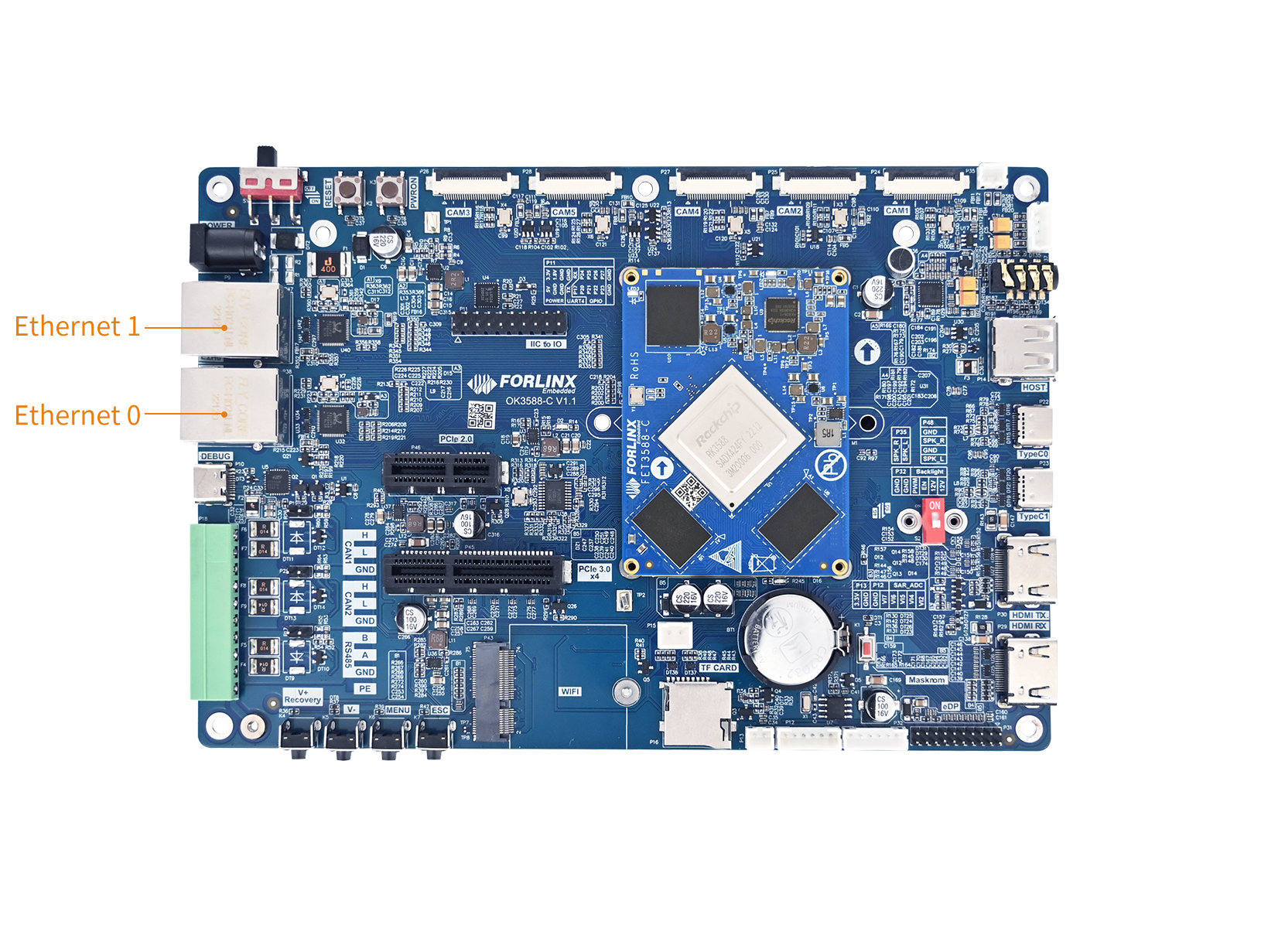
⚠️Note: Since the RK3588S2 chip lacks an Ethernet controller, the OK3588S2-C only has one gigabit network card. When the network cable is plugged in for internet connection, eth0 is configured with a static IP by default, and the P38 network port is unavailable.
The RTL8211 schematic is shown below:
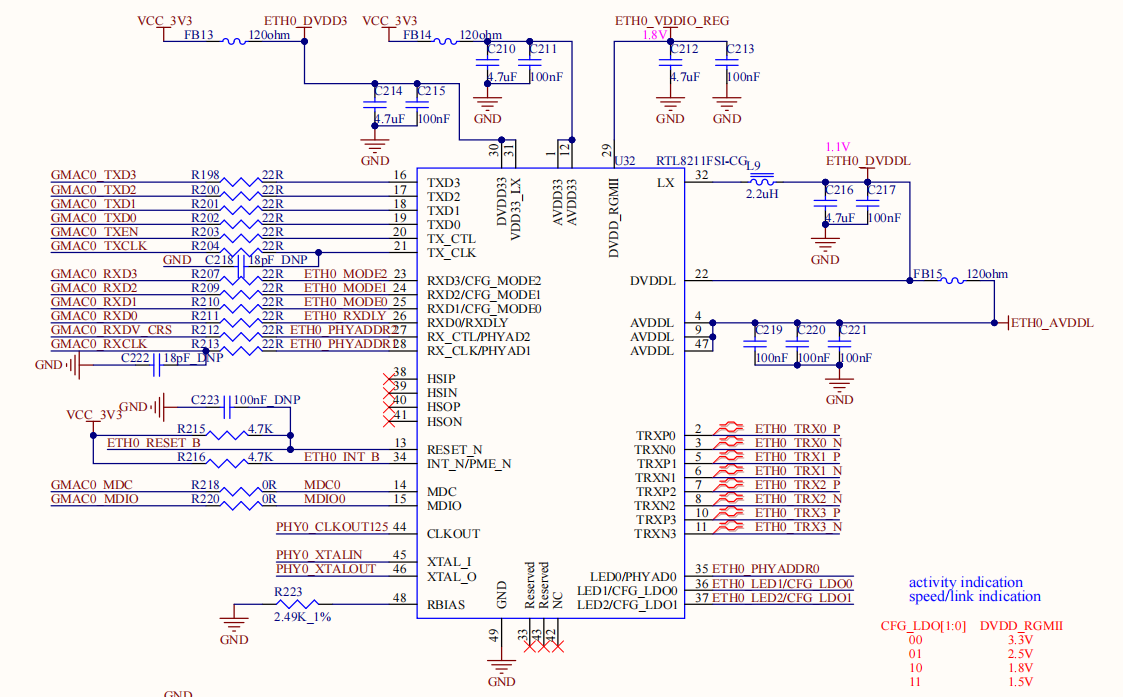
14.1.1 RGMII Mode
The RK3588 GMAC controller supports four RGMII clock configuration schemes:
Mode |
TX_CLK origin |
PHY 25MHz origin |
|---|---|---|
RGMII Config 1 |
SoC PLL output 125MHz |
External crystal 25MHz |
RGMII Config 2 |
SoC PLL output 125MHz |
SoC PLL output 25MHz |
RGMII Config 3 |
PHY input 125MHz |
SoC PLL output 25MHz |
RGMII Config 4 |
PHY input 125MHz |
External crystal 25MHz |
The OK3588-C employs the RGMII Config 1 clocking scheme.
14.2 Device Tree
The device tree nodes for the OK3588-C network are located at: arch/arm64/boot/dts/rockchip/OK3588-C-common.dtsi.
&mdio0 {
	rgmii_phy0: phy@1 {
		compatible = "ethernet-phy-ieee802.3-c22";
		reg = <0x1>;
	};
};

&mdio1 {
	rgmii_phy1: phy@1 {
		compatible = "ethernet-phy-ieee802.3-c22";
		reg = <0x2>;
	};
};

&gmac0 {
	// Use rgmii-rxid mode to disable rx delay inside Soc
	phy-mode = "rgmii-rxid";
	clock_in_out = "output";

	snps,reset-gpio = <&gpio0 RK_PB0 GPIO_ACTIVE_LOW>;
	snps,reset-active-low;
	// Reset time is 20ms, 100ms for rtl8211f
	snps,reset-delays-us = <0 20000 100000>;

	pinctrl-names = "default";
	pinctrl-0 = <&gmac0_miim
		     &gmac0_tx_bus2
		     &gmac0_rx_bus2
		     &gmac0_rgmii_clk
		     &gmac0_rgmii_bus>;

	tx_delay = <0x44>;
	// rx_delay = <0x4f>;

	phy-handle = <&rgmii_phy0>;
	status = "okay";
};

&gmac1 {
	// Use rgmii-rxid mode to disable rx delay inside Soc
	phy-mode = "rgmii-rxid";
	clock_in_out = "output";

	snps,reset-gpio = <&gpio1 RK_PB4 GPIO_ACTIVE_LOW>;
	snps,reset-active-low;
	// Reset time is 20ms, 100ms for rtl8211f
	snps,reset-delays-us = <0 20000 100000>;

	pinctrl-names = "default";
	pinctrl-0 = <&gmac1_miim
		     &gmac1_tx_bus2
		     &gmac1_rx_bus2
		     &gmac1_rgmii_clk
		     &gmac1_rgmii_bus>;

	tx_delay = <0x44>;
	// rx_delay = <0x4f>;

	phy-handle = <&rgmii_phy1>;
	status = "okay";
};
Where , mdio0 and gmac0 correspond to the device tree nodes of eth0, and mdio1 and gmac1 correspond to the device tree nodes of eth1.
The device tree nodes for the OK3588S2-C network are located at: arch/arm64/boot/dts/rockchip/OK3588S2-C-common.dtsi.
14.3 Application
14.3.1 Modify IP Address
14.3.1.1 DHCPC IP
Modify the following configuration file to set eth0 to automatically obtain an IP address:/etc/systemd/network/10-eth0.network.
forlinx@ok3588:~$ sudo vi /etc/systemd/network/10-eth0.network   	  // Open the configuration file
[Match]
Name=eth0
KernelCommandLine=!root=/dev/nfs
[Network]
DHCP=yes
After the settings are completed, restart the network service.
forlinx@ok3588:~$ sudo systemctl restart systemd-networkd
14.3.1.2 Static IP
You can modify the default IP address by editing the following configuration file:/etc/systemd/network/10-eth0.network.
forlinx@ok3588:~$ sudo vi /etc/systemd/network/10-eth0.network
[Match]
Name=eth0
KernelCommandLine=!root=/dev/nfs
[Network]
Address=192.168.0.232/24
Gateway=192.168.0.1
DNS=114.114.114.114
Name is used to specify the network interface card that requires a fixed IP.
Address is used to assign the fixed IP address.
Gateway is used to specify the gateway.
DNS is used to set the domain name resolution server.
After configuring the settings, restart the network service.
Restart the network service after the setup is completed.
forlinx@ok3588:~$ sudo systemctl restart systemd-networkd
14.3.2 Checking Network Status
Connect the network cable to the ETH0 port of the board before the test.
14.3.2.1 Ifconfig
The ifconfig is a classic tool for configuring and viewing network interfaces in Linux and Unix systems.
// View all network interface information.
forlinx@ok3588:~$ ifconfig
eth0: flags=4099<UP,BROADCAST,MULTICAST>  mtu 1500
        ether b2:9c:e6:c7:a0:63  txqueuelen 1000  (Ethernet)
        RX packets 0  bytes 0 (0.0 B)
        RX errors 0  dropped 0  overruns 0  frame 0
        TX packets 0  bytes 0 (0.0 B)
        TX errors 0  dropped 0 overruns 0  carrier 0  collisions 0
        device interrupt 71

eth1: flags=4099<UP,BROADCAST,MULTICAST>  mtu 1500
        ether b6:9c:e6:c7:a0:63  txqueuelen 1000  (Ethernet)
        RX packets 0  bytes 0 (0.0 B)
        RX errors 0  dropped 0  overruns 0  frame 0
        TX packets 0  bytes 0 (0.0 B)
        TX errors 0  dropped 0 overruns 0  carrier 0  collisions 0
        device interrupt 77

lo: flags=73<UP,LOOPBACK,RUNNING>  mtu 65536
        inet 127.0.0.1  netmask 255.0.0.0
        inet6 ::1  prefixlen 128  scopeid 0x10<host>
        loop  txqueuelen 1000  (Local Loopback)
        RX packets 11450  bytes 711970 (695.2 KiB)
        RX errors 0  dropped 0  overruns 0  frame 0
        TX packets 11450  bytes 711970 (695.2 KiB)
        TX errors 0  dropped 0 overruns 0  carrier 0  collisions 0
14.3.2.2 Ethtool
The ethtool command is an essential tool in Linux systems for troubleshooting physical layer and driver-level issues. It provides more in-depth hardware-level information than the ifconfig command. It provides more in-depth hardware-level information than the ifconfigcommand.
// Show the basic settings of eth0
forlinx@ok3588:~$ sudo ethtool  eth0
Settings for eth0:
        Supported ports: [ TP    MII ]
        Supported link modes:   10baseT/Half 10baseT/Full
                                100baseT/Half 100baseT/Full
                                1000baseT/Full
        Supported pause frame use: Symmetric Receive-only
        Supports auto-negotiation: Yes
        Supported FEC modes: Not reported
        Advertised link modes:  10baseT/Half 10baseT/Full
                                100baseT/Half 100baseT/Full
                                1000baseT/Full
        Advertised pause frame use: Symmetric Receive-only
        Advertised auto-negotiation: Yes
        Advertised FEC modes: Not reported
        Link partner advertised link modes:  10baseT/Full
                                             100baseT/Full
                                             1000baseT/Full
        Link partner advertised pause frame use: No
        Link partner advertised auto-negotiation: Yes
        Link partner advertised FEC modes: Not reported
        Speed: 1000Mb/s
        Duplex: Full
        Auto-negotiation: on
        master-slave cfg: preferred slave
        master-slave status: slave
        Port: Twisted Pair
        PHYAD: 1
        Transceiver: external
        MDI-X: Unknown
        Supports Wake-on: ug
        Wake-on: d
        Current message level: 0x0000003f (63)
                               drv probe link timer ifdown ifup
        Link detected: yes
14.3.3 Test Network Connectivity
14.3.3.1 Ping
After configuring the network IP according to your actual network environment, you can use the ping command to test network connectivity (you need to ping an IP address within the same subnet).
forlinx@ok3588:~$ ping 192.168.0.100 -c 5
PING 192.168.0.100 (192.168.0.100) 56(84) bytes of data.
64 bytes from 192.168.0.100: icmp_seq=1 ttl=128 time=0.320 ms
64 bytes from 192.168.0.100: icmp_seq=2 ttl=128 time=0.305 ms
64 bytes from 192.168.0.100: icmp_seq=3 ttl=128 time=0.487 ms
64 bytes from 192.168.0.100: icmp_seq=4 ttl=128 time=0.271 ms
64 bytes from 192.168.0.100: icmp_seq=5 ttl=128 time=0.335 ms

--- 192.168.0.100 ping statistics ---
5 packets transmitted, 5 received, 0% packet loss, time 4075ms
rtt min/avg/max/mdev = 0.271/0.343/0.487/0.074 ms
14.3.3.2 Iperf3
After configuring the network IP according to your actual network environment, you can use the iperf3 tool to test network throughput speed.
Server Side:
iperf3.exe -s
Client (Board):
// iperf3 -c IP_ADDRESS_OF_IPERF_SERVER
forlinx@ok3588:~$ iperf3 -c 192.168.0.100
Connecting to host 192.168.0.100, port 5201
[  5] local 192.168.0.232 port 43934 connected to 192.168.0.100 port 5201
[ ID] Interval           Transfer     Bitrate         Retr  Cwnd
[  5]   0.00-1.00   sec   114 MBytes   953 Mbits/sec    0    218 KBytes
[  5]   1.00-2.00   sec   113 MBytes   950 Mbits/sec    0    218 KBytes
[  5]   2.00-3.00   sec   113 MBytes   949 Mbits/sec    0    218 KBytes
[  5]   3.00-4.00   sec   113 MBytes   950 Mbits/sec    0    218 KBytes
[  5]   4.00-5.00   sec   113 MBytes   950 Mbits/sec    0    218 KBytes
[  5]   5.00-6.00   sec   113 MBytes   948 Mbits/sec    0    218 KBytes
[  5]   6.00-7.00   sec   113 MBytes   950 Mbits/sec    0    218 KBytes
[  5]   7.00-8.00   sec   113 MBytes   950 Mbits/sec    0    218 KBytes
[  5]   8.00-9.00   sec   113 MBytes   948 Mbits/sec    0    218 KBytes
[  5]   9.00-10.00  sec   113 MBytes   949 Mbits/sec    0    218 KBytes
- - - - - - - - - - - - - - - - - - - - - - - - -
[ ID] Interval           Transfer     Bitrate         Retr
[  5]   0.00-10.00  sec  1.11 GBytes   950 Mbits/sec    0             sender
[  5]   0.00-10.00  sec  1.10 GBytes   949 Mbits/sec                  receiver

iperf Done.
Result: The bit rate stabilizes between 948 - 953 Mbits/sec, indicating that the Gigabit network connection is functioning properly with good performance.
14.3.3.3 SFTP
The OK3588 development board supports the SFTP service, which is automatically enabled upon startup. After setting the IP address, it can function as an SFTP server. The following describes how to utilize the FTP tool for file transfer.
Install the file Zilla tool on windows and follow the steps shown in the figure below. The user name and password are forlinx.
Open the filezilla tool, click File, and select Site Manager.
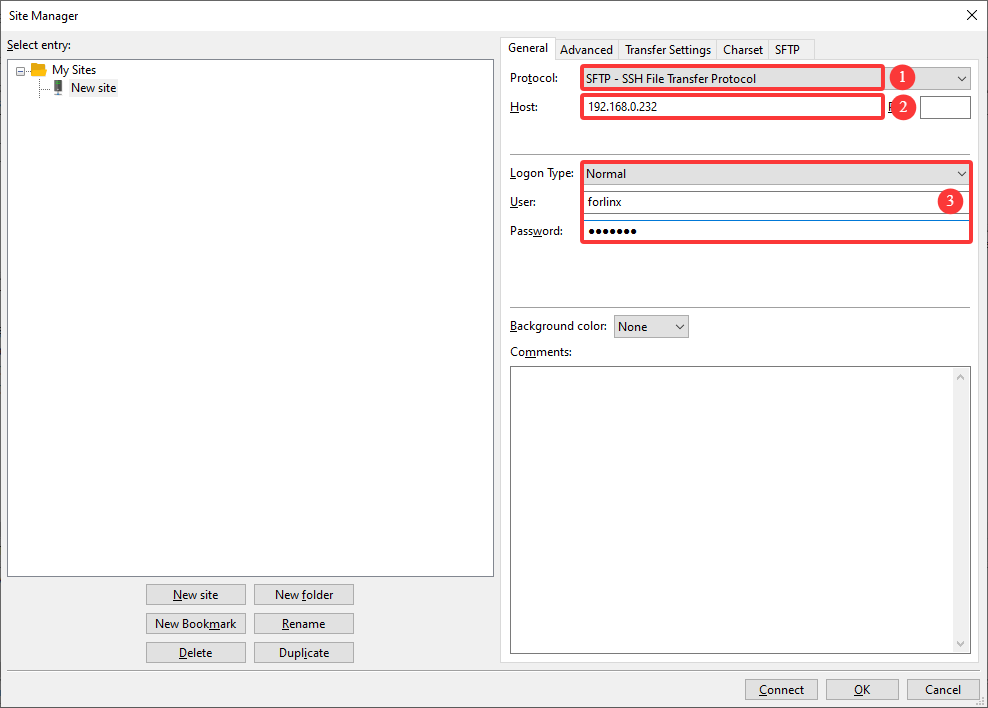
15. WiFi & Bluetooth
⚠️Note: The network environment is different, so please set it according to the actual situation when you do this experiment.
15.1 Introduction
The OK3588 platform supports two types of Wi-Fi and Bluetooth combo modules: AW-XM458 and AW-CM276MA. The Wi-Fi connects via PCIe, while Bluetooth uses a UART interface.
The hardware is located on the board at the following position:
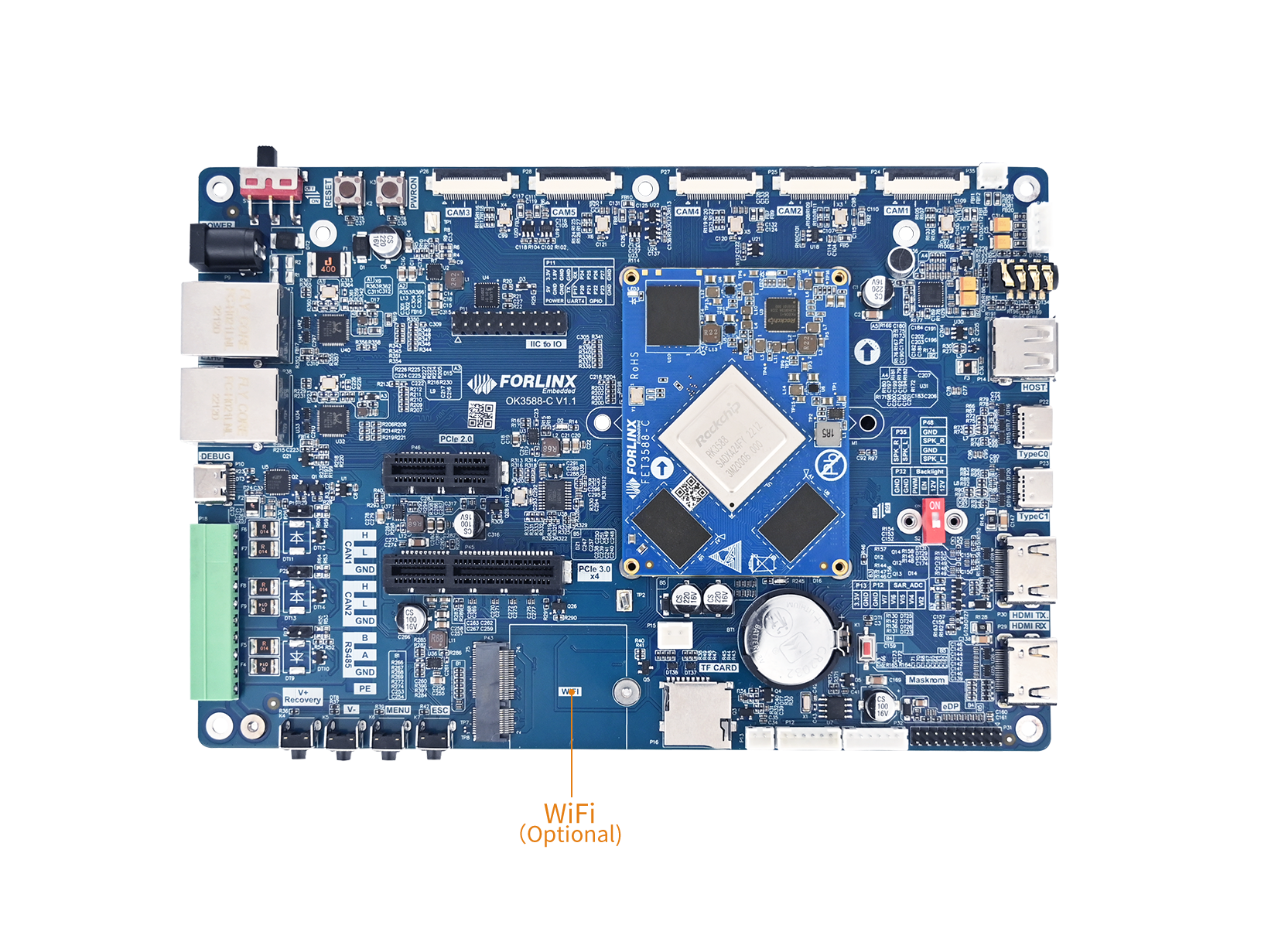
15.2 Device Tree
The device tree nodes for Wi‑Fi and Bluetooth on OK3588‑C / 3588‑C2 are located at:arch/arm64/boot/dts/rockchip/OK3588-C-common.dtsi.
The device tree nodes for Wi‑Fi and Bluetooth on OK3588S2‑C are located at:arch/arm64/boot/dts/rockchip/OK3588S2-C-common.dtsi.
wireless-wlan {
        compatible = "wlan-platdata";
        wifi_chip_type = "mvl88w9098";
        status = "okay";
};

wireless-bluetooth {
	compatible = "bluetooth-platdata";
	status = "okay";
};
15.3 Application
⚠️ Note: Before starting the test, you must usesudo -ithe command to obtain root privileges.
15.3.1 WiFi STA Mode
Before using the Wi-Fi functionality, follow these steps to configure it:
Assume the Wi‑Fi hotspot SSID is forlinx‑Jvgv and the password is fl03123102650.
Check the WIFI interface:
root@ok3588:~# ip link show mlan0
6: mlan0: <NO-CARRIER,BROADCAST,MULTICAST,UP> mtu 1500 qdisc mq state DOWN mode DEFAULT group default qlen 1000
    link/ether f8:54:f6:b6:cd:de brd ff:ff:ff:ff:ff:ff
Activate the WIFI interface:
root@ok3588:~# ip link set mlan0 up
Scan for surrounding WIFI networks:
root@ok3588:~# iw dev mlan0 scan | grep -E "SSID|signal"
Generate the configuration for the WIFI you want to connect to:
root@ok3588:~# wpa_passphrase "forlinx-wlan" "fl03123102650" > /tmp/wpa.conf
Connect to WIFI:
root@ok3588:~# wpa_supplicant -B -i mlan0 -c /tmp/wpa.conf
Successfully initialized wpa_supplicant
Wait three seconds, then check if an IP address has been assigned:
root@ok3588:~# ip addr show mlan0
6: mlan0: <BROADCAST,MULTICAST,UP,LOWER_UP> mtu 1500 qdisc mq state UP group default qlen 1000
    link/ether f8:54:f6:b6:cd:de brd ff:ff:ff:ff:ff:ff
    inet 10.10.20.129/22 metric 3000 brd 10.10.23.255 scope global dynamic mlan0
       valid_lft 1799sec preferred_lft 1799sec
    inet6 fe80::fa54:f6ff:feb6:cdde/64 scope link proto kernel_ll
       valid_lft forever preferred_lft forever
Test the network connection:
root@ok3588:~# ping -c 3 www.forlinx.net -I mlan0
PING www.forlinx.net (172.67.155.191) from 10.10.16.92 mlan0: 56(84) bytes of data.
64 bytes from 172.67.155.191: icmp_seq=1 ttl=52 time=308 ms
64 bytes from 172.67.155.191: icmp_seq=2 ttl=52 time=331 ms
64 bytes from 172.67.155.191: icmp_seq=3 ttl=52 time=253 ms

--- www.forlinx.net ping statistics ---
3 packets transmitted, 3 received, 0% packet loss, time 2000ms
rtt min/avg/max/mdev = 252.799/297.311/331.418/32.928 ms
15.3.2 WiFi AP Mode
⚠️Note: Before performing this test, ensure the Gigabit Ethernet port eth0 is connected to the network and functioning normally.
Check the driver loading status (using the AW‑XM458 module as an example):
forlinx@ok3588:~$ lsmod
Module                  Size  Used by
moal                  835584  1
mlan                  610304  1 moal
Configure the hotspot:
Hotspot name: OK3588-AP
Password: 12345678
Enable AP node:
root@ok3588:~# wifi-ap start
View AP node:
root@ok3588:~# ip addr show uap0
15.3.3 Bluetooth
This section demonstrates data transfer between a mobile phone and the development board via Bluetooth (Bluetooth 5.0 supported).
Bluetooth configuration:
forlinx@ok3588:~# bluetoothctl                                                          // Open the BlueZ Bluetooth tool
hci0 new_settings: powered bondable ssp br/edr le secure-conn
Agent registered
[CHG] Controller 50:5A:65:51:A9:F1 Pairable: yes
[bluetooth]# power on                                                                   // Start the Bluetooth device
Changing power on succeeded
[bluetooth]# pairable on                                                                // Set to pairing mode
Changing pairable on succeeded
[bluetooth]# discoverable on                                                            // Set to discoverable mode
hci0 new_settings: powered connectable bondable ssp br/edr le secure-conn
hci0 new_settings: powered connectable discoverable bondable ssp br/edr le secure-conn
Changing discoverable on succeeded
[CHG] Controller 50:5A:65:51:A9:F1 Discoverable: yes
[bluetooth]# agent on                                                                   // Start the agent
Agent is already registered
[bluetooth]# default-agent
Default agent request successful
Passive pairing on the development board:
Turn on Bluetooth search on the mobile phone; a device namedok3588will appear. Select it to pair.
The print information on the development board is as follows. Enter “yes”:
[bluetooth]# default-agent
Default agent request successful
hci0 B0:46:92:74:81:84 type BR/EDR connected eir_len 22
hci0 B0:46:92:74:81:84 type BR/EDR connected eir_len 5
[NEW] Device B0:46:92:74:81:84 OPPO Reno5 K 5G
hci0 B0:46:92:74:81:84 type BR/EDR connected eir_len 5
hci0 B0:46:92:74:81:84 type BR/EDR connected eir_len 5
hci0 B0:46:92:74:81:84 type BR/EDR connected eir_len 5
Request confirmation
[agent] Confirm passkey 176985 (yes/no): yes
hci0 new_link_key B0:46:92:74:81:84 type 0x05 pin_len 0 store_hint 1
hci0 device_flags_changed: B0:46:92:74:81:84 (BR/EDR)
     supp: 0x00000000  curr: 0x00000000
[CHG] Device B0:46:92:74:81:84 INFO: 0x0007 (7)
[CHG] Device B0:46:92:74:81:84 Bonded: yes
View and remove connected devices:
[OPPO Reno5 K 5G]# devices
Device B0:46:92:74:81:84 OPPO Reno5 K 5G
[OPPO Reno5 K 5G]# remove B0:46:92:74:81:84
[DEL] Player /org/bluez/hci0/dev_B0_46_92_74_81_84/player0 [default]
hci0 B0:46:92:74:81:84 type BR/EDR connected eir_len 5
hci0 B0:46:92:74:81:84 type BR/EDR connected eir_len 5
[DEL] Transport /org/bluez/hci0/dev_B0_46_92_74_81_84/fd0
[DEL] Endpoint /org/bluez/hci0/dev_B0_46_92_74_81_84/sep1
hci0 B0:46:92:74:81:84 type BR/EDR connected eir_len 5
hci0 B0:46:92:74:81:84 type BR/EDR connected eir_len 5
hci0 B0:46:92:74:81:84 type BR/EDR connected eir_len 5
hci0 B0:46:92:74:81:84 type BR/EDR disconnected with reason 2
[CHG] Device B0:46:92:74:81:84 ServicesResolved: no
Device has been removed
[CHG] Device B0:46:92:74:81:84 INFO: 0x0008 (8)
[CHG] Device B0:46:92:74:81:84 Connected: no
[DEL] Device B0:46:92:74:81:84 OPPO Reno5 K 5G
[bluetooth]#
Development board receives files
After successful pairing, you can send a file from the mobile phone to the OK3588‑C development board via Bluetooth.
The received files are saved in the/tmp/.
forlinx@ok3588:~$ ls /tmp/*.jpg
/tmp/Screenshot_2025-10-25-09-45-57-51_76eaced432273cd65da1ec13409568ff.jpg
Send files from the development board
You can send a file from the OK3588‑C development board to a mobile phone. Test as follows:
forlinx@ok3588:~$ echo "test bt send" > test.txt
forlinx@ok3588:~$ systemctl --user start obex
forlinx@ok3588:~$ obexctl
[NEW] Client /org/bluez/obex
[obex]# connect B0:46:92:74:81:84
Attempting to connect to B0:46:92:74:81:84
[NEW] Session /org/bluez/obex/client/session0 [default]
[NEW] ObjectPush /org/bluez/obex/client/session0
Connection successful
[B0:46:92:74:81:84]# send /home/forlinx/test.txt
Attempting to send /home/forlinx/test.txt to /org/bluez/obex/client/session0
[NEW] Transfer /org/bluez/obex/client/session0/transfer0
Transfer /org/bluez/obex/client/session0/transfer0
[B0:46:9Status: queued
[B0:46:9Name: test.txt
[B0:46:9Size: 1484]#
[B0:46:9Filename: /home/forlinx/test.txt
[B0:46:9Session: /org/bluez/obex/client/session0
[CHG] Transfer /org/bluez/obex/client/session0/transfer0 Status: complete
[DEL] Transfer /org/bluez/obex/client/session0/transfer0
⚠️Note: Some mobile phones require files to have an extension; otherwise, the Android system will reject them. Therefore, please try to use files with extensions for testing. Apple iPhones do not support sending/receiving data via Bluetooth.
16. 4G/5G
The OK3588 supports 4G and 5G modules (4G is EM05-CE, and 5G is RM500U).
⚠️Note: The following test is based on the SIM card and module in China, and you need to configure it according to your local network mode.
The location of the 4G/5G module and SIM card.
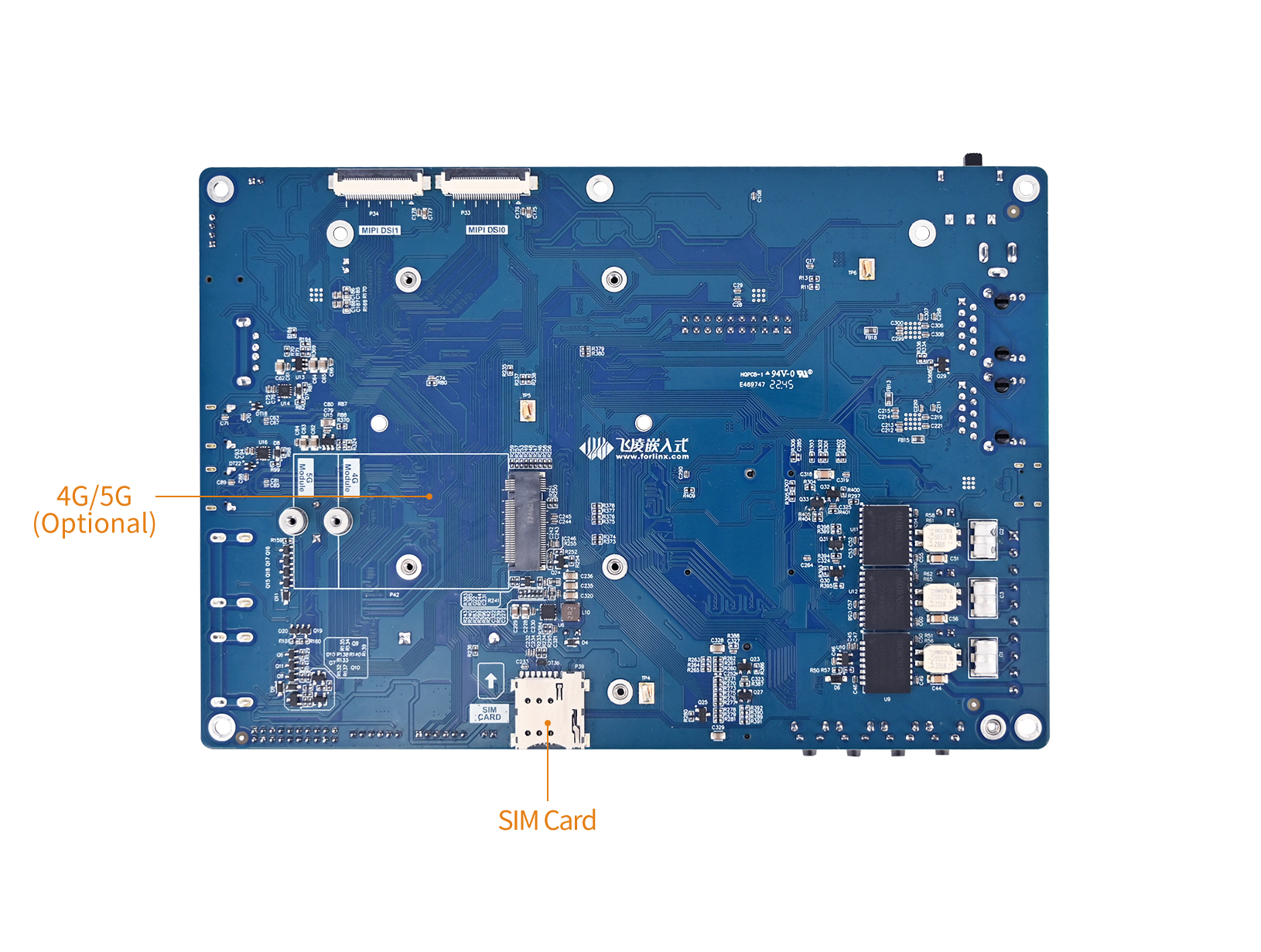
16.1 4G
Connect the 4G module and the antenna, insert the SIM card, and start the development board. Please note the direction of the SIM. The logo is silk-screened on the carrier board.
After connecting the module and powering on the development board and module, you can check the USB status using the lsusb command.
forlinx@ok3588:~# lsusb
Bus 005 Device 001: ID 1d6b:0002
Bus 003 Device 001: ID 1d6b:0002
Bus 001 Device 001: ID 1d6b:0002
Bus 005 Device 002: ID 2c7c:0125                                // EM05 VID and PID
Bus 006 Device 001: ID 1d6b:0001
Bus 004 Device 001: ID 1d6b:0001
Bus 002 Device 001: ID 1d6b:0003
Check the device node status under /dev.:
forlinx@ok3588:~# ls /dev/ttyUSB*
/dev/ttyUSB0  /dev/ttyUSB1  /dev/ttyUSB2  /dev/ttyUSB3
After successful device identification, you can perform dial-up Internet access testing;
forlinx@ok3588:~$ sudo quectel-CM &
[1] 884
forlinx@ok3588:~$ [06-12_03:03:37:362] QConnectManager_Linux_V1.6.7
[06-12_03:03:37:363] Find /sys/bus/usb/devices/3-1 idVendor=0x2c7c idProduct=0x125, bus=0x003, dev=0x002
[06-12_03:03:37:363] Auto find qmichannel = /dev/cdc-wdm0
[06-12_03:03:37:363] Auto find usbnet_adapter = wwan0
[06-12_03:03:37:363] netcard driver = qmi_wwan_q, driver version = V1.2.9
[06-12_03:03:37:363] Modem works in QMI mode
[06-12_03:03:37:371] cdc_wdm_fd = 7
[06-12_03:03:37:451] Get clientWDS = 5
[06-12_03:03:37:485] Get clientDMS = 1
[06-12_03:03:37:516] Get clientNAS = 2
[06-12_03:03:37:548] Get clientUIM = 1
[06-12_03:03:37:580] Get clientWDA = 1
[06-12_03:03:37:612] requestBaseBandVersion EM05CNFDR08A03M1G_ND
[06-12_03:03:37:740] requestGetSIMStatus SIMStatus: SIM_READY
[06-12_03:03:37:804] requestGetProfile[pdp:1 index:1] ctnet///0/IPV4V6
[06-12_03:03:37:836] requestRegistrationState2 MCC: 460, MNC: 11, PS: Attached, DataCap: LTE
[06-12_03:03:37:867] requestQueryDataCall IPv4ConnectionStatus: DISCONNECTED
[06-12_03:03:37:867] ip addr flush dev wwan0
[06-12_03:03:37:871] ip link set dev wwan0 down
[06-12_03:03:37:931] requestSetupDataCall WdsConnectionIPv4Handle: 0x86d14f70
[06-12_03:03:38:059] ip link set dev wwan0 up
[06-12_03:03:38:064] busybox udhcpc -f -n -q -t 5 -i wwan0
sh: line 1: busybox: command not found
[06-12_03:03:38:065] ip -4 address flush dev wwan0
[06-12_03:03:38:067] ip -4 address add 100.126.50.85/30 dev wwan0
[06-12_03:03:38:071] ip -4 route add default via 100.126.50.86 dev wwan0
[06-12_03:03:38:075] fopen /etc/resolv.conf fail, errno:2 (No such file or directory)
The ping domain name test.
The 4G network node is wwan0.
⚠️Note: Please select the domain name to test according to the region of the user.
forlinx@ok3588:~$ ping www.forlinx.net -I wwan0 -c 3
PING www.forlinx.net (104.21.40.175) from 100.126.50.85 wwan0: 56(84) bytes of data.
64 bytes from 104.21.40.175: icmp_seq=1 ttl=52 time=388 ms
64 bytes from 104.21.40.175: icmp_seq=2 ttl=52 time=446 ms
64 bytes from 104.21.40.175: icmp_seq=3 ttl=52 time=468 ms

--- www.forlinx.net ping statistics ---
3 packets transmitted, 3 received, 0% packet loss, time 2001ms
rtt min/avg/max/mdev = 388.423/434.002/468.062/33.517 ms
16.2 5G
Connect the 5G module RM500U and the antenna, insert the SIM card, and start the development board. Please note the direction of the SIM. The logo is silk-screened on the carrier board.
⚠️NOTE:5G is very sensitive to signal strength. During testing, please connect all four antennas required by the module.
Connect the module. After the development board and the module are powered on, you can check the USB status through thelsusbcommand:
forlinx@ok3588:~$ lsusb
Bus 001 Device 001: ID 1d6b:0002 Linux Foundation 2.0 root hub
Bus 002 Device 001: ID 1d6b:0003 Linux Foundation 3.0 root hub
Bus 002 Device 002: ID 2c7c:0900 Quectel Wireless Solutions Co., Ltd. RM500U-CNV	// RM500U 5G module
Bus 003 Device 001: ID 1d6b:0002 Linux Foundation 2.0 root hub
Bus 004 Device 001: ID 1d6b:0001 Linux Foundation 1.1 root hub
Bus 005 Device 001: ID 1d6b:0002 Linux Foundation 2.0 root hub
Bus 006 Device 001: ID 1d6b:0001 Linux Foundation 1.1 root hub
/devTo view the device node status:
forlinx@ok3588:~$ ls /dev/ttyUSB*
/dev/ttyUSB0  /dev/ttyUSB1  /dev/ttyUSB2  /dev/ttyUSB3  /dev/ttyUSB4
After successful device identification, you can perform dial-up Internet access testing.
forlinx@ok3588:~$ sudo quectel-CM &
[1] 915
forlinx@ok3588:~$ [06-12_03:17:32:215] QConnectManager_Linux_V1.6.7
[06-12_03:17:32:215] Find /sys/bus/usb/devices/2-1 idVendor=0x2c7c idProduct=0x900, bus=0x002, dev=0x003
[06-12_03:17:32:216] Auto find qmichannel = /dev/ttyUSB2
[06-12_03:17:32:216] Auto find usbnet_adapter = eth2
[06-12_03:17:32:216] netcard driver = cdc_ncm, driver version = 6.1.118-rockchip-standard
[06-12_03:17:32:216] Modem works in ECM_RNDIS_NCM mode
[06-12_03:17:32:219] atc_fd = 7
[06-12_03:17:32:219] AT> ATE0Q0V1
[06-12_03:17:32:226] AT< OK
[06-12_03:17:33:226] AT> AT+QCFG="usbnet"
[06-12_03:17:33:231] AT< +QCFG: "usbnet",5
[06-12_03:17:33:231] AT< OK
[06-12_03:17:33:231] AT> AT+QNETDEVCTL=?
[06-12_03:17:33:235] AT< +QNETDEVCTL: (1-8),(0-3),(0,1)
[06-12_03:17:33:235] AT< OK
[06-12_03:17:33:235] AT> AT+CGREG=2
[06-12_03:17:33:239] AT< OK
[06-12_03:17:33:239] AT> AT+CEREG=2
[06-12_03:17:33:244] AT< OK
[06-12_03:17:33:244] AT> AT+C5GREG=2
[06-12_03:17:33:248] AT< OK
[06-12_03:17:33:248] AT> AT+QNETDEVSTATUS=?
[06-12_03:17:33:252] AT< +QNETDEVSTATUS: (1-8)
[06-12_03:17:33:252] AT< OK
[06-12_03:17:33:252] AT> AT+QCFG="NAT"
[06-12_03:17:33:258] AT< +QCFG: "nat",0
[06-12_03:17:33:258] AT< OK
[06-12_03:17:33:258] AT> AT+CGMR
[06-12_03:17:33:259] AT< RM500UCNVAAR03A10M2G_01.001.01.001
[06-12_03:17:33:259] AT< OK
[06-12_03:17:33:259] AT> AT+CPIN?
[06-12_03:17:33:260] AT< +CPIN: READY
[06-12_03:17:33:260] AT< OK
[06-12_03:17:33:260] AT> AT+QCCID
[06-12_03:17:33:261] AT< +QCCID: 89860325743124903042
[06-12_03:17:33:261] AT< OK
[06-12_03:17:33:261] requestGetICCID 89860325743124903042
[06-12_03:17:33:261] AT> AT+CIMI
[06-12_03:17:33:262] AT< 460115766317141
[06-12_03:17:33:262] AT< OK
[06-12_03:17:33:262] requestGetIMSI 460115766317141
[06-12_03:17:33:262] AT> AT+QICSGP=1
[06-12_03:17:33:264] AT< +QICSGP: 3,"ctnet","","",0
[06-12_03:17:33:264] AT< OK
[06-12_03:17:33:264] requestGetProfile[1] ctnet///0/IPV4V6
[06-12_03:17:33:264] AT> AT+COPS=3,0;+COPS?;+COPS=3,1;+COPS?;+COPS=3,2;+COPS?
[06-12_03:17:33:268] AT< +COPS: 0,0,"CHN-TELECOM",7
[06-12_03:17:33:271] AT< +COPS: 0,1,"CTCC",7
[06-12_03:17:33:275] AT< +COPS: 0,2,"46011",7
[06-12_03:17:33:275] AT< OK
[06-12_03:17:33:275] AT> AT+CEREG?
[06-12_03:17:33:276] AT< +CEREG: 2,1,"1680","022FB422",7
[06-12_03:17:33:276] AT< OK
[06-12_03:17:33:276] AT> AT+QNETDEVSTATUS=1
[06-12_03:17:33:350] AT< +CME ERROR: 3
[06-12_03:17:33:350] AT> at+cops?
[06-12_03:17:33:357] AT< +COPS: 0,2,"46011",7
[06-12_03:17:33:357] AT< OK
[06-12_03:17:33:357] AT> at+qeng="servingcell"
[06-12_03:17:33:381] AT< +QENG: "servingcell","CONNECT","LTE","FDD",460,11,22FB422,9,1506,3,3,3,1680,-107,-12,-97,-3,8,23,18
[06-12_03:17:33:381] AT< OK
[06-12_03:17:33:382] ip addr flush dev eth2
[06-12_03:17:33:386] ip link set dev eth2 down
[06-12_03:17:33:390] AT> AT+QNETDEVCTL=1,1,1
[06-12_03:17:33:728] AT< OK
[06-12_03:17:33:728] AT> AT+QNETDEVSTATUS=1
[06-12_03:17:33:817] AT< +QNETDEVSTATUS: 100.100.130.127,255.255.255.0,100.100.130.1,,222.222.222.222,222.222.202.202,240e:0441:5224:3b5d:18b8:370e:a9a8:f72c,,,,240e:004c:4008:0000:0000:0000:0000:0001,240e:004c:4808:0000:0000:0000:0000:0001
[06-12_03:17:33:817] AT< OK
[06-12_03:17:33:817] AT> AT+QNETDEVSTATUS=1
[06-12_03:17:33:910] AT< +QNETDEVSTATUS: 100.100.130.127,255.255.255.0,100.100.130.1,,222.222.222.222,222.222.202.202,240e:0441:5224:3b5d:18b8:370e:a9a8:f72c,,,,240e:004c:4008:0000:0000:0000:0000:0001,240e:004c:4808:0000:0000:0000:0000:0001
[06-12_03:17:33:910] AT< OK
[06-12_03:17:33:910] requestGetIPAddress 100.100.130.127
[06-12_03:17:33:910] AT> at+cops?
[06-12_03:17:33:917] AT< +COPS: 0,2,"46011",7
[06-12_03:17:33:917] AT< OK
[06-12_03:17:33:918] AT> at+qeng="servingcell"
[06-12_03:17:33:930] AT< +QENG: "servingcell","CONNECT","LTE","FDD",460,11,22FB422,9,1506,3,3,3,1680,-107,-10,-98,-2,9,23,18
[06-12_03:17:33:930] AT< OK
[06-12_03:17:33:930] AT> AT+QNETDEVSTATUS=1
[06-12_03:17:34:004] AT< +QNETDEVSTATUS: 100.100.130.127,255.255.255.0,100.100.130.1,,222.222.222.222,222.222.202.202,240e:0441:5224:3b5d:18b8:370e:a9a8:f72c,,,,240e:004c:4008:0000:0000:0000:0000:0001,240e:004c:4808:0000:0000:0000:0000:0001
[06-12_03:17:34:004] AT< OK
[06-12_03:17:34:004] ip link set dev eth2 up
[06-12_03:17:34:009] busybox udhcpc -f -n -q -t 5 -i eth2
sh: line 1: busybox: command not found
[06-12_03:17:34:012] ERROR: IP from udhcpc (0.0.0.0) is different to IP from ATC (100.100.130.127)!
[06-12_03:17:34:012] netcard carrier = 0
[06-12_03:17:34:285] AT< +QNETDEVSTATUS: 1,1,"IPV4V6",0
[06-12_03:17:34:285] AT> at+cops?
[06-12_03:17:34:291] AT< +COPS: 0,2,"46011",7
[06-12_03:17:34:291] AT< OK
[06-12_03:17:34:292] AT> at+qeng="servingcell"
[06-12_03:17:34:300] AT< +QENG: "servingcell","CONNECT","LTE","FDD",460,11,22FB422,9,1506,3,3,3,1680,-107,-10,-98,-1,9,23,18
[06-12_03:17:34:300] AT< OK
[06-12_03:17:34:300] AT> AT+QNETDEVSTATUS=1
[06-12_03:17:34:365] AT< +QNETDEVSTATUS: 100.100.130.127,255.255.255.0,100.100.130.1,,222.222.222.222,222.222.202.202,240e:0441:5224:3b5d:18b8:370e:a9a8:f72c,,,,240e:004c:4008:0000:0000:0000:0000:0001,240e:004c:4808:0000:0000:0000:0000:0001
[06-12_03:17:34:365] AT< OK
The ping domain name test.
The 5G network node is eth2.
⚠️Note: Please select the domain name to test according to the region of the user.
forlinx@ok3588:~$ ping www.forlinx.net -I eth2 -c 3
PING www.forlinx.net (2606:4700:3035::6815:28af) from 240e:441:5224:3b5d:748d:1aff:fe0c:b58a eth2: 56 data bytes
64 bytes from 2606:4700:3035::6815:28af: icmp_seq=1 ttl=53 time=1102 ms
64 bytes from 2606:4700:3035::6815:28af: icmp_seq=2 ttl=53 time=596 ms
[06-12_03:18:19:629] AT> at+cops?
[06-12_03:18:19:637] AT< +COPS: 0,2,"46011",7
[06-12_03:18:19:637] AT< OK
[06-12_03:18:19:637] AT> at+qeng="servingcell"
[06-12_03:18:19:650] AT< +QENG: "servingcell","CONNECT","LTE","FDD",460,11,22FB422,9,1506,3,3,3,1680,-107,-11,-97,-1,9,23,18
[06-12_03:18:19:650] AT< OK
[06-12_03:18:19:650] AT> AT+QNETDEVSTATUS=1
[06-12_03:18:19:735] AT< +QNETDEVSTATUS: 100.100.130.127,255.255.255.0,100.100.130.1,,222.222.222.222,222.222.202.202,240e:0441:5224:3b5d:18b8:370e:a9a8:f72c,,,,240e:004c:4008:0000:0000:0000:0000:0001,240e:004c:4808:0000:0000:0000:0000:0001
[06-12_03:18:19:735] AT< OK
64 bytes from 2606:4700:3035::6815:28af: icmp_seq=3 ttl=53 time=1425 ms

--- www.forlinx.net ping statistics ---
3 packets transmitted, 3 received, 0% packet loss, time 2013ms
rtt min/avg/max/mdev = 596.428/1040.876/1424.571/340.806 ms, pipe 2
17. System Suspend
17.1 Introduction
The OK3588 platform supports system standby. The system standby process generally includes the following operations: turning off the power domain, module IP, clock, PLL, DDR refresh, switching the system bus to the low-speed clock (24m or 32K), powering off the vdd_arm /vdd_log, and configuring the wake-up source.
Key positions are as follows:
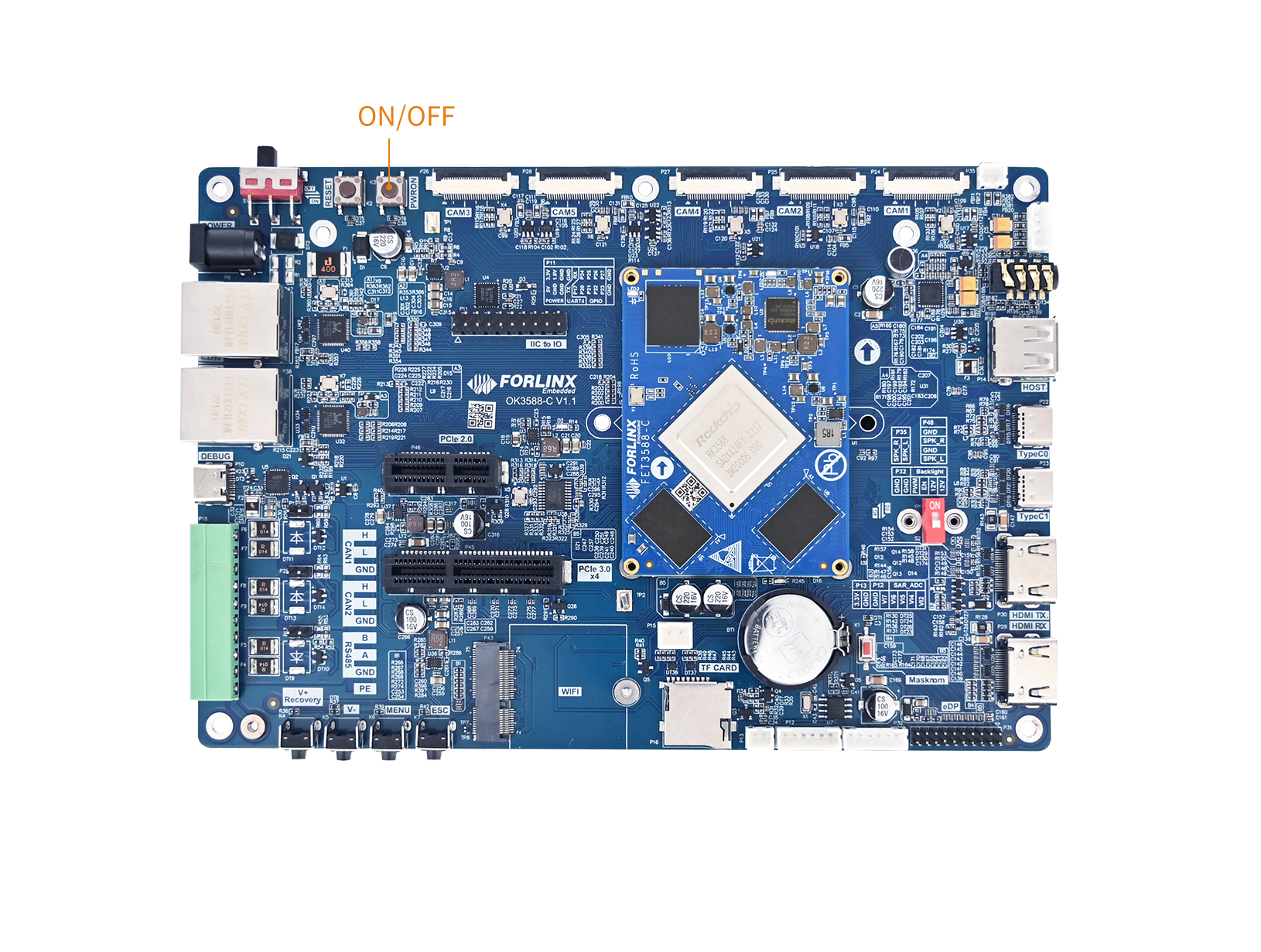
The driver files related to system standby are:
drivers/soc/rockchip/rockchip_pm_config.c
drivers/firmware/rockchip_sip.c
include/dt-bindings/suspend/rockchip-rk3588.h
17.2 Device Tree
The system standby device tree node is located at:
arch/arm64/boot/dts/rockchip/rk3588s.dtsi.
rockchip_suspend: rockchip-suspend {
	compatible = "rockchip,pm-rk3588";
	status = "disabled";
        // Suspend/resume log switch: 0 = disable log output, 1 = enable log output
	rockchip,sleep-debug-en = <0>;
        // Standard Configuration
	rockchip,sleep-mode-config = <
		(0
		| RKPM_SLP_ARMOFF_LOGOFF
		| RKPM_SLP_PMU_PMUALIVE_32K
		| RKPM_SLP_PMU_DIS_OSC
		| RKPM_SLP_32K_EXT
		)
	>;
        // Wake-up Source Configuration
	rockchip,wakeup-config = <
		(0
		| RKPM_GPIO_WKUP_EN
		)
	>;
	power-domains = <&power RK3588_PD_USB>;
};
17.2.1 General Configuration
The following rockchip, sleep-mode-configcan be added:
RKPM_SLP_ARMOFF |
Power off vdd_arm, requires hardware circuit design support. |
|---|---|
RKPM_SLP_ARMOFF_DDRPD |
Power off vdd_arm and DDR controller, requires hardware circuit design support. |
RKPM_SLP_ARMOFF_LOGOFF |
Power off vdd_arm and vdd_log, requires hardware circuit design support. |
RKPM_SLP_ARMOFF_PMUOFF |
Power off vdd_arm and vdd_log, and power off the PMU1 power domain, requires hardware circuit design support. |
RKPM_SLP_PMU_PMUALIVE_32K |
Use the 32K clock source as the system clock during standby. |
RKPM_SLP_PMU_DIS_OSC |
Turn off the 24M crystal oscillator; can be enabled in the lowest power mode, requires use in conjunction with RKPM_SLP_PMU_PMUALIVE_32K. |
RKPM_SLP_32K_EXT |
Select whether to use an external 32K clock source as the 32K clock source during sleep. If this option is not configured, the internal 32K clock source is used by default. |
The relevant configurations must be set based on the specific product wake-up source requirements. For example, if USB wake-up is required, the USB power and clock cannot be turned off during standby. Therefore, options such as RKPM_SLP_ARMOFF_LOGOFF, RKPM_SLP_PMU_DIS_OSC, and RKPM_SLP_PMU_PMUALIVE_32K should not be configured.
17.2.2 Wake-up Configuration
The following configurations can be added in rockchip,wakeup-config :
RKPM_GPIO_WKUP_EN |
GPIO0 WAKE UP |
|---|---|
RKPM_SDMMC_WKUP_EN |
SDMMC WAKE UP |
RKPM_SDIO_WKUP_EN |
SDIO WAKE UP |
RKPM_USB_WKUP_EN |
USBDEV WAKE UP |
RKPM_UART0_WKUP_EN |
UART0 WAKE UP |
RKPM_VAD_WKUP_EN |
SDIO WAKE UP |
RKPM_TIMER_WKUP_EN |
RKTIMER WAKE UP |
RKPM_SYSINT_WKUP_EN |
Wake up with all interrupts (not managed by the GIC), not recommended |
RKPM_TIME_OUT_WKUP_EN |
PMU internal timer wake-up (default 1s) for test and debug. |
⚠️Notes:
RKPM_GPIO_WKUP_EN (Preferred):
Among GPIO groups 0-4, only pins in the GPIO0 group are supported as wake-up sources in this mode. The interrupt signals from pins on GPIO0 are sent directly to the PMU state machine, bypassing the GIC. In hardware design, it is recommended that to place as many required wake-up sources as possible on the pins of this GPIO0 group.
RKPM_CPU0_WKUP_EN (Alternative):
It supports all wake-capable interrupts that are registered to the GIC using enable_irq_wake() during the kernel phase. The number of applicable wake-up interrupt sources is greater than that of RKPM_GPIO_WKUP_EN. However, this method essentially delegates the management of wake-up sources to various kernel modules, which may lead to the system being unexpectedly awakened by undesired interrupts during standby.
RKPM_TIMEOUT_WAKEUP_EN:
This mode uses the internal timer of the PMU for wake-up. It generates an interrupt after a default timeout of 1 second and is generally used only during the development phase for testing sleep/wake functionality.
17.2.3 IO Retention Configuration
In a sleep scenario where vdd_logic is powered off, if you still want to maintain the level of a specific GPIO, you can configure its corresponding property.
rockchip,sleep-io-ret-config = < (0
 | RKPM_VCCIO1_RET_EN
 ...
 )
>;
The configuration options are as follows:
// Eight GPIO domains are supported:
#define RKPM_EMMCIO_RET_EN BIT(0)
#define RKPM_VCCIO1_RET_EN BIT(1)
#define RKPM_VCCIO2_RET_EN BIT(2)
#define RKPM_VCCIO3_RET_EN BIT(3)
#define RKPM_VCCIO4_RET_EN BIT(4)
#define RKPM_VCCIO5_RET_EN BIT(5)
#define RKPM_VCCIO6_RET_EN BIT(6)
#define RKPM_PMUIO2_RET_EN BIT(7)
⚠️Note: When you want to maintain the level of an IO, it is necessary to configure the IO domain to which that IO belongs. The power supply for that IO domain must not be cut off; otherwise, the level cannot be maintained.
17.2.4 Enabling the Node
rockchip_suspend is disabled by default. Please enable it in the corresponding Device Tree.
The system standby device tree node for OK3588-C / 3588-C2 is located at:
arch/arm64/boot/dts/rockchip/OK3588-C-common.dtsi.
&rockchip_suspend {
	status = "okay";
	rockchip,sleep-debug-en = <1>;
};
The system standby Device Tree node for OK3588S2-C is located at:
arch/arm64/boot/dts/rockchip/OK3588S2-C-common.dtsi.
17.3 Application
Create a management service for the PWRON key, setting the default action for pressing it to sleep mode:
forlinx@ok3588:~$ sudo vim /usr/lib/systemd/logind.conf.d/11-powerkey.conf
[Login]
HandlePowerKey=suspend
Reload the systemd service:
forlinx@ok3588:~$ sudo systemctl daemon-reload
Restart the systemd-logind service immediately to apply the new power button configuration:
forlinx@ok3588:~$ sudo systemctl restart systemd-logind
Short press the PWRON; the result is as follows:
INFO:    BL31: v2.3():v2.3-942-g98eaeb2f3:derrick.huang, fwver: v1.53
INFO:    enter: cfg=0x1000608, sleeptimes:1
INFO:    armoff_logoff
INFO:    pmu_pmualive_32k
INFO:    pmu_dis_osc
INFO:    32k ext
INFO:    ext-32k invalid
INFO:    io_ret (0x0)
INFO:    sleep_pin: 0x0 0x0
INFO:    GPIO POWER INFO:
INFO:           not config

INFO:    GPIO0_INTEN: 0xffff 0xffff 0xff7f 0xffff 0x0 0xc0de302c
INFO:    GPIO1_INTEN: 0xffff 0xffff 0xffff 0xffff 0x0 0x10944028
INFO:    GPIO2_INTEN: 0xffff 0xffff 0xffff 0xffff 0x0 0xcdc7f4
INFO:    GPIO3_INTEN: 0xffff 0xffff 0xffff 0xffff 0x0 0xcc85fb4f
INFO:    GPIO4_INTEN: 0xffff 0xffff 0xffff 0xffff 0x0 0xe09c2008
INFO:     IRQ_EN: 282
INFO:     IRQ_EN: 272
INFO:     IRQ_EN: 313
INFO:     IRQ_EN: 312
INFO:     IRQ_EN: 311
INFO:     IRQ_EN: 310
INFO:     IRQ_EN: 309
INFO:     IRQ_EN: 292
INFO:     IRQ_EN: 321
INFO:     IRQ_EN: 378
INFO:     IRQ_EN: 376
INFO:     IRQ_EN: 365

01INFO:    pmu_power_domains_suspend 1207 pd_st=0x2cdfffff repair_st=0xf8900001 idle_st=0x1bffff qst=0x28000
2abcINFO:    pvtm_32k_config:pvtm:
con0=0x23, con1=0x200
st0=0x1, st1=0x1fb
pvtm_freq: 23766khz, div = 742
real_freq: 31khz
de3456789aINFO:    PMU1_PWR_CON(0x1) PMU1_CRU_PWR_CON(0x2f) PMU1_WAKEUP_INT_CON(0x100)
PMU2_BUS_IDLE_ST(0x27fffff 0x0) PMU2_BUS_IDLE_ACK(0x27fffff 0x0) PMU2_PWR_GATE_ST(0x6fffffff 0x0)
PMU2_BUS_IDLE_CON(0x0 0xfd80 0xf007) PMU2_BIU_AUTO_CON(0xffff 0xffff 0x7)
PMU2_PWR_GATE_CON(0x0 0x9000 0x3)
PMU2_VOL_GATE_CON(0x7 0x0 0x3)
PMU2_QCHANNEL_PWR_CON(0x0) PMU2_QCHANNEL_STATUS(0xfe0007f)
PMU1_DDR_PWR_CON(0x747 0x747 0x747 0x747)
PMU1_DDR_PWR_SFTCON(0x900 0x900 0x900 0x900)
PMU1_PLLPD_CON(0xffff 0x3)
PMU2_PWR_CON1(0xfe)
PMU2_DSU_PWR_CON(0x3)
PMU2_CORE_PWR_CON0(0x1 0x1)
PMU2_CORE_AUTO_PWR_CON0(0x0 0x0)
PMU2_CLUSTER_IDLE_CON(0x75)
INFO:    PMU0_PWR_CON(0x0) PMU0_WAKEUP_INT_CON(0x0)
PMU0_DDR_RET_CON(0x0 0x0)
PMU1_GRF_SOC_CON2(0x7777) PMU0_GRF_OS_REGS9(0x4b8847bb)
9aS
Press the PWRON button again to wake the system:
INFO:    wake up status: 0x100
INFO:    the wake up information:
INFO:    GPIO0 interrupt wakeup
INFO:    GPIO0: 0x80

a9876543edcba2INFO:    pmu_power_domains_resume 1299 pd_st=0xfffff9 repair_st=0xff800001 idle_st=0x23ffff qst=0xfe4007f
INFO:    pmu_power_domains_resume 1374 pd_st=0x2cdfffff repair_st=0xf8900001 idle_st=0x1bffff qst=0x28000
10INFO:     IRQ_EN: 282
INFO:     IRQ_EN: 272
INFO:     IRQ_EN: 313
INFO:     IRQ_EN: 312
INFO:     IRQ_EN: 311
INFO:     IRQ_EN: 310
INFO:     IRQ_EN: 309
INFO:     IRQ_EN: 292
INFO:     IRQ_EN: 321
INFO:     IRQ_EN: 378
INFO:     IRQ_EN: 376
INFO:     IRQ_EN: 365
INFO:     IRQ_PED: 309
INFO:     IRQ_PED: 345
INFO:      gpio0_a7

I/TC: Secondary CPU 1 initializing
I/TC: Secondary CPU 1 switching to normal world boot
I/TC: Secondary CPU 2 initializing
I/TC: Secondary CPU 2 switching to normal world boot
I/TC: Secondary CPU 3 initializing
I/TC: Secondary CPU 3 switching to normal world boot
I/TC: Secondary CPU 4 initializing
I/TC: Secondary CPU 4 switching to normal world boot
I/TC: Secondary CPU 5 initializing
I/TC: Secondary CPU 5 switching to normal world boot
I/TC: Secondary CPU 6 initializing
I/TC: Secondary CPU 6 switching to normal world boot
I/TC: Secondary CPU 7 initializing
I/TC: Secondary CPU 7 switching to normal world boot
For information on other system standby and wake-up methods, please visit the Resource Download Center page, find the “Rockchip Linux Software Development Guide” document, and locate the file en/Common/TRUST/Rockchip_RK3308_Developer_Guide_System_Suspend_EN.pdf.
Multimedia
1. Audio
1.1 Introduction
The OK3588-C development board is equipped with the NAU88C22YG audio codec chip, supporting both analog and digital audio output. The interface configuration is as follows:
Interface Type |
Interface Specifications |
Location Number |
Description |
|---|---|---|---|
Headphone Output |
3.5mm Audio Jack |
P37 |
Standard stereo headphone interface |
Speaker Output |
XH2.0-2P White Connector |
P25 |
Supports 8Ω speaker, maximum input power 1W |
Speaker Output |
PH2.0-4P White Connector |
P48 |
Supports 8Ω speaker, maximum input power 1W |
HDMI Audio |
HDMI Interface Output |
P30 |
Digital audio transmission via HDMI |
DP Audio |
DisplayPort Interface Output |
P22 |
Digital audio transmission via DP |
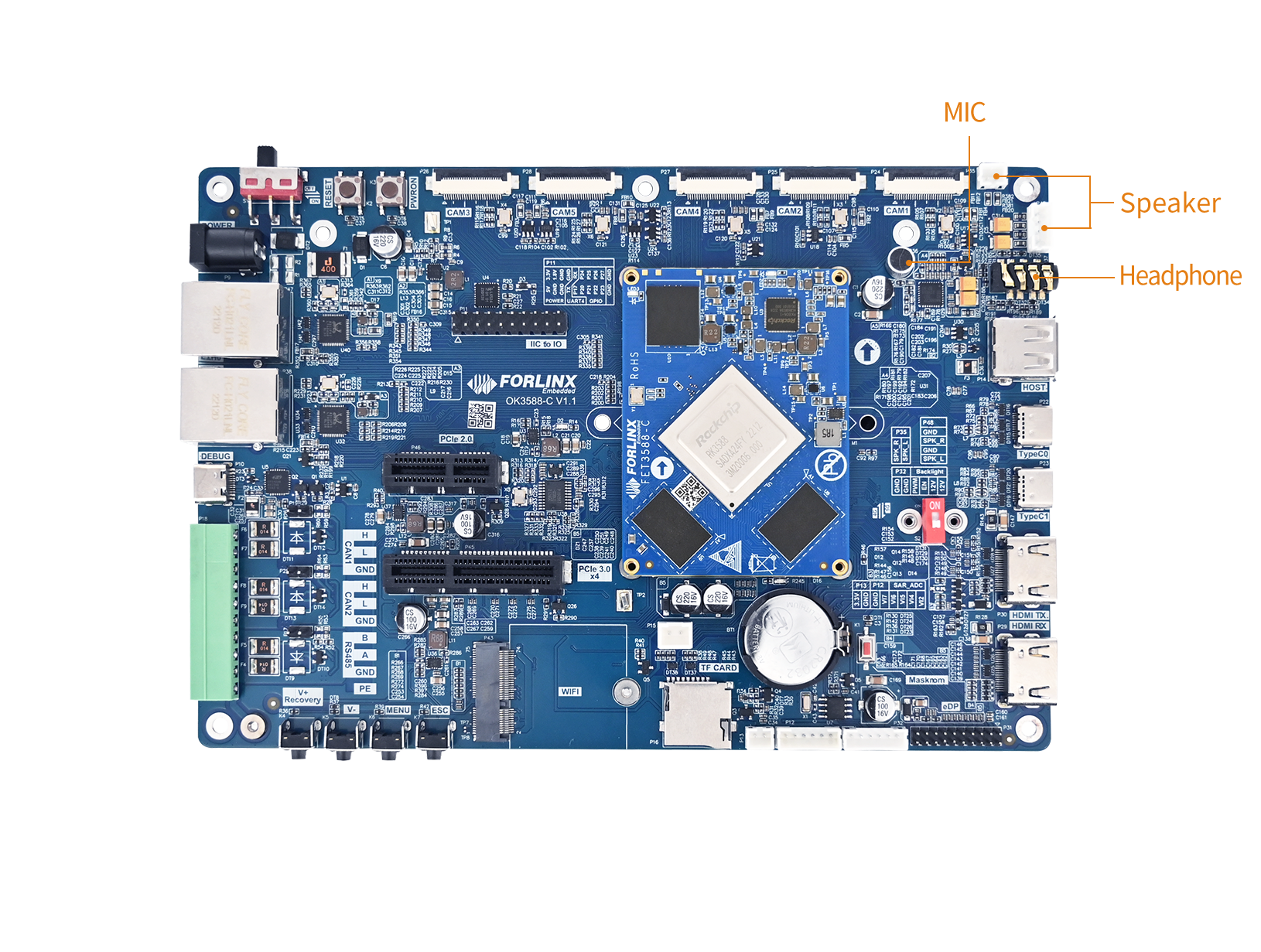
⚠️Note: The OK3588S2-C model does not have an HDMI RX interface.
1.2 Device Tree
The audio-related device tree nodes for the OK3588-C/3588-C2 are located at: arch/arm64/boot/dts/rockchip/OK3588-C-common.dtsi.
// Sound card node: Core abstraction of the audio subsystem
nau8822_sound: nau8822-sound {
		status = "okay";
		compatible = "rockchip,multicodecs-card";
		rockchip,card-name = "rockchip-nau8822";
		hp-det-gpio = <&gpio1 RK_PB2 GPIO_ACTIVE_HIGH>;
		io-channels = <&saradc 3>;
		io-channel-names = "adc-detect";
		keyup-threshold-microvolt = <1800000>;
		poll-interval = <100>;
		rockchip,format = "i2s";
		rockchip,mclk-fs = <256>;
		rockchip,cpu = <&i2s0_8ch>;
		rockchip,codec = <&nau8822>;
		rockchip,audio-routing =
			"Headphone", "RHP",
			"Headphone", "LHP",
			"Speaker", "LSPK",
			"Speaker", "RSPK",
			"RMICP", "Main Mic",
			"RMICN", "Main Mic",
			"RMICP", "Headset Mic",
			"RMICN", "Headset Mic",
			"LMICP", "Main Mic",
			"LMICN", "Main Mic",
			"LMICP", "Headset Mic",
			"LMICN", "Headset Mic";
		pinctrl-names = "default";
		pinctrl-0 = <&hp_det>;
		play-pause-key {
			label = "playpause";
			linux,code = <KEY_PLAYPAUSE>;
			press-threshold-microvolt = <2000>;
			poll-interval = <1000>;
		};
};
hdmi0_sound: hdmi0-sound {
		status = "okay";
		compatible = "rockchip,hdmi";
		rockchip,mclk-fs = <128>;
		rockchip,card-name = "rockchip-hdmi0";
		rockchip,cpu = <&i2s5_8ch>;
		rockchip,codec = <&hdmi0>;
		rockchip,jack-det;
};

hdmi1_sound: hdmi1-sound {
		status = "disabled";
		compatible = "rockchip,hdmi";
		rockchip,mclk-fs = <128>;
		rockchip,card-name = "rockchip-hdmi1";
		rockchip,cpu = <&i2s6_8ch>;
		rockchip,codec = <&hdmi1>;
		rockchip,jack-det;
};

dp0_sound: dp0-sound {
		status = "okay";
		compatible = "rockchip,hdmi";
		rockchip,card-name= "rockchip,dp0";
		rockchip,mclk-fs = <512>;
		rockchip,cpu = <&spdif_tx2>;
		rockchip,codec = <&dp0 1>;
		rockchip,jack-det;
};

dp1_sound: dp1-sound {
		status = "okay";
		compatible = "rockchip,hdmi";
		rockchip,card-name= "rockchip,dp1";
		rockchip,mclk-fs = <512>;
		rockchip,cpu = <&spdif_tx5>;
		rockchip,codec = <&dp1 1>;
		rockchip,jack-det;
};

hdmiin-sound {
		compatible = "rockchip,hdmi";
		rockchip,mclk-fs = <128>;
		rockchip,format = "i2s";
		rockchip,bitclock-master = <&hdmirx_ctrler>;
		rockchip,frame-master = <&hdmirx_ctrler>;
		rockchip,card-name = "rockchip,hdmiin";
		rockchip,cpu = <&i2s7_8ch>;
		rockchip,codec = <&hdmirx_ctrler 0>;
		rockchip,jack-det;
};

// I2S controller node
&i2s0_8ch {
	status = "okay";
	pinctrl-0 = <&i2s0_lrck
		     &i2s0_sclk
		     &i2s0_sdi0
		     &i2s0_sdo0>;
};

// nau8822
&i2c7 {
	status = "okay";
	nau8822: nau8822@1a {
		status = "okay";
		#sound-dai-cells = <0>;
		compatible = "nuvoton,nau8822";
		reg = <0x1a>;
		clocks = <&mclkout_i2s0>;
		clock-names = "mclk";
		assigned-clocks = <&mclkout_i2s0>;
		assigned-clock-rates = <12288000>;
		pinctrl-names = "default";
		pinctrl-0 = <&i2s0_mclk>;
	};
};
The audio-related device tree nodes for the OK3588S2-C are located at:
arch/arm64/boot/dts/rockchip/OK3588-C-common.dtsi.
1.3 Application
To view the playback sound card:
forlinx@ok3588:~$ aplay -l
 List of PLAYBACK Hardware Devices
card 1: rockchipnau8822 [rockchip-nau8822], device 0: dailink-multicodecs nau8822-hifi-0 [dailink-multicodecs nau8822-hifi-0]
  Subdevices: 1/1
  Subdevice #0: subdevice #0
card 2: rockchiphdmi0 [rockchip-hdmi0], device 0: rockchip-hdmi0 i2s-hifi-0 [rockchip-hdmi0 i2s-hifi-0]
  Subdevices: 1/1
  Subdevice #0: subdevice #0
card 3: rockchipdp1 [rockchip,dp1], device 0: rockchip,dp1 spdif-hifi-0 [rockchip,dp1 spdif-hifi-0]
  Subdevices: 1/1
  Subdevice #0: subdevice #0
To view the record sound card:
forlinx@ok3588:~$ arecord -l
 List of CAPTURE Hardware Devices
card 0: rockchiphdmiin [rockchip,hdmiin], device 0: rockchip,hdmiin i2s-hifi-0 [rockchip,hdmiin i2s-hifi-0]
  Subdevices: 1/1
  Subdevice #0: subdevice #0
card 1: rockchipnau8822 [rockchip-nau8822], device 0: dailink-multicodecs nau8822-hifi-0 [dailink-multicodecs nau8822-hifi-0]
  Subdevices: 1/1
  Subdevice #0: subdevice #0
Playback and recording via 8822 sound card:
Plug the headphones into the SPKOUT connector and play the audio with the following command:
forlinx@ok3588:~$ gst-play-1.0 /userdata/piano2-CoolEdit.mp3 --audiosink="alsasink device=plughw:1,0"
Recording via headphones:
forlinx@ok3588:~$ arecord -D hw:rockchipnau8822,0 -d 3 -f cd -t wav test1.wav
Recording WAVE 'test1.wav' : Signed 16 bit Little Endian, Rate 44100 Hz, Stereo
Play recorded audio:
forlinx@ok3588:~$ aplay -D plughw:2,0 test1.wav
Playing WAVE 'test1.wav' : Signed 16 bit Little Endian, Rate 44100 Hz, Stereo
Play through the HDMI sound card:
Connect the HDMI screen with audio playback function to the HDMITX interface, and execute the following command:
forlinx@ok3588:~$ gst-play-1.0 /userdata/piano2-CoolEdit.mp3 --audiosink="alsasink device=plughw:2,0"
HDMI RX Audio Capture
Hardware Connection:
○ Connect the HDMI output connector of the laptop to the HDMI RX connector of the OK3588 board using the HDMI cable;
○ Connect headphones or speakers to the SPK OUT interface on the board.
Recording audio from HDMI RX input:
Play audio on your laptop, then execute the following command on the OK3588 board to start recording:
forlinx@ok3588:~$ arecord -D plughw:0,0 -f cd --buffer-size=2048 --period-size=1024 test1.wav
Press Ctrl+C to stop recording.
Playback the recorded test.wav file via the onboard sound card test1.wav:
forlinx@ok3588:~$ gst-play-1.0 test1.wav --audiosink="alsasink device=plughw:1,0"
Real-time forwarding and playback:
To play audio received from HDMI RX in real-time through the SPK OUT output, you can pipe the recording and playback commands together:
forlinx@ok3588:~$ arecord -D plughw:0,0 -f cd --buffer-size=2048 --period-size=1024 | aplay -D plughw:1,0 -f cd --buffer-size=2048 --period-size=1024
Parameter Explanation:
○ -D plughw:0,0 corresponds to the HDMI RX sound card device.
○ -D plughw:1,0 corresponds to the built‑in output sound card device.
○ -f cd indicates CD‑quality audio (16‑bit / 44.1 kHz / stereo).
The actual sound card numbering may vary depending on the system configuration. You can verify the correct device numbers using the commands arecord -l and aplay -l.
DP sound card test
The testing method for the DP sound card is similar to that for the 8822 sound card. You can complete the test by modifying the device parameter or the hw parameter in the test command to specify the DP sound card.
forlinx@ok3588:~$ gst-play-1.0 /userdata/piano2-CoolEdit.mp3 --audiosink="alsasink device=plughw:2,0"
2. Camera
2.1 Introduction
The OK3588 supports 5 x MIPI CSI camera interfaces and is compatible with both the OV13855 and OV5645 models. The correspondence between the interfaces is as follows:
Camera Interface |
Supported MIPI Camera Models |
|---|---|
CAM1 |
OV13855 |
CAM2 |
OV13855 |
CAM3 |
OV5645 |
CAM4 |
OV5645 |
CAM5 |
OV5645 |
Camera interface location:
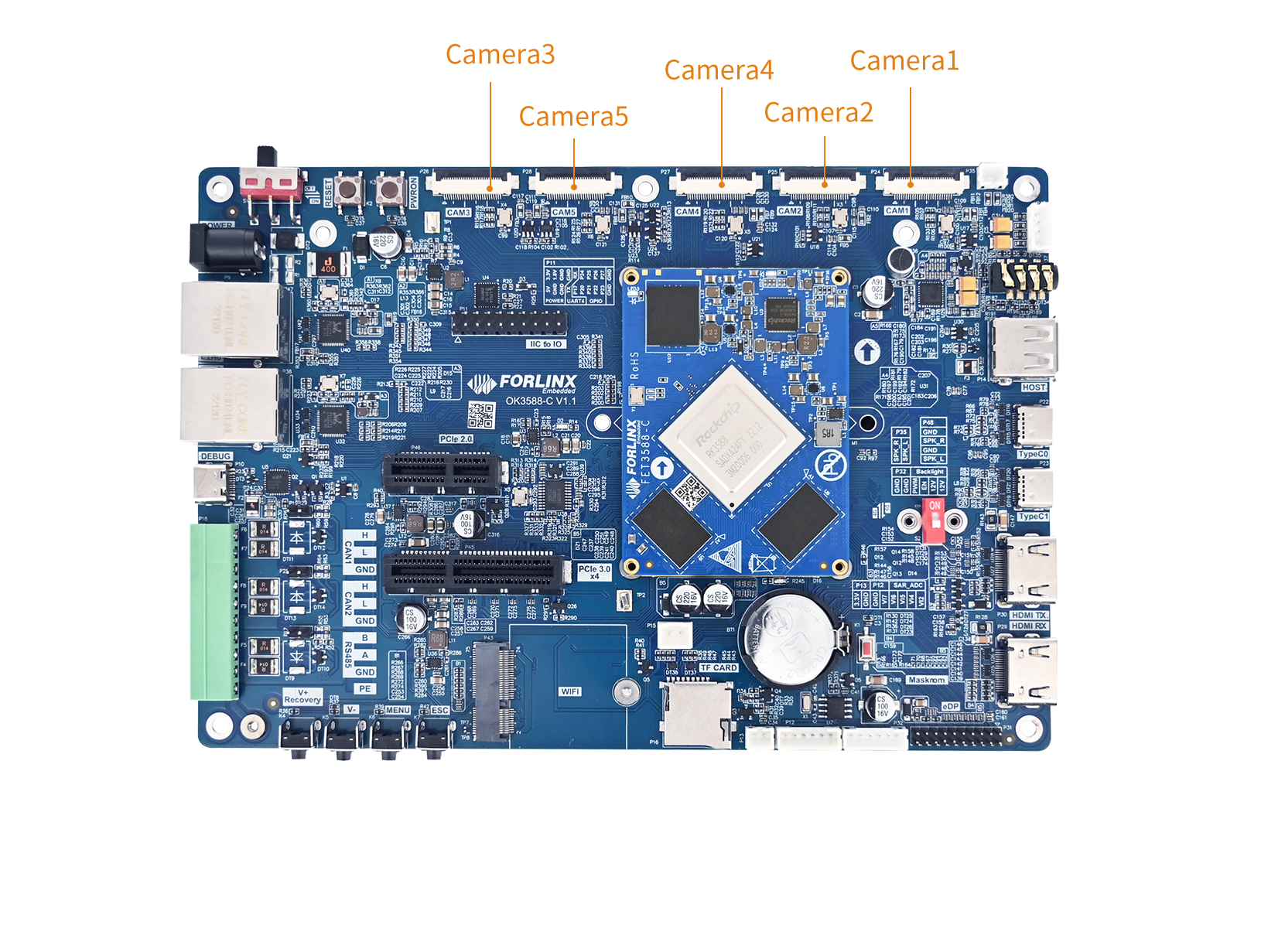
Because the RK3588S2 chip does not integrate an MIPI-CSI controller, the CAM1, CAM2, and CAM5 interfaces on the OK3588S2-C development board do not currently support camera functionality.
2.2 Device Tree
The device tree files related to cameras for OK3588-C / OK3588-C2 are:
arch/arm64/boot/dts/rockchip/OK3588-C-Camera.dtsi.
Take the CAM1 interface as an example:
// Physical layer interface
&mipi_dcphy0 {
    status = "okay";
};
// Rockchip Image Signal Processor
&rkisp0 {
    status = "okay";
};
// ISP Memory Management Unit
&isp0_mmu {
    status = "okay";
};

&i2c3 {
    status = "okay";
    clock-frequency = <400000>;

    cam1_ov13855: cam1-ov13855@36 {     // Camera sensor node for OV13855 on I2C bus
        compatible = "ovti,ov13855";
        status = "okay";
        reg = <0x36>;
        clocks = <&ext_cam_clk>;
        clock-names = "xvclk";
	power-domains = <&power RK3588_PD_VI>;
        pwdn-gpios = <&extio EXTIO_GPIO_P01 GPIO_ACTIVE_HIGH>;
        reset-gpios = <&extio EXTIO_GPIO_P00 GPIO_ACTIVE_HIGH>;
	avdd-supply = <&vcc1_2v8>;
	dovdd-supply = <&vcc1v8_cam>;
	dvdd-supply = <&vcc1v2_c1>;
        rockchip,camera-module-index = <0>;
        rockchip,camera-module-facing = "back";
        rockchip,camera-module-name = "CMK-OT2016-FV1";
        rockchip,camera-module-lens-name = "default";
        lens-focus = <&cam1_dw9763>;

        port {                         // Data port for CSI connection
            cam1_ov13855_out: endpoint {
            remote-endpoint = <&mipi_in_0_ucam1_ov13855>;
            data-lanes = <1 2 3 4>;
            };
        };
    };
};
The device tree file related to cameras for OK3588S2-C is:
arch/arm64/boot/dts/rockchip/OK3588S2-C-Camera.dtsi.
2.3 Application
2.3.1 UVC Camera Test
Test using the Logitech C270: plug the USB webcam into the development board and the UVC driver will be installed automatically.
2.3.1.1 Camera Recognition and Format Support Query
Camera Recognition Detection:
forlinx@ok3588:~$ v4l2-ctl --list-devices
......
UVC Camera (046d:0825) (usb-fc800000.usb-1):
        /dev/video74
        /dev/video75
        /dev/media7
Format Support Query:
forlinx@ok3588:~$ v4l2-ctl --list-formats-ext -d /dev/video74
ioctl: VIDIOC_ENUM_FMT
Type: Video Capture
[0]: 'YUYV' (YUYV 4:2:2)
Size: Discrete 640x480
Interval: Discrete 0.033s (30.000 fps)
Interval: Discrete 0.040s (25.000 fps)
Interval: Discrete 0.050s (20.000 fps)
Interval: Discrete 0.067s (15.000 fps)
Interval: Discrete 0.100s (10.000 fps)
Interval: Discrete 0.200s (5.000 fps)
Size: Discrete 160x120
Interval: Discrete 0.033s (30.000 fps)
Interval: Discrete 0.040s (25.000 fps)
Interval: Discrete 0.050s (20.000 fps)
Interval: Discrete 0.067s (15.000 fps)
Interval: Discrete 0.100s (10.000 fps)
Interval: Discrete 0.200s (5.000 fps)
Size: Discrete 176x144
Interval: Discrete 0.033s (30.000 fps)
Interval: Discrete 0.040s (25.000 fps)
Interval: Discrete 0.050s (20.000 fps)
Interval: Discrete 0.067s (15.000 fps)
Interval: Discrete 0.100s (10.000 fps)
Interval: Discrete 0.200s (5.000 fps)
Size: Discrete 320x176
Interval: Discrete 0.033s (30.000 fps)
Interval: Discrete 0.040s (25.000 fps)
Interval: Discrete 0.050s (20.000 fps)
Interval: Discrete 0.067s (15.000 fps)
Interval: Discrete 0.100s (10.000 fps)
Interval: Discrete 0.200s (5.000 fps)
Size: Discrete 320x240
Interval: Discrete 0.033s (30.000 fps)
Interval: Discrete 0.040s (25.000 fps)
Interval: Discrete 0.050s (20.000 fps)
Interval: Discrete 0.067s (15.000 fps)
Interval: Discrete 0.100s (10.000 fps)
Interval: Discrete 0.200s (5.000 fps)
Size: Discrete 352x288
Interval: Discrete 0.033s (30.000 fps)
Interval: Discrete 0.040s (25.000 fps)
Interval: Discrete 0.050s (20.000 fps)
Interval: Discrete 0.067s (15.000 fps)
Interval: Discrete 0.100s (10.000 fps)
Interval: Discrete 0.200s (5.000 fps)
Size: Discrete 432x240
Interval: Discrete 0.033s (30.000 fps)
Interval: Discrete 0.040s (25.000 fps)
Interval: Discrete 0.050s (20.000 fps)
Interval: Discrete 0.067s (15.000 fps)
Interval: Discrete 0.100s (10.000 fps)
Interval: Discrete 0.200s (5.000 fps)
Size: Discrete 544x288
Interval: Discrete 0.033s (30.000 fps)
Interval: Discrete 0.040s (25.000 fps)
Interval: Discrete 0.050s (20.000 fps)
Interval: Discrete 0.067s (15.000 fps)
Interval: Discrete 0.100s (10.000 fps)
Interval: Discrete 0.200s (5.000 fps)
Size: Discrete 640x360
Interval: Discrete 0.033s (30.000 fps)
Interval: Discrete 0.040s (25.000 fps)
Interval: Discrete 0.050s (20.000 fps)
Interval: Discrete 0.067s (15.000 fps)
Interval: Discrete 0.100s (10.000 fps)
Interval: Discrete 0.200s (5.000 fps)
Size: Discrete 752x416
Interval: Discrete 0.040s (25.000 fps)
Interval: Discrete 0.050s (20.000 fps)
Interval: Discrete 0.067s (15.000 fps)
Interval: Discrete 0.100s (10.000 fps)
Interval: Discrete 0.200s (5.000 fps)
Size: Discrete 800x448
Interval: Discrete 0.050s (20.000 fps)
Interval: Discrete 0.067s (15.000 fps)
Interval: Discrete 0.100s (10.000 fps)
Interval: Discrete 0.200s (5.000 fps)
Size: Discrete 800x600
Interval: Discrete 0.050s (20.000 fps)
Interval: Discrete 0.067s (15.000 fps)
Interval: Discrete 0.100s (10.000 fps)
Interval: Discrete 0.200s (5.000 fps)
Size: Discrete 864x480
Interval: Discrete 0.050s (20.000 fps)
Interval: Discrete 0.067s (15.000 fps)
Interval: Discrete 0.100s (10.000 fps)
Interval: Discrete 0.200s (5.000 fps)
Size: Discrete 960x544
Interval: Discrete 0.067s (15.000 fps)
Interval: Discrete 0.100s (10.000 fps)
Interval: Discrete 0.200s (5.000 fps)
Size: Discrete 960x720
Interval: Discrete 0.100s (10.000 fps)
Interval: Discrete 0.200s (5.000 fps)
Size: Discrete 1024x576
Interval: Discrete 0.100s (10.000 fps)
Interval: Discrete 0.200s (5.000 fps)
Size: Discrete 1184x656
Interval: Discrete 0.100s (10.000 fps)
Interval: Discrete 0.200s (5.000 fps)
Size: Discrete 1280x720
Interval: Discrete 0.133s (7.500 fps)
Interval: Discrete 0.200s (5.000 fps)
Size: Discrete 1280x960
Interval: Discrete 0.133s (7.500 fps)
Interval: Discrete 0.200s (5.000 fps)
[1]: 'MJPG' (Motion-JPEG, compressed)
Size: Discrete 640x480
Interval: Discrete 0.033s (30.000 fps)
Interval: Discrete 0.040s (25.000 fps)
Interval: Discrete 0.050s (20.000 fps)
Interval: Discrete 0.067s (15.000 fps)
Interval: Discrete 0.100s (10.000 fps)
Interval: Discrete 0.200s (5.000 fps)
Size: Discrete 160x120
Interval: Discrete 0.033s (30.000 fps)
Interval: Discrete 0.040s (25.000 fps)
Interval: Discrete 0.050s (20.000 fps)
Interval: Discrete 0.067s (15.000 fps)
Interval: Discrete 0.100s (10.000 fps)
Interval: Discrete 0.200s (5.000 fps)
Size: Discrete 176x144
Interval: Discrete 0.033s (30.000 fps)
Interval: Discrete 0.040s (25.000 fps)
Interval: Discrete 0.050s (20.000 fps)
Interval: Discrete 0.067s (15.000 fps)
Interval: Discrete 0.100s (10.000 fps)
Interval: Discrete 0.200s (5.000 fps)
Size: Discrete 320x176
Interval: Discrete 0.033s (30.000 fps)
Interval: Discrete 0.040s (25.000 fps)
Interval: Discrete 0.050s (20.000 fps)
Interval: Discrete 0.067s (15.000 fps)
Interval: Discrete 0.100s (10.000 fps)
Interval: Discrete 0.200s (5.000 fps)
Size: Discrete 320x240
Interval: Discrete 0.033s (30.000 fps)
Interval: Discrete 0.040s (25.000 fps)
Interval: Discrete 0.050s (20.000 fps)
Interval: Discrete 0.067s (15.000 fps)
Interval: Discrete 0.100s (10.000 fps)
Interval: Discrete 0.200s (5.000 fps)
Size: Discrete 352x288
Interval: Discrete 0.033s (30.000 fps)
Interval: Discrete 0.040s (25.000 fps)
Interval: Discrete 0.050s (20.000 fps)
Interval: Discrete 0.067s (15.000 fps)
Interval: Discrete 0.100s (10.000 fps)
Interval: Discrete 0.200s (5.000 fps)
Size: Discrete 432x240
Interval: Discrete 0.033s (30.000 fps)
Interval: Discrete 0.040s (25.000 fps)
Interval: Discrete 0.050s (20.000 fps)
Interval: Discrete 0.067s (15.000 fps)
Interval: Discrete 0.100s (10.000 fps)
Interval: Discrete 0.200s (5.000 fps)
Size: Discrete 544x288
Interval: Discrete 0.033s (30.000 fps)
Interval: Discrete 0.040s (25.000 fps)
Interval: Discrete 0.050s (20.000 fps)
Interval: Discrete 0.067s (15.000 fps)
Interval: Discrete 0.100s (10.000 fps)
Interval: Discrete 0.200s (5.000 fps)
Size: Discrete 640x360
Interval: Discrete 0.033s (30.000 fps)
Interval: Discrete 0.040s (25.000 fps)
Interval: Discrete 0.050s (20.000 fps)
Interval: Discrete 0.067s (15.000 fps)
Interval: Discrete 0.100s (10.000 fps)
Interval: Discrete 0.200s (5.000 fps)
Size: Discrete 752x416
Interval: Discrete 0.033s (30.000 fps)
Interval: Discrete 0.040s (25.000 fps)
Interval: Discrete 0.050s (20.000 fps)
Interval: Discrete 0.067s (15.000 fps)
Interval: Discrete 0.100s (10.000 fps)
Interval: Discrete 0.200s (5.000 fps)
Size: Discrete 800x448
Interval: Discrete 0.033s (30.000 fps)
Interval: Discrete 0.040s (25.000 fps)
Interval: Discrete 0.050s (20.000 fps)
Interval: Discrete 0.067s (15.000 fps)
Interval: Discrete 0.100s (10.000 fps)
Interval: Discrete 0.200s (5.000 fps)
Size: Discrete 800x600
Interval: Discrete 0.033s (30.000 fps)
Interval: Discrete 0.040s (25.000 fps)
Interval: Discrete 0.050s (20.000 fps)
Interval: Discrete 0.067s (15.000 fps)
Interval: Discrete 0.100s (10.000 fps)
Interval: Discrete 0.200s (5.000 fps)
Size: Discrete 864x480
Interval: Discrete 0.033s (30.000 fps)
Interval: Discrete 0.040s (25.000 fps)
Interval: Discrete 0.050s (20.000 fps)
Interval: Discrete 0.067s (15.000 fps)
Interval: Discrete 0.100s (10.000 fps)
Interval: Discrete 0.200s (5.000 fps)
Size: Discrete 960x544
Interval: Discrete 0.033s (30.000 fps)
Interval: Discrete 0.040s (25.000 fps)
Interval: Discrete 0.050s (20.000 fps)
Interval: Discrete 0.067s (15.000 fps)
Interval: Discrete 0.100s (10.000 fps)
Interval: Discrete 0.200s (5.000 fps)
Size: Discrete 960x720
Interval: Discrete 0.033s (30.000 fps)
Interval: Discrete 0.040s (25.000 fps)
Interval: Discrete 0.050s (20.000 fps)
Interval: Discrete 0.067s (15.000 fps)
Interval: Discrete 0.100s (10.000 fps)
Interval: Discrete 0.200s (5.000 fps)
Size: Discrete 1024x576
Interval: Discrete 0.033s (30.000 fps)
Interval: Discrete 0.040s (25.000 fps)
Interval: Discrete 0.050s (20.000 fps)
Interval: Discrete 0.067s (15.000 fps)
Interval: Discrete 0.100s (10.000 fps)
Interval: Discrete 0.200s (5.000 fps)
Size: Discrete 1184x656
Interval: Discrete 0.033s (30.000 fps)
Interval: Discrete 0.040s (25.000 fps)
Interval: Discrete 0.050s (20.000 fps)
Interval: Discrete 0.067s (15.000 fps)
Interval: Discrete 0.100s (10.000 fps)
Interval: Discrete 0.200s (5.000 fps)
Size: Discrete 1280x720
Interval: Discrete 0.033s (30.000 fps)
Interval: Discrete 0.040s (25.000 fps)
Interval: Discrete 0.050s (20.000 fps)
Interval: Discrete 0.067s (15.000 fps)
Interval: Discrete 0.100s (10.000 fps)
Interval: Discrete 0.200s (5.000 fps)
Size: Discrete 1280x960
Interval: Discrete 0.033s (30.000 fps)
Interval: Discrete 0.040s (25.000 fps)
Interval: Discrete 0.050s (20.000 fps)
Interval: Discrete 0.067s (15.000 fps)
Interval: Discrete 0.100s (10.000 fps)
Interval: Discrete 0.200s (5.000 fps)
2.3.1.2 Camera Capture Format Query
forlinx@ok3588:~$ v4l2-ctl -V -d /dev/video74
Format Video Capture:
        Width/Height      : 640/480
        Pixel Format      : 'YUYV' (YUYV 4:2:2)
        Field             : None
        Bytes per Line    : 1280
        Size Image        : 614400
        Colorspace        : sRGB
        Transfer Function : Rec. 709
        YCbCr/HSV Encoding: ITU-R 601
        Quantization      : Default (maps to Limited Range)
        Flags             :
2.3.1.3 Camera Preview and Photo Capture
Camera Image Preview:
forlinx@ok3588:~$ gst-launch-1.0  v4l2src device=/dev/video74 ! videoconvert ! video/x-raw,format=NV12,width=640,height=480  ! waylandsink
Setting pipeline to PAUSED ...
Pipeline is live and does not need PREROLL ...
Pipeline is PREROLLED ...
Setting pipeline to PLAYING ...
New clock: GstSystemClock
Redistribute latency...
0:00:04.6 / 99:99:99.
Taking a Photo:
forlinx@ok3588:~$ gst-launch-1.0 v4l2src device=/dev/video74 num-buffers=1 ! videoconvert ! video/x-raw,format=NV12,width=640,height=480 ! mppjpegenc ! filesink location=pic.jpg
Setting pipeline to PAUSED ...
Pipeline is live and does not need PREROLL ...
Pipeline is PREROLLED ...
Setting pipeline to PLAYING ...
New clock: GstSystemClock
Redistribute latency...
Got EOS from element "pipeline0".
Execution ended after 0:00:00.497327542
Setting pipeline to NULL ...
Freeing pipeline ...
forlinx@ok3588:~$ ls
pic.jpg
This will generate pic.jpg in the current directory.
2.3.2 OV13855 Test
For sensors like the OV13855 and other raw sensors, each sensor corresponds to five device nodes:
forlinx@ok3588:~$ grep "" /sys/class/video4linux/video*/name
/sys/class/video4linux/video0/name:stream_cif_mipi_id0
/sys/class/video4linux/video1/name:stream_cif_mipi_id1
/sys/class/video4linux/video10/name:rkcif_tools_id2
/sys/class/video4linux/video11/name:stream_cif_mipi_id0
/sys/class/video4linux/video12/name:stream_cif_mipi_id1
/sys/class/video4linux/video13/name:stream_cif_mipi_id2
/sys/class/video4linux/video14/name:stream_cif_mipi_id3
/sys/class/video4linux/video15/name:rkcif_scale_ch0
/sys/class/video4linux/video16/name:rkcif_scale_ch1
/sys/class/video4linux/video17/name:rkcif_scale_ch2
/sys/class/video4linux/video18/name:rkcif_scale_ch3
/sys/class/video4linux/video19/name:rkcif_tools_id0
/sys/class/video4linux/video2/name:stream_cif_mipi_id2
/sys/class/video4linux/video20/name:rkcif_tools_id1
/sys/class/video4linux/video21/name:rkcif_tools_id2
/sys/class/video4linux/video22/name:stream_cif_mipi_id0
/sys/class/video4linux/video23/name:stream_cif_mipi_id1
/sys/class/video4linux/video24/name:stream_cif_mipi_id2
/sys/class/video4linux/video25/name:stream_cif_mipi_id3
/sys/class/video4linux/video26/name:rkcif_scale_ch0
/sys/class/video4linux/video27/name:rkcif_scale_ch1
/sys/class/video4linux/video28/name:rkcif_scale_ch2
/sys/class/video4linux/video29/name:rkcif_scale_ch3
/sys/class/video4linux/video3/name:stream_cif_mipi_id3
/sys/class/video4linux/video30/name:rkcif_tools_id0
/sys/class/video4linux/video31/name:rkcif_tools_id1
/sys/class/video4linux/video32/name:rkcif_tools_id2
/sys/class/video4linux/video33/name:stream_cif_mipi_id0
/sys/class/video4linux/video34/name:stream_cif_mipi_id1
/sys/class/video4linux/video35/name:stream_cif_mipi_id2
/sys/class/video4linux/video36/name:stream_cif_mipi_id3
/sys/class/video4linux/video37/name:rkcif_scale_ch0
/sys/class/video4linux/video38/name:rkcif_scale_ch1
/sys/class/video4linux/video39/name:rkcif_scale_ch2
/sys/class/video4linux/video4/name:rkcif_scale_ch0
/sys/class/video4linux/video40/name:rkcif_scale_ch3
/sys/class/video4linux/video41/name:rkcif_tools_id0
/sys/class/video4linux/video42/name:rkcif_tools_id1
/sys/class/video4linux/video43/name:rkcif_tools_id2
/sys/class/video4linux/video44/name:stream_cif_mipi_id0
/sys/class/video4linux/video45/name:stream_cif_mipi_id1
/sys/class/video4linux/video46/name:stream_cif_mipi_id2
/sys/class/video4linux/video47/name:stream_cif_mipi_id3
/sys/class/video4linux/video48/name:rkcif_scale_ch0
/sys/class/video4linux/video49/name:rkcif_scale_ch1
/sys/class/video4linux/video5/name:rkcif_scale_ch1
/sys/class/video4linux/video50/name:rkcif_scale_ch2
/sys/class/video4linux/video51/name:rkcif_scale_ch3
/sys/class/video4linux/video52/name:rkcif_tools_id0
/sys/class/video4linux/video53/name:rkcif_tools_id1
/sys/class/video4linux/video54/name:rkcif_tools_id2
/sys/class/video4linux/video55/name:rkisp_mainpath
/sys/class/video4linux/video56/name:rkisp_selfpath
/sys/class/video4linux/video57/name:rkisp_fbcpath
/sys/class/video4linux/video58/name:rkisp_iqtool
/sys/class/video4linux/video59/name:rkisp_rawrd0_m
/sys/class/video4linux/video6/name:rkcif_scale_ch2
/sys/class/video4linux/video60/name:rkisp_rawrd2_s
/sys/class/video4linux/video61/name:rkisp_rawrd1_l
/sys/class/video4linux/video62/name:rkisp-statistics
/sys/class/video4linux/video63/name:rkisp-input-params
/sys/class/video4linux/video64/name:rkisp_mainpath
/sys/class/video4linux/video65/name:rkisp_selfpath
/sys/class/video4linux/video66/name:rkisp_fbcpath
/sys/class/video4linux/video67/name:rkisp_iqtool
/sys/class/video4linux/video68/name:rkisp_rawrd0_m
/sys/class/video4linux/video69/name:rkisp_rawrd2_s
/sys/class/video4linux/video7/name:rkcif_scale_ch3
/sys/class/video4linux/video70/name:rkisp_rawrd1_l
/sys/class/video4linux/video71/name:rkisp-statistics
/sys/class/video4linux/video72/name:rkisp-input-params
/sys/class/video4linux/video73/name:stream_hdmirx
/sys/class/video4linux/video8/name:rkcif_tools_id0
/sys/class/video4linux/video9/name:rkcif_tools_id1
Mainpath: An output node of the Rockchip ISP, capable of outputting full-resolution images, typically used for capturing photos or raw images.
Self Path: An output node of the Rockchip ISP, limited to a maximum of 1080p resolution, typically used for preview.
Statistics: 3A statistics.
Input-params: 3A parameter settings.
The testing method for OV13855 is basically the same as for the UVC camera. This section uses the CAM1 interface as an example:
CAM1:platform:rkisp0-vir0
CAM2:platform:rkisp0-vir1
2.3.2.1 Camera Recognition and Format Support Query
forlinx@ok3588:~$ v4l2-ctl --list-devices
rkisp_mainpath (platform:rkisp0-vir0):
        /dev/video55
        /dev/video56
        /dev/video57
        /dev/video58
        /dev/video59
        /dev/video60
        /dev/video61
        /dev/media5

rkisp_mainpath (platform:rkisp1-vir0):
        /dev/video64
        /dev/video65
        /dev/video66
        /dev/video67
        /dev/video68
        /dev/video69
        /dev/video70
        /dev/media6
2.3.2.2 Capturing a Photo
forlinx@ok3588:~$ gst-launch-1.0 v4l2src device=/dev/video55 ! videoconvert ! video/x-raw,format=NV12,width=1920,height=1080 ! autovideosink sync=false
Setting pipeline to PAUSED ...
Using mplane plugin for capture
Pipeline is live and does not need PREROLL ...
Pipeline is PREROLLED ...
Setting pipeline to PLAYING ...
New clock: GstSystemClock
[   72.197431] rkisp_hw fdcb0000.rkisp: set isp clk = 500000000Hz
[   72.198999] rkcif-mipi-lvds: stream[0] start streaming
[   72.201894] rkcif-mipi-lvds: Allocate dummy buffer, size: 0x01944000
[   72.202051] rockchip-mipi-csi2 mipi0-csi2: stream on, src_sd: 000000004e50443f, sd_name:rockchip-csi2-dphy0
[   72.202061] rockchip-mipi-csi2 mipi0-csi2: stream ON
[   72.202088] rockchip-csi2-dphy0: dphy0, data_rate_mbps 1080
[   72.202449] rockchip-csi2-dphy csi2-dcphy0: csi2_dphy_s_stream stream on:1, dphy0, ret 0
[   72.202475] ov13855 3-0036: ov13855_s_stream: on: 1, 4224x3136@30
Redistribute latency...
0:00:06.7 / 99:99:99.
2.3.2.3 Capturing a Photo
forlinx@ok3588:~$ gst-launch-1.0 v4l2src device=/dev/video55 num-buffers=1 ! video/x-raw,format=NV12,width=640,height=480 ! mppjpegenc ! filesink location=pic.jpg
Setting pipeline to PAUSED ...
Pipeline is live and does not need PREROLL ...
Pipeline is PREROLLED ...
Setting pipeline to PLAYING ...
New clock: GstSystemClock
rga_api version 1.9.3_[2]
Redistribute latency...
Got EOS from element "pipeline0".
Execution ended after 0:00:00.175504000
Setting pipeline to NULL ...
Freeing pipeline ...
forlinx@ok3588:~$ ls
pic.jpg
2.3.2.4 Recording H.264 Video
forlinx@ok3588:~$ gst-launch-1.0 v4l2src device=/dev/video55 num-buffers=100 ! video/x-raw,format=NV12, width=1920,height=1080 ! tee name=t ! queue ! mpph264enc ! queue ! h264parse ! qtmux ! filesink location=13855_h264.mp4 t. ! queue ! waylandsink
Setting pipeline to PAUSED ...
Pipeline is live and does not need PREROLL ...
Pipeline is PREROLLED ...
Setting pipeline to PLAYING ...
New clock: GstSystemClock
rga_api version 1.9.3_[2]
Redistribute latency...
Redistribute latency...
Redistribute latency...
Got EOS from element "pipeline0".
Execution ended after 0:00:03.486861293
Setting pipeline to NULL ...
Freeing pipeline ...
forlinx@ok3588:~$ ls
13855_h264.mp4  pic.jpg
This will generate 13855_h264.mp4 in the current directory.
Playback 13855_h264.mp4:
forlinx@ok3588:~$ gst-launch-1.0 filesrc location=13855_h264.mp4 ! qtdemux ! queue ! h264parse ! mppvideodec ! waylandsink
Setting pipeline to PAUSED ...
Pipeline is PREROLLING ...
Redistribute latency...
Redistribute latency...
Pipeline is PREROLLED ...
Prerolled, waiting for async message to finish...
Setting pipeline to PLAYING ...
Redistribute latency...
New clock: GstSystemClock
Got EOS from element "pipeline0".
Execution ended after 0:00:03.339379460
Setting pipeline to NULL ...
Freeing pipeline ...
2.3.3 OV5645 Test
Camera corresponding nodes
CAM3 : rkcif-mipi-lvds2
CAM4 : rkcif-mipi-lvds4
CAM5 : rkcif-mipi-lvds5
Take testing CAM3 as an example:
2.3.3.1 Camera Recognition and Detection
forlinx@ok3588:~$ v4l2-ctl --list-devices
rkisp-statistics (platform: rkisp):
        /dev/video62
        /dev/video63
        /dev/video71
        /dev/video72

rkcif (platform:rkcif-mipi-lvds):
        /dev/video0
        /dev/video1
        /dev/video2
        /dev/video3
        /dev/video4
        /dev/video5
        /dev/video6
        /dev/video7
        /dev/video8
        /dev/video9
        /dev/video10
        /dev/media0

rkcif-mipi-lvds1 (platform:rkcif-mipi-lvds1):
        /dev/media1

rkcif (platform:rkcif-mipi-lvds2):
        /dev/video22
        /dev/video23
        /dev/video24
        /dev/video25
        /dev/video26
        /dev/video27
        /dev/video28
        /dev/video29
        /dev/video30
        /dev/video31
        /dev/video32
        /dev/media2

rkcif (platform:rkcif-mipi-lvds4):
        /dev/video33
        /dev/video34
        /dev/video35
        /dev/video36
        /dev/video37
        /dev/video38
        /dev/video39
        /dev/video40
        /dev/video41
        /dev/video42
        /dev/video43
        /dev/media3

rkcif (platform:rkcif-mipi-lvds5):
        /dev/video44
        /dev/video45
        /dev/video46
        /dev/video47
        /dev/video48
        /dev/video49
        /dev/video50
        /dev/video51
        /dev/video52
        /dev/video53
        /dev/video54
        /dev/media4
2.3.3.2 Viewing Supported Formats
forlinx@ok3588:~$ v4l2-ctl --list-formats-ext -d /dev/video22
ioctl: VIDIOC_ENUM_FMT
        Type: Video Capture Multiplanar

        [0]: 'NV16' (Y/UV 4:2:2)
                Size: Stepwise 64x64 - 1920x1080 with step 8/8
        [1]: 'NV61' (Y/VU 4:2:2)
                Size: Stepwise 64x64 - 1920x1080 with step 8/8
        [2]: 'NV12' (Y/UV 4:2:0)
                Size: Stepwise 64x64 - 1920x1080 with step 8/8
        [3]: 'NV21' (Y/VU 4:2:0)
                Size: Stepwise 64x64 - 1920x1080 with step 8/8
        [4]: 'YUYV' (YUYV 4:2:2)
                Size: Stepwise 64x64 - 1920x1080 with step 8/8
        [5]: 'YVYU' (YVYU 4:2:2)
                Size: Stepwise 64x64 - 1920x1080 with step 8/8
        [6]: 'UYVY' (UYVY 4:2:2)
                Size: Stepwise 64x64 - 1920x1080 with step 8/8
        [7]: 'VYUY' (VYUY 4:2:2)
                Size: Stepwise 64x64 - 1920x1080 with step 8/8
2.3.3.3 Camera Preview
forlinx@ok3588:~$ gst-launch-1.0 v4l2src device=/dev/video22 ! video/x-raw, format=NV12, width=1920,height=1080, framerate=30/1 ! waylandsink
Setting pipeline to PAUSED ...
Using mplane plugin for capture
Pipeline is live and does not need PREROLL ...
Pipeline is PREROLLED ...
Setting pipeline to PLAYING ...
New clock: GstSystemClock
Redistribute latency...
0:00:03.4 / 99:99:99.
2.3.4 HDMI IN Test
2.3.4.1 HDMIIN Format Support Queries
Camera Recognition Detection
forlinx@ok3588:~$ v4l2-ctl --list-devices    // It can be seen that /dev/video73 is the HDMI IN node.
rk_hdmirx (fdee0000.hdmirx-controller):
        /dev/video73

rkisp-statistics (platform: rkisp):
        /dev/video62
        /dev/video63
        /dev/video71
        /dev/video72

rkcif-mipi-lvds (platform:rkcif):
        /dev/media0
        /dev/media1
        /dev/media2
        /dev/media3
        /dev/media4
Format Support Queries
forlinx@ok3588:~$ v4l2-ctl --list-formats-ext -d /dev/video73            // View the formats supported by the HDMI receiver
ioctl: VIDIOC_ENUM_FMT
        Type: Video Capture Multiplanar

        [0]: 'BGR3' (24-bit BGR 8-8-8)
        [1]: 'NV24' (Y/CbCr 4:4:4)
        [2]: 'NV16' (Y/CbCr 4:2:2)
        [3]: 'NV12' (Y/CbCr 4:2:0)
2.3.4.2 Camera Capture Format Queries and Modifications
Camera Capture Format Queries
forlinx@ok3588:~$ v4l2-ctl -V -d /dev/video73
Format Video Capture Multiplanar:
        Width/Height      : 1920/1080
        Pixel Format      : 'BGR3' (24-bit BGR 8-8-8)
        Field             : None
        Number of planes  : 1
        Flags             : premultiplied-alpha, set-csc, 0x000000fc
        Colorspace        : sRGB
        Transfer Function : Default
        YCbCr/HSV Encoding: Unknown (0x000000ff)
        Quantization      : Limited Range
        Plane 0           :
           Bytes per Line : 5760
           Size Image     : 6220800
2.3.4.3 Camera Image Preview
forlinx@ok3588:~$ gst-launch-1.0  v4l2src device=/dev/video73 ! videoconvert ! kmssink
Setting pipeline to PAUSED ...
Using mplane plugin for capture
Pipeline is live and does not need PREROLL ...
Pipeline is PREROLLED ...
Setting pipeline to PLAYING ...
New clock: GstSystemClock
Redistribute latency...
0:00:22.1 / 99:99:99.
⚠️Note: Please do not use the waylandsink display in the current version. And using gst-launch-1.0 encoding may have delay.
3. Display
3.1 Introduction
The OK3588-C is based on the VOP2 (Video Output Processor 2.0) unified display architecture of the RK3588, supporting various display interfaces such as HDMI, eDP, MIPI DSI, and DP. It can drive up to four independent display outputs simultaneously.
3.1.1 Display Interfaces Overview
The RK3588 VOP2 integrates four independent Video Ports (VP), each capable of driving a separate display output channel:
Video Port |
Maximum Resolution: |
Connectable Display Interfaces: |
|---|---|---|
VP0 |
7680×4320@60Hz |
HDMI0, eDP0, DP0, DP1, MIPI DSI0, MIPI DSI1 |
VP1 |
4096×4320@60Hz |
HDMI0, HDMI1, eDP0, eDP1, DP0, DP1, MIPI DSI0, MIPI DSI1 |
VP2 |
4096×2160@60Hz |
HDMI0, HDMI1, eDP0, eDP1, DP0, DP1, MIPI DSI0, MIPI DSI1, RGB |
VP3 |
2048×1080@60Hz |
MIPI DSI0, MIPI DSI1, RGB |
⚠️Note: The RK3588 HDMI and DP interfaces support 8K output, but in 8K mode, they require the simultaneous occupation of both VP0 and VP1. If a product needs to support 8K display, do not connect other display interfaces to VP1.
The connection relationship between RK3588 VP and the various display interfaces is as follows:
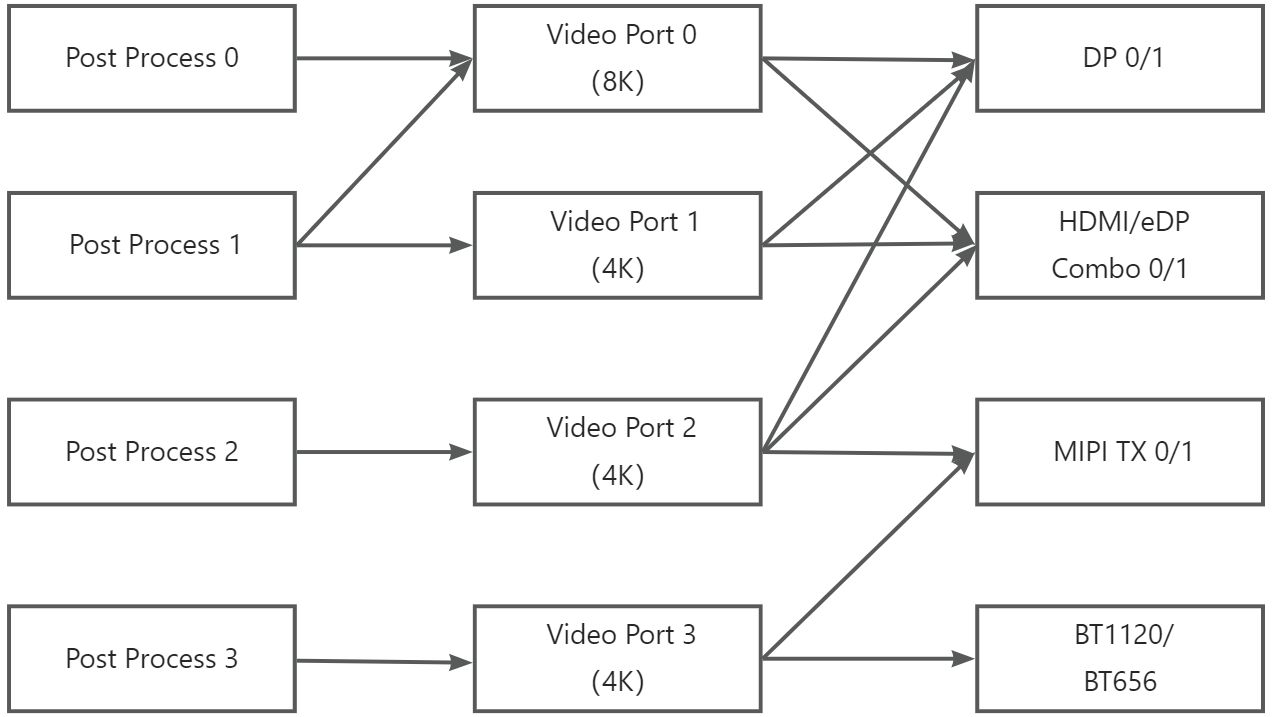
3.1.2 Display Interfaces Specification
The maximum output resolution and protocol standards for each RK3588 display interface are as follows:
Display Interface |
Maximum Output Resolution |
Protocol Standard |
|---|---|---|
HDMI |
7680×4320@60Hz |
Dual HDMI, supporting HDMI 2.1 protocol standard |
DP |
7680×4320@30Hz |
Dual DP, supporting DP 1.4 protocol standard |
eDP |
3840×2160@60Hz |
Dual DP, supporting DP 1.2a and eDP 1.3 protocol standard |
MIPI DSI |
3840×2160@60Hz |
Dual MIPI, supporting DSI v1.1, DCS v1.1, DPHY v2.0, CPHY v1.1 |
RGB |
1920×1080@60Hz |
Supports BT.656 / BT.1120 |
3.1.3 OK3588-C Interface Location
The HDMI and eDP interfaces are located on the front side of the board.
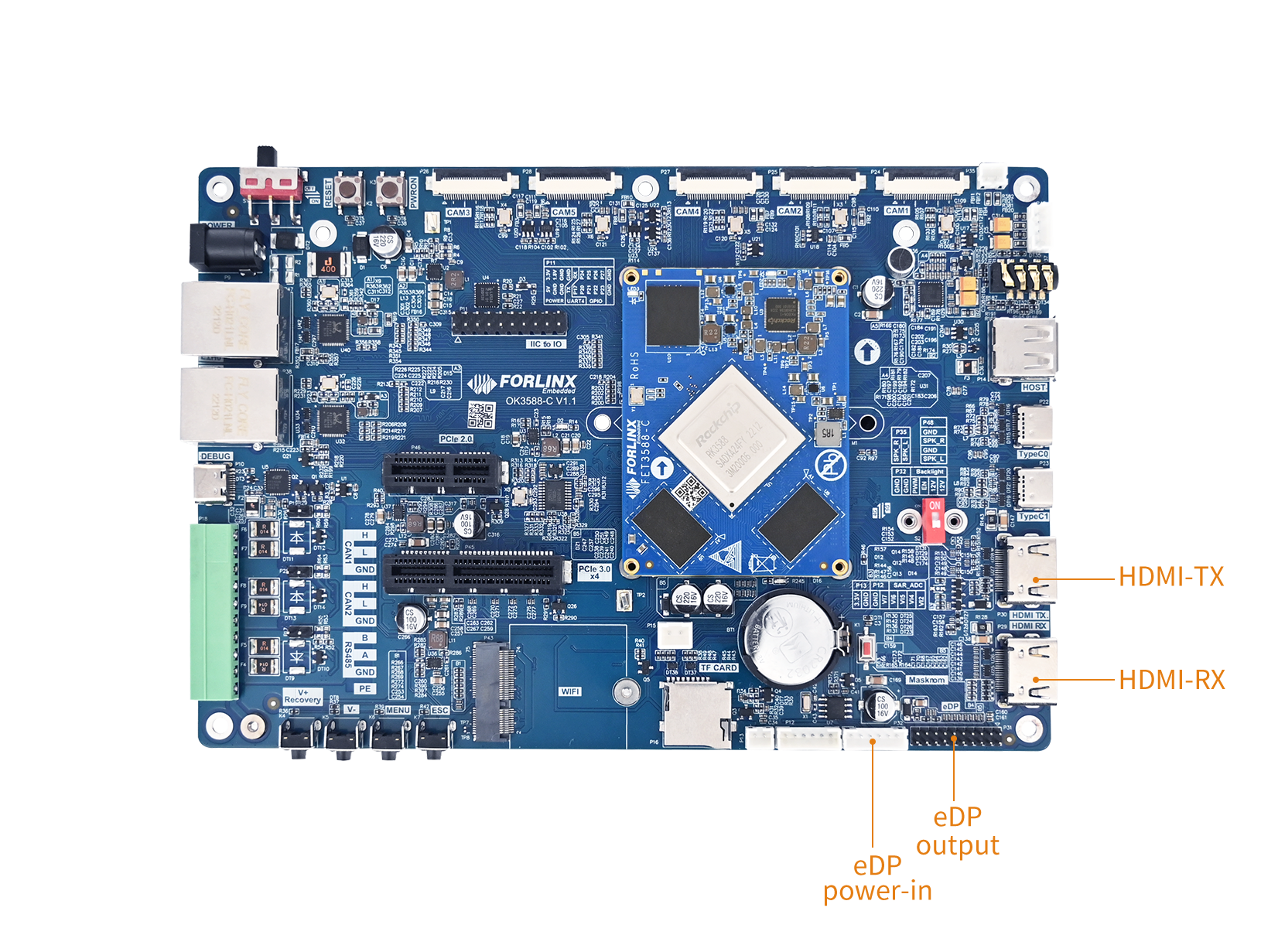
The MIPI DSI0 and MIPI DSI1 interfaces are located on the back side of the board.
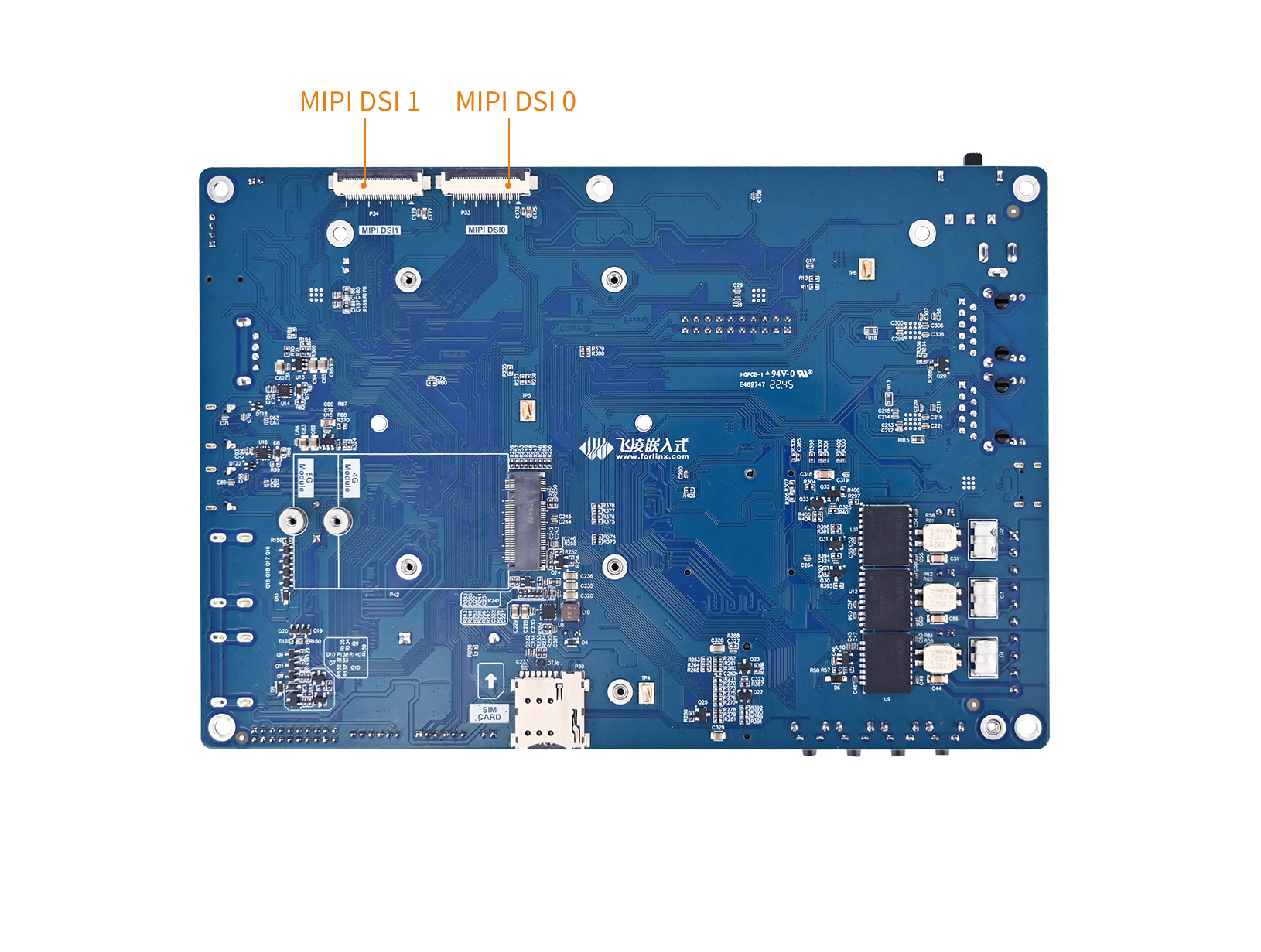
3.1.4 RK3588S2 Differences
Compared to the RK3588, the RK3588S2 has trimmed/cut down the following display interfaces:
Interface |
RK3588(OK3588-C) |
RK3588S2(OK3588S2-C) |
|---|---|---|
HDMI0 |
✅ Available |
✅ Available |
HDMI1 |
✅ Available |
❌ Not Available |
eDP0 |
✅ Available |
❌ Not Available |
eDP1 |
✅ Available |
❌ Not Available |
DP0 |
✅ Available |
✅ Available |
DP1 |
✅ Available |
❌ Not Available |
MIPI DSI0 |
✅ Available |
✅ Available |
MIPI DSI1 |
✅ Available |
✅ Available |
For detailed information about RK3588 display interfaces, please visit the Resource Download Center page, find the “Rockchip Linux Software Development Guide” document, and locate the file en/Common/DISPLAY/DRM/Rockchip_Developer_Guide_DRM_Display_Driver_EN.pdf.
3.2 Device Tree
The display-related Device Tree nodes for OK3588-C/3588-C2 are located at: arch/arm64/boot/dts/rockchip/OK3588-C-common.dtsi.
The display-related Device Tree nodes for OK3588S2-C are located at: arch/arm64/boot/dts/rockchip/OK3588S2-C-common.dtsi.
3.2.1 Forlinx-control Display Configuration Node
Since OK3588 supports multiple display modes, the screen configuration can be specified via the Device Tree:
forlinx-control {
        /***
        * hdmi0 and edp0 share same port, only one can be used.
        * hdmi1 and edp1 share same port, only one can be used.
        * only four VPs internally, so up to four interfaces can be activated
        * hdmi edp dp can only be displayed on VP0 or VP1 or VP2.
        * dsi0 dsi1 can only be displayed on VP2 or  VP3.
        * rgb can only be displayed on VP3.
        ***/

        // if "disabled" , display is controlled by uboot
        status = "disabled";

        HDMI0 	= "VP0";
        // HDMI1 	= "OFF";
        // EDP0 	= "OFF";
        // EDP1 	= "VP1";
        // DP0 	= "OFF";
        // DP1 	= "OFF";
        MIPI0 	= "VP2";
        // MIPI1 	= "VP3";
        // RGB 	= "OFF";
        primary_display = "MIPI0";
        primary_display_resolution = "1920x1080p60";
        disp_type = "sync";
};
The forlinx-control node is disabled by default (status = "disabled"). In this state, display configuration is controlled by U-Boot. To fix the display configuration at the kernel stage, change the status to "okay".
Parameter description:
Parameter |
Description |
|---|---|
|
Node status: |
|
Specifies the VP (Video Port) bound to each display interface. Setting to |
|
Specifies the VP to which MIPI DSI0/DSI1 is bound. |
|
Specifies the VP to which the RGB interface is bound |
|
Main display interface, on which the startup logo and desktop are displayed by default |
|
Resolution of the main display interface |
|
Display Type: |
The configuration parameters can be modified according to the actual requirements, and the image shall be generated by recompiling after saving.
⚠️Note:
hdmi0 and edp0 share the same port. They are mutually exclusive and cannot be used at the same time;
hdmi1 and edp1 share the same port. They are mutually exclusive and cannot be used at the same time;
The chip only contains four VPs (Video Processors), so up to four display interfaces can be activated at the same time;
HDMI, EDP, DP can only be bound to VP0, VP1 or VP2 outputs;
dsi0, dsi1 can only be bound to VP2 or VP3 output;
RGB can only be bound to VP3 output.
According to the hardware constraints of the above display interfaces, the optional parameters of each interface are configured as follows:
The optional parameter range of HDMI0/1, EDP0/1 and DP0/1 is:
"VP0","VP1","VP2","OFF";The optional parameter range of DP0/1 is:
"VP2","VP3";The optional parameter value range of RGB is:
"VP3";primary_displayshall be configured according to the display interface corresponding to the actually allocated VP;disp_typeincludes: simultaneous display"sync"and different display"async".
⚠️Note: When modifying the device tree, strictly follow the constraints in the device tree comments to avoid resource conflicts. The driver layer will not verify the compliance of the forlinx-control node configuration. If the configuration is improper, the display will be abnormal. For the display interface whose parameter is set to OFF, it is recommended to shield or delete the node, or keep the node, which will not affect the system operation. The four VPs do not all need to be enabled and can be configured according to the actual display interface requirements.
3.2.2 VOP Node Configuration
The VOP configuration in the OK3588-C device tree is as follows:
&vop {
	status = "okay";
	vop-supply = <&vdd_log_s0>;
	assigned-clocks = <&cru ACLK_VOP>;
	assigned-clock-rates = <800000000>;
	rockchip,aclk-normal-mode-rates = <500000000>;
	rockchip,aclk-advanced-mode-rates = <800000000>;
};
Features |
Value |
Description |
|---|---|---|
|
|
VOP Power Domain |
|
800 MHz |
VOP AXI bus clock |
|
500 MHz |
ACLK frequency in normal display mode |
|
800 MHz |
ACLK frequency in advanced display mode (e.g. 8K) |
3.2.3 Layer Assignment
Each VP has a fixed layer (Plane) bound to it for compositing the display:
// vp0 & vp1 splice for 8K output
&vp0 {
	rockchip,plane-mask = <(1 << ROCKCHIP_VOP2_CLUSTER0 | 1 << ROCKCHIP_VOP2_ESMART0)>;
	rockchip,primary-plane = <ROCKCHIP_VOP2_ESMART0>;
};

&vp1 {
	rockchip,plane-mask = <(1 << ROCKCHIP_VOP2_CLUSTER1 | 1 << ROCKCHIP_VOP2_ESMART1)>;
	rockchip,primary-plane = <ROCKCHIP_VOP2_ESMART1>;
};

&vp2 {
	rockchip,plane-mask = <(1 << ROCKCHIP_VOP2_CLUSTER2 | 1 << ROCKCHIP_VOP2_ESMART2)>;
	rockchip,primary-plane = <ROCKCHIP_VOP2_ESMART2>;
};

&vp3 {
	rockchip,plane-mask = <(1 << ROCKCHIP_VOP2_CLUSTER3 | 1 << ROCKCHIP_VOP2_ESMART3)>;
	rockchip,primary-plane = <ROCKCHIP_VOP2_ESMART3>;
};
RK3588 VOP2 has 8 layers divided into two categories:
Layer Type |
Layer Name |
Features |
|---|---|---|
Cluster |
Cluster0 ~ Cluster3 |
Support AFBC compression format, suitable for video overlay |
Esmart |
Esmart0 ~ Esmart3 |
Support zooming, suitable for UI display |
3.3 Application
The factory firmware supports dynamic control of screen output via a menu in U-Boot,eliminating the need for recompilation and reflashing to switch screens. During U-Boot automatic startup, pressingctrl+con the serial terminal will trigger a control menu:
Hit key to stop autoboot('CTRL+C'):  0
---------------------------------------------
0:Exit to console
1:Reboot
2:Display type
3:Change kernel loglevel( level 1 )
4:Enable PCIE3 function( state on )
---------------------------------------------
Input 2 on the terminal to enter the screen control submenu.
---------------------------------------------
hdmi0 and edp0 share same port, only one can be used.
hdmi1 and edp1 share same port, only one can be used.
only four VPs internally, so up to four interfaces can be activated
hdmi edp dp can only be displayed on VP0 or VP1 or VP2.
dsi0 dsi1 can only be displayed on VP2 or  VP3.
rgb can only be displayed on VP3.

Select  display
  0:Exit
  1: hdmi0 => VP0
  2: hdmi1 =>
  3: edp0  =>
  4: edp1  =>
  5: dp0   =>
  6: dp1   => VP1
  7: mipi0 => VP2
  8: mipi1 => VP3
  9: rgb   =>
  a: primary display  => MIPI0
  b: primary display resolution => 1920x1080p60
  c: display type => sync
---------------------------------------------
According to the notes in the U-Boot menu, the display output configuration rules are as follows:
1.  HDMI0 and eDP0 share the same port, so only one of them can be used at a time.
2.  HDMI1 and eDP1 share the same port, so only one of them can be used at a time.
3.  There are only four internal VPs, so a maximum of four interfaces can be activated.
4.  HDMI, eDP, and DP can only be displayed on VP0, VP1, or VP2.
5.  DSI0 and DSI1 can only be displayed on VP2 or VP3.
6.  RGB can only be displayed on VP3.
When configuring display output, enter the number corresponding to the display interface, and the system will allocate a VP for that interface. Repeatedly entering the same number will cycle through the available VPs for that interface or disable the currently assigned VP.
Once configuration is complete, you can press number 1 to reboot. The screen options set during the Uboot stage will take effect after the reboot. Alternatively, you can directly press the reset button on the development board to reboot, and the configuration will also take effect after the system automatically starts up.
4. Encoding and Decoding
Some application layer software for audio and video on the OK3588 platform uses Gstreamer, which supports hardware codecs. All examples in this section based on the GStreamer command line form.
The OK3588 platform has an internal video processing unit, the VPU, which supports hardware codecs for video in the following formats:
Video Decoding: H264, H265, VP8, VP9, etc., maximum support 8K@60fps
Video Encoding: H264, H.265, maximum support 8k@30fps
Table of hardware codec parameters for the OK3588 platform:
Video Decoder |
Format |
Profile |
Resolution |
Frame rate |
|---|---|---|---|---|
H.265 |
main 10 |
7680x4320 |
60 fps |
|
H.264 |
main 10 |
7680x4320 |
30 fps |
|
VP9 |
Profile 0/2 |
7680x4320 |
60 fps |
|
VP8 |
version2 |
1920x1080 |
60 fps |
|
VC1 |
1920x1080 |
60 fps |
||
MPEG-2 |
1920x1080 |
60 fps |
||
MPEG-1 |
1920x1080 |
60 fps |
||
H.263 |
720x576 |
60 fps |
||
Video Encoder |
H.264 |
BP/MP/HP@level4.2 |
7680x4320 |
30 fps |
H.265 |
MP@level4.1 |
7680x4320 |
30 fps |
You can download the required audio and video files via the following links: Media and place them in the */userdata/media* directory on the board. Set permissions using the following command:
forlinx@ok3588:~$ sudo chmod 644 /userdata/media/* -R
4.1 Audio and Video Playback
4.1.1 Playing Audio and Video With Gst-play
Gplay is an audio/video player based on GStreamer that can automatically select the right plugin for audio/video play according to the hardware, and it is easy to run.
forlinx@ok3588:~$ gst-play-1.0 /userdata/media/video/1080-h265-60fps.mp4
4.1.2 Playing Video With Gst-launch
forlinx@ok3588:~$ gst-launch-1.0 filesrc location=/userdata/media/video/1080-h265-60fps.mp4 ! qtdemux ! queue ! h265parse ! mppvideodec ! waylandsink
4.1.3 Playing Audio With Gst-launch
forlinx@ok3588:~$ gst-launch-1.0 filesrc location=/userdata/media/audio/piano2-CoolEdit.mp3 ! id3demux ! mpegaudioparse ! mpg123audiodec ! alsasink device=plughw:1,0
4.1.4 Playing Video and Audio With Gst-launch
forlinx@ok3588:~$ gst-launch-1.0 filesrc location=/userdata/media/video/1080-h265-60fps.mp4 ! qtdemux name=dec dec. ! queue ! h265parse ! mppvideodec ! waylandsink dec. ! queue ! decodebin ! alsasink device=plughw:1,0
4.2 Video Hardware Encoding
OK3588 supports up to 8K@60fps/H.265 and 8K@60fps/H.264 video encoding.
4.2.1 Video Hardware Encoding H.264
forlinx@ok3588:~$ gst-launch-1.0 videotestsrc num-buffers=600 ! video/x-raw,framerate=30/1,width=7680,height=4320 ! mpph264enc ! h264parse ! mp4mux ! filesink location=test.mp4
4.2.2 Video Hardware Encoding H.265
forlinx@ok3588:~$ gst-launch-1.0 videotestsrc num-buffers=600 ! video/x-raw,framerate=30/1,width=7680,height=4320 ! mpph265enc ! h265parse ! mp4mux ! filesink location=test.mp4
4.2.3 JPEG Hardware Encoding
forlinx@ok3588:~$ gst-launch-1.0 videotestsrc num-buffers=1 ! video/x-raw,framerate=1/1,width=7680,height=4320 ! mppjpegenc ! jpegparse ! queue ! filesink location=test.jpeg
4.3. Video Hardware Decoding
OK3588 supports hardware decoding for H.264, H.265, VP8, and VP9 video formats. The H.264 decoder supports 8K@30fps, while the H.265 decoder supports 8K@60fps.
OK3588 uses the mppvideodec component for hardware video decoding, and its output formats are NV12, I420, and YV12.
4.3.1 Decoding and Playing H.264 Format Video
forlinx@ok3588:~$ gst-launch-1.0 filesrc location=/userdata/media/video/4K-h264-30fps.mp4 ! qtdemux ! h264parse ! mppvideodec ! waylandsink
4.3.2 Decoding and Playing H264 Format Video With Audio
forlinx@ok3588:~$ gst-launch-1.0 filesrc location=/userdata/media/video/4K-h264-30fps.mp4 ! qtdemux name=demux demux.video_0 ! queue ! h264parse ! mppvideodec ! waylandsink demux.audio_0 ! queue ! aacparse ! faad ! audioconvert ! audioresample ! alsasink device=hw:1,0
4.3.3 Decoding and Playing H265 Format Video
forlinx@ok3588:~$ gst-launch-1.0 filesrc location=/userdata/media/video/4K-h265-30fps.mp4 ! qtdemux ! h265parse ! mppvideodec ! waylandsink
4.3.4 Decoding and Playing H265 Format Video With Audio
forlinx@ok3588:~$ gst-launch-1.0 filesrc location=/userdata/media/video/4K-h265-30fps.mp4 ! qtdemux name=demux demux.video_0 ! queue ! h265parse ! mppvideodec ! waylandsink demux.audio_0 ! queue ! aacparse ! faad ! audioconvert ! audioresample ! alsasink device=hw:1,0
4.3.5 Decoding and Playing VP9 Format Video
forlinx@ok3588:~$ gst-launch-1.0 filesrc location=/userdata/media/video/1080-vp9-50fps.webm ! matroskademux name=demux demux.video_0 ! queue ! vp9parse ! mppvideodec ! waylandsin
4.3.6 Decoding and Playing VP9 Format Video With Audio
forlinx@ok3588:~$ gst-launch-1.0 filesrc location=/userdata/media/video/1080-vp9-50fps.webm ! matroskademux name=demux demux.video_0 ! queue ! vp9parse ! mppvideodec ! waylandsink demux.audio_0 ! queue ! vorbisdec ! audioconvert ! audioresample ! alsasink device=hw:1,0
4.3.7 Decoding and Playing VP8 Format Video
forlinx@ok3588:~$ gst-launch-1.0 filesrc location=/userdata/media/video/1080-vp8-50fps.webm ! matroskademux name=demux demux.video_0 ! queue ! mppvideodec ! waylandsink
4.3.8 Decoding and Playing VP8 Format Video With Audio
forlinx@ok3588:~$ gst-launch-1.0 filesrc location=/userdata/media/video/1080-vp8-50fps.webm typefind=true ! video/webm ! matroskademux name=dec dec. ! queue ! mppvideodec ! waylandsink dec. ! queue ! decodebin ! audioconvert ! audioresample ! alsasink device=plughw:1,0
4.3.9 Decoding and Playing VP8 Format Video With Audio
forlinx@ok3588:~$ gst-launch-1.0 filesrc location=/userdata/media/video/1080-mjpeg-30fps.avi ! avidemux name=demux demux.video_0 ! queue ! jpegparse ! mppjpegdec ! videoconvert ! waylandsink
4.3.9 Decoding and Playing mpeg Format Video With Audio
forlinx@ok3588:~$ gst-launch-1.0 filesrc location=/userdata/media/video/1080-mjpeg-30fps.avi ! avidemux name=demux demux.video_0 ! queue ! jpegparse ! mppjpegdec ! videoconvert ! waylandsink demux.audio_0 ! queue ! mpegaudioparse ! mpg123audiodec ! audioconvert ! audioresample ! alsasink device=hw:1,0
SQLite3
SQLite3 is a lightweight database; it is an ACID-compliant relational database management system with low resource requirements. The OK3588-C development board uses version 3.44.2 of SQLite3. Using Method:
forlinx@ok3588:~$ sqlite3
SQLite version 3.45.3 2024-04-15 13:34:05
Enter ".help" for usage hints.
Connected to a transient in-memory database.
Use ".open FILENAME" to reopen on a persistent database.
sqlite> create table tbl1 (one varchar(10), twwo smallint);	// Create table tbl1
sqlite> insert into tbl1 values('hello!',10);	                // Insert data "hello!" and 10 into table tbl1
sqlite> insert into tbl1 values('goodbye',20);	                // Insert data "goodbye" and 20 into table tbl1
sqlite> select * from tbl1;	                                // Query the content of table tbl1
hello!|10
goodbye|20
sqlite> delete from tbl1 where one = 'hello!';	                // Delete data
sqlite> select * from tbl1;	                                // Query the content of table tbl1
goodbye|20
sqlite> .quit			                                // Exit the database (or use the .exit command)
Development Guides
1. Adding User Application
1.1 Packaging the User Program into the Image
The directory
OK-linux-source//board/rockchip/common/basein the source code corresponds to the root directory of the board’s file system. You can directly copy your compiled user application,user_application, to the subdirectoryusr/binwithin this directory;To modify system or service configurations, copy the relevant configuration files to the directory
OK-linux-source//board/rockchip/common/base/etc;To add library files, copy them to the specified directory within
OK-linux-source/buildroot/board/rockchip/common/base/usr/lib;
After copying the files, execute the command chmod +x user_application to add executable permissions to the application.
Once you have completed these steps, perform a full compilation in the source code directory, and program the compiled image to the board (please refer to section 3.2.1 of the Build Guides for compilation instructions). After successful programming, you can manually run your applicationuser_application, on the board. For information on enabling auto-start functionality, please refer to the next section.
2. Auto-starting the User Program
The Linux system of the OK3588-C utilizes systemd as its initialization system and service manager. This design aims to achieve faster boot speeds, improved parallel processing capabilities, and enhanced service management functions, all while providing a unified system management interface.
Within this system, there is a preset script named forlinx.sh located in the /etc directory. This script is called and executed by /etc/profile. Users can customize forlinx.sh to include their own applications, allowing for automatic startup of these applications.
forlinx@ok3588:~# cat /etc/forlinx.sh
#!/bin/bash

# Forlinx autorun script
You can also modify theOK-yocto-source/sources/meta-forlinx-rk/overlay/overlay-ok3588/etc/forlinx.shin the source code directory, then perform a full compilation to generate an image file that supports user program auto-start.
3. Customized Logo
You can modify the boot logo by replacing the specified files logo.bmp and logo_kernel.bmp in the kernel directory.
⚠️Note:
When using tools such as Photoshop to convert to BMP format, select Windows format, 24-bit color depth, and check the “Reverse row order” option;
The BMP image resolution is recommended not to exceed 1080P. If the boot image size is too large, the EMMC partition size must be adjusted accordingly; otherwise, programming may fail (compilation is usually normal);
Since the VOP virtual width is word-aligned, Rockchip’s full platform requires the logo to be 4-byte aligned;
BMP format only supports 8-bit, 16-bit, 24-bit, and 32-bit color depths. To reduce the logo file size, only make adjustments within the above color depth ranges.
4. RKNPU Development
4.1 NPU Description
An NPU (Neural Processing Unit) is a hardware accelerator specifically designed for neural network computing tasks. It aims to improve the operational efficiency and speed of artificial intelligence (AI) tasks. Compared to CPUs and GPUs, the NPU demonstrates higher energy efficiency when processing AI tasks, enabling it to complete the same scale of computation at lower power consumption.
The OK3588-C integrates a low-power, high-performance NPU, which possesses hardware-level neural network inference acceleration capabilities and can efficiently run AI algorithms. It is well-suited for AIoT scenarios such as intelligent security, industrial vision, and robotics, making it an optimal solution for edge-side AI deployment.
Main features:
6 TOPS NPU, empowering various AI scenarios;
Triple-core architecture design;
Int4/int8/int16/FP16/BF16/TF32 data formats.
To help developers deploy AI models more quickly, Rockchip officially provides users with two toolchains for model conversion, inference, and performance evaluation on computers, including the RKNN toolchain and the RKLLM toolchain specifically designed for large language models. In addition, Rockchip officially provides the RKNN Model Zoo, developed based on the RKNPU SDK toolchain, which covers deployment examples for current mainstream algorithms. The examples include the process of exporting RKNN models and performing inference on RKNN models using the Python API and C API.
4.1.1 RKNN Toolchain
4.1.1.1 RKNN Software Stack Overview
The RKNN software stack helps you quickly deploy AI models to the OK3588-C. The overall framework is shown below:
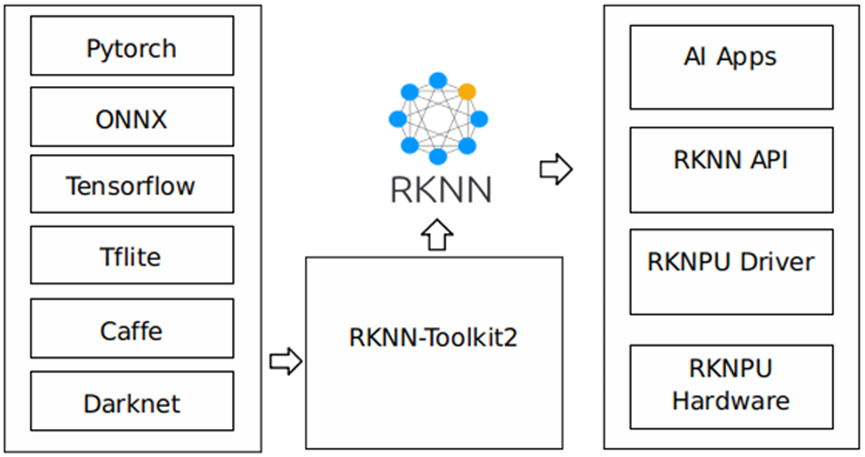
Figure 1-1 RKNN Software Stack
To use the built-in NPU of the OK3588-C, please first run the RKNN-Toolkit2 tool on a computer to convert the trained model into the RKNN format model, and then use the RKNN C API or Python API for deployment on the development board.
The currently supported models are as follows:
demo |
model_name |
inputs_shape |
dtype |
RK3588@single_core |
|---|---|---|---|---|
mobilenet |
mobilenetv2-12 |
[1, 3, 224, 224] |
INT8 |
450.7 |
resnet |
resnet50-v2-7 |
[1, 3, 224, 224] |
INT8 |
110.1 |
yolov5 |
yolov5s_relu |
[1, 3, 640, 640] |
INT8 |
66.1 |
yolov5n |
[1, 3, 640, 640] |
INT8 |
82.5 |
|
yolov5s |
[1, 3, 640, 640] |
INT8 |
48.4 |
|
yolov5m |
[1, 3, 640, 640] |
INT8 |
20.9 |
|
yolov6 |
yolov6n |
[1, 3, 640, 640] |
INT8 |
106.4 |
yolov6s |
[1, 3, 640, 640] |
INT8 |
36.4 |
|
yolov6m |
[1, 3, 640, 640] |
INT8 |
17.8 |
|
yolov7 |
yolov7-tiny |
[1, 3, 640, 640] |
INT8 |
72.7 |
yolov7 |
[1, 3, 640, 640] |
INT8 |
11.4 |
|
yolov8 |
yolov8n |
[1, 3, 640, 640] |
INT8 |
73.5 |
yolov8s |
[1, 3, 640, 640] |
INT8 |
38.0 |
|
yolov8m |
[1, 3, 640, 640] |
INT8 |
16.2 |
|
yolov8_obb |
yolov8n-obb |
[1, 3, 640, 640] |
INT8 |
74.0 |
yolov10 |
yolov10n |
[1, 3, 640, 640] |
INT8 |
61.2 |
yolov10s |
[1, 3, 640, 640] |
INT8 |
33.8 |
|
yolo11 |
yolo11n |
[1, 3, 640, 640] |
INT8 |
60.0 |
yolo11s |
[1, 3, 640, 640] |
INT8 |
33.0 |
|
yolo11m |
[1, 3, 640, 640] |
INT8 |
12.7 |
|
yolox |
yolox_s |
[1, 3, 640, 640] |
INT8 |
37.1 |
yolox_m |
[1, 3, 640, 640] |
INT8 |
16.0 |
|
ppyoloe |
ppyoloe_s |
[1, 3, 640, 640] |
INT8 |
32.5 |
ppyoloe_m |
[1, 3, 640, 640] |
INT8 |
15.8 |
|
yolo_world |
yolo_world_v2s |
[1, 3, 640, 640] |
INT8 |
22.1 |
clip_text |
[1, 20] |
FP16 |
95.8 |
|
yolov8_pose |
yolov8n-pose |
[1, 3, 640, 640] |
INT8 |
55.9 |
deeplabv3 |
deeplab-v3-plus-mobilenet-v2 |
[1, 513, 513, 1] |
INT8 |
34.0 |
yolov5_seg |
yolov5n-seg |
[1, 3, 640, 640] |
INT8 |
69.3 |
yolov5s-seg |
[1, 3, 640, 640] |
INT8 |
36.8 |
|
yolov5m-seg |
[1, 3, 640, 640] |
INT8 |
16.4 |
|
yolov8_seg |
yolov8n-seg |
[1, 3, 640, 640] |
INT8 |
60.8 |
yolov8s-seg |
[1, 3, 640, 640] |
INT8 |
28.9 |
|
yolov8m-seg |
[1, 3, 640, 640] |
INT8 |
12.6 |
|
ppseg |
ppseg_lite_1024x512 |
[1, 3, 512, 512] |
INT8 |
35.7 |
mobilesam |
mobilesam_encoder_tiny |
[1, 3, 448, 448] |
FP16 |
10.0 |
mobilesam_decoder |
[1, 1, 112, 112] |
FP16 |
116.4 |
|
RetinaFace |
RetinaFace_mobile320 |
[1, 3, 320, 320] |
INT8 |
227.2 |
RetinaFace_resnet50_320 |
[1, 3, 320, 320] |
INT8 |
49.2 |
|
LPRNet |
lprnet |
[1, 3, 24, 94] |
FP16 |
586.4 |
PPOCR-Det |
ppocrv4_det |
[1, 3, 480, 480] |
INT8 |
50.7 |
PPOCR-Rec |
ppocrv4_rec |
[1, 3, 48, 320] |
FP16 |
73.9 |
lite_transformer |
lite-transformer-encoder-16 |
embedding-256, token-16 |
FP16 |
867.6 |
lite-transformer-decoder-16 |
embedding-256, token-16 |
FP16 |
343.8 |
|
clip |
clip_images |
[1, 3, 224, 224] |
FP16 |
6.5 |
clip_text |
[1, 20] |
FP16 |
96.0 |
|
wav2vec2 |
wav2vec2_base_960h_20s |
20s audio |
FP16 |
RTF 0.133 |
whisper |
whisper_base_20s |
20s audio |
FP16 |
RTF 0.215 |
zipformer |
zipformer-bilingual-zh-en-t |
streaming audio |
FP16 |
RTF 0.065 |
yamnet |
yamnet_3s |
3s audio |
FP16 |
RTF 0.004 |
mms_tts |
mms_tts_eng_200 |
token-200 |
FP16 |
RTF 0.069 |
4.1.1.2 RKNN-Toolkit2
With RKLLM-Toolkit2, developers can easily quantize and convert large language models on a computer. It provides a concise Python interface with the following core features:
Model Conversion: Supports converting LLMs from Hugging Face and GGUF formats to the RKLLM format. The converted RKLLM models can be loaded and used on the OK3588-C NPU platform;
Quantization: Supports converting floating-point models into fixed-point models. Currently supported quantization types are w8a8 and w8a8 grouped quantization (with supported group sizes of 128, 256, and 512).
RKNN-Toolkit2 is the core development toolkit for Rockchip NPU, providing end-to-end development support for model conversion (ONNX/TF/PyTorch → RKNN), quantization, PC simulation inference, performance evaluation, accuracy validation, and model optimization. Please refer to rknn-toolkit2 for the RKLLM-Toolkit2 details.
4.1.1.3 RKLLM Runtime Features
RKLLM Runtime loads models converted by RKNN-Toolkit into the RKLLM format. It accelerates inference on the OK3588-C NPU by calling the board-side NPU driver. During inference, developers can customize model parameters and text generation strategies, and continuously receive outputs through preset callback functions.
For details of RKLLM Runtime, refer torknn-llm\doc\Rockchip_RKLLM_SDK_CN_1.2.3.pdf.
4.1.2 RKNN Model Zoo
RKNN Model Zoo is an edge AI model deployment resource library launched by Rockchip based on its RKNPU SDK toolchain. It aims to provide developers with a complete reference implementation for AI model deployment. It covers the entire workflow—from model conversion and quantization to running inference on Rockchip NPUs using both Python and C APIs. Built-in YOLO series detection/segmentation/pose, image classification, OCR, license plate recognition, speech recognition and other dozens of mainstream algorithms, each model provides pre-training weights, conversion scripts and sample codes that can be directly compiled and run to help developers quickly achieve high-performance NPU reasoning acceleration on Rockchip hardware.
The rknn _ model _ zoo is a collection of converted and optimized mainstream model examples, providing a large number of ready-made RKNN models + complete pre-processing and post-processing + C/C + +/Python/Android reasoning demos for developers to run directly for verification or reference transplantation. rknn_model_zoo
RKNN Model Zoo directory:
rknn_model_zoo
├── 3rdparty         # Third-party libraries
├── asset            # Resource files
├── datasets         # Datasets
├── docs             # Documentation directory
├── examples         # Example code
├── py_utils         # Python utility library
├── utils            # General utility directory
├── build-android.sh # Compilation script for Android system development boards
├── build-linux.sh   # Compilation script for Linux system development boards
Under the examples directory are examples of commonly used models, such as MobileNet and YOLO. Each model example provides sample code in both Python and C/C++ versions. Taking aresnetmodel as an example, its directory structure is as follows:
rknn_model_zoo
├── examples
│   └── resnet
│       ├── cpp      # C/C++ example code
│       ├── model    # Model, test images, and other files
│       ├── python   # Model conversion scripts and Python example code
│       └── README.md
└── ...
4.2 Development Environment Setup
RKNN development needs to be carried out under Ubuntu. You may choose the build method provided in the manual.
4.2.1 Installing RKNN-Toolkit2
There are two installation methods for RKNN-Toolkit2:pipandDocker. You can choose anyone to install.
4.2.1.1 Installing via Pip
Set up the Python Environment
forlinx@ubuntu:~$ sudo apt-get update
forlinx@ubuntu:~$ sudo apt-get install python3 python3-dev python3-pip
forlinx@ubuntu:~$ sudo apt-get install libxslt1-dev zlib1g zlib1g-dev libglib2.0-0 libsm6 libgl1-mesa-glx libprotobuf-dev gcc
Install the Miniforge Tool
# Download Mini forge installation package
forlinx@ubuntu:~$ wget -c https://mirrors.tuna.tsinghua.edu.cn/github-release/conda-forge/miniforge/LatestRelease/Miniforge3-Linux-x86_64.sh
# Install Miniforge
forlinx@ubuntu:~$ chmod 777 Miniforge3-Linux-x86_64.sh
forlinx@ubuntu:~$ bash Miniforge3-Linux-x86_64.sh
Create the RKNN-Toolkit2 Conda Environment
# Switch to the Conda base environment
forlinx@ubuntu:~$ source ~/miniforge3/bin/activate 			// Miniforge installation directory
# Create a Conda environment named RKNN-Toolkit2 with Python version 3.8 (recommended version)
(base) forlinx@ubuntu:~$ conda create -n RKNN-Toolkit2 python=3.8
# Activate the RKNN-Toolkit2 Conda environment
(base) forlinx@ubuntu:~$ conda activate RKNN-Toolkit2
Install RKNN-Toolkit2
After activating the RKNN-Toolkit2 Conda environment, RKNN-Toolkit2 can be installed either from apipsource or via a localwheelpackage.
Install from a pip source.
(RKNN-Toolkit2) forlinx@ubuntu:~$ pip install rknn-toolkit2 -i https://pypi.org/simple
# If RKNN-Toolkit2 is already installed, you can upgrade it using the following command:
pip install rknn-toolkit2 -i https://pypi.org/simple --upgrade
Install from a local wheel package.
Transfer the RKNN-Toolkit2 project folder (rknn-toolkit2) to the target directoryubuntu/home/forlinx/. The RKNN-Toolkit2 project file can be downloaded from: rknn-toolkit2.
(RKNN-Toolkit2) forlinx@ubuntu:~$ pip install -r rknn-toolkit2/packages/x86_64/requirements_cp38-2.3.2.txt
# Select the appropriate requirements file based on the Python version and processor architecture, where "cpxx" represents the Python version number.

# Install RKNN-Toolkit2
(RKNN-Toolkit2) forlinx@ubuntu:~$ pip install rknn-toolkit2/packages/x86_64/rknn_toolkit2-2.3.2-cp38-cp38-manylinux_2_17_x86_64.manylinux2014_x86_64.whl
# Select the corresponding wheel installation file according to the Python version and processor architecture, where "x.x.x" is the RKNN-Toolkit2 version number, and "cpxx" is the Python version number.

# Verify the installation is successful by running the following command with no errors:
(RKNN-Toolkit2) forlinx@ubuntu:~$ python3
>>> from rknn.api import RKNN
4.2.1.2 Installing via Docker
Install Docker Tools
Install Docker tools following the official Docker installation manual. Link:
https://docs.docker.com/install/linux/docker-ce/ubuntu/.
# Add the forlinx user to the docker group (and create the docker group if it doesn't exist)
forlinx@ubuntu:~$ sudo groupadd docker

# Add the forlinx user to the docker group
forlinx@ubuntu:~$ sudo usermod -aG docker $USER

# Update group membership to activate the docker group changes
forlinx@ubuntu:~$ newgrp docker

# Verify that docker commands can be run without sudo
forlinx@ubuntu:~$ docker run hello-world
Expected output upon successful execution.
Unable to find image 'hello-world:latest' locally
latest: Pulling from library/hello-world
17eec7bbc9d7: Pull complete
ea52d2000f90: Download complete
Digest: sha256:ef54e839ef541993b4e87f25e752f7cf4238fa55f017957c2eb44077083d7a6a
Status: Downloaded newer image for hello-world:latest

Hello from Docker!
This message shows that your installation appears to be working correctly.
Image Preparation
Create the image environment viaDockerfile.
Transfer the RKNN-Toolkit2 project folder (rknn-toolkit2) to the virtual machine directory/home/forlinx. There areDockerfilefiles to build the RKNN-Toolkit2 development environment underrknn-toolkit2/docker/docker_file.
forlinx@ubuntu:~$ cd rknn-toolkit2/docker/docker_file/ubuntu_20_04_cp38
forlinx@ubuntu:~/rknn-toolkit2/docker/docker_file/ubuntu_20_04_cp38$ docker build -f Dockerfile_ubuntu_20_04_for_cp38 -t rknn-toolkit2:2.3.2-cp38 .
Querying Image Information.
# After the image is created or loaded successfully, view the image information of Docker.
forlinx@ubuntu:~$ docker images
Runn the Image
Execute the following command to run theDockerimage. After execution, you will enter the bash environment.
forlinx@ubuntu:~$ docker run -t -i --privileged -v /dev/bus/usb:/dev/bus/usb rknn-toolkit2:2.3.2-cp38 /bin/bash
To map the code in the examples folder into the Docker environment, you can append the “-v
forlinx@ubuntu:~$ docker run -t -i --privileged -v /dev/bus/usb:/dev/bus/usb -v /home/forlinx/rknn-toolkit2/examples:/examples rknn-toolkit2:2.3.2-cp38 /bin/bash
Run the Demo
root@6413d8f3c79d:/# cd examples/onnx/yolov5
root@6413d8f3c79d:/examples/onnx/yolov5# python test.py
After the script runs successfully, the result is as follows:
class        score    xmin, ymin, xmax, ymax
--------------------------------------------------------------------
person       0.884   [ 208,  244,  286,  506]
person       0.868   [ 478,  236,  559,  528]
person       0.825   [ 110,  238,  230,  533]
person       0.334   [  79,  353,  122,  517]
 bus         0.705   [  92,  128,  554,  467]
4.2.2 Installing RKLLM-Toolkit
4.2.2.1 Install via Pip
Set up the Python Environment.
forlinx@ubuntu:~$ sudo apt-get update
forlinx@ubuntu:~$ sudo apt-get install python3 python3-dev python3-pip
forlinx@ubuntu:~$ sudo apt-get install libxslt1-dev zlib1g zlib1g-dev libglib2.0-0 libsm6 libgl1-mesa-glx libprotobuf-dev gcc
4.2.2.2 Installing the Miniforge Tool
# Download Mini forge installation package
forlinx@ubuntu:~$ wget -c https://mirrors.tuna.tsinghua.edu.cn/github-release/conda-forge/miniforge/LatestRelease/Miniforge3-Linux-x86_64.sh
# Install Miniforge
forlinx@ubuntu:~$ chmod 777 Miniforge3-Linux-x86_64.sh
forlinx@ubuntu:~$ bash Miniforge3-Linux-x86_64.sh
4.2.2.3 Creating RKLLM-Toolkit Conda Environment
# Switch to the Conda base environment
forlinx@ubuntu:~$ source ~/miniforge3/bin/activate # Miniforge installation directory

# Create a Conda environment named RKLLM-Toolkit with Python version 3.8
(base) forlinx@ubuntu:~$ conda create -n RKLLM-Toolkit python=3.8

# Activate the RKLLM-Toolkit Conda environment
(base) forlinx@ubuntu:~$ conda activate RKLLM-Toolkit
4.2.2.4 Installing RKLLM-Toolkit
Transfer the RKLLM-Toolkit project folder (rknn-llm) to the virtual machine directory. Under the RKLLM-Toolkit Conda environment, use the pip tool to directly install the provided toolchain wheel package. During the installation process, the installation tool will automatically download the required dependency packages for the RKLLM-Toolkit. The download address for the RKLLM-Toolkit project files is: https://github.com/airockchip/rknn-llm/archive/refs/tags/release-v1.2.2.zip.
(RKLLM-Toolkit) forlinx@ubuntu:~$ pip install rknn-llm/rkllm-toolkit/packages/rkllm_toolkit-1.2.2-cp38-cp38-linux_x86_64.whl
4.2.3 Board-Side NPU Environment Preparation
# Check the RKNPU driver version
cat /sys/kernel/debug/rknpu/version

# Output:
RKNPU driver: v0.9.8
4.3 Model Deployment Examples
Forlinx provides pre-converted models and binary files for download. You can browse the following link to download the compressed package containing the corresponding models and binary files
After entering the webpage, select the model under “Software Resources -> AI Demo”.
4.3.1 YOLOv5 Model Deployment Example
4.3.1.1 Model Conversion
Transfer the RKNN Model Zoo project folder (rknn_model_zoo) to the virtual machine directory. The download address for the RKNN Model Zoo project files is https://github.com/airockchip/rknn_model_zoo:
Enter the RKNN-Toolkit2 Conda Environment
forlinx@ubuntu:~$ source ~/miniforge3/bin/activate # Miniforge installation directory
(base) forlinx@ubuntu:~$ conda activate RKNN-Toolkit2
Downloading the Model
(RKNN-Toolkit2) forlinx@ubuntu:~$ cd rknn_model_zoo/examples/yolov5/model
(RKNN-Toolkit2) forlinx@ubuntu:~/rknn_model_zoo/examples/yolov5/model$ chmod +x download_model.sh
(RKNN-Toolkit2) forlinx@ubuntu:~/rknn_model_zoo/examples/yolov5/model$ ./download_model.sh
Model Conversion
(RKNN-Toolkit2) forlinx@ubuntu:~$ cd rknn_model_zoo/examples/yolov5/python
(RKNN-Toolkit2) forlinx@ubuntu:~/rknn_model_zoo/examples/yolov5/python$ python convert.py ../model/yolov5s_relu.onnx rk3588 i8 ../model/yolov5s_relu.rknn
The save path for the converted model is: rknn_model_zoo/examples/yolov5/model/yolov5s_relu.rknn.
4.3.1.2 Model Deployment
Install the Cross Compiler.
Note: The cross compiler mentioned in this section is not the same as the cross-compilation toolchain described in the compilation manual. Please download the cross compiler dedicated to compiling this AI model as described below.
Install Cmake
forlinx@ubuntu:~$ sudo apt update # Update the package list
forlinx@ubuntu:~$ sudo apt install cmake # Install cmake
Install Compiler
The download address of GCC:
After downloading the GCC software package, extract it to the virtual machine directory.
Specify the GCC cross-compiler path in the build-linux. sh script under the rknn _ model _ zoo project.
# Add to start of build-Linux. Sh script
GCC_COMPILER=/home/forlinx/gcc-linaro-6.3.1-2017.05-x86_64_aarch64-linux-gnu/bin/aarch64-linux-gnu
Compilation
forlinx@ubuntu:~$ cd rknn_model_zoo
forlinx@ubuntu:~/rknn_model_zoo$ chmod +x build-linux.sh
forlinx@ubuntu:~/rknn_model_zoo$ ./build-linux.sh -t rk3588 -a aarch64 -d yolov5
Operation on Board
Push the folder under the directory to the board-side directory.
forlinx@ok3588:~# cd /home/forlinx/rknn_yolov5_demo
forlinx@ok3588:/home/forlinx/rknn_yolov5_demo# chmod +x rknn_yolov5_demo
forlinx@ok3588:/home/forlinx/rknn_yolov5_demo# export LD_LIBRARY_PATH=./lib
forlinx@ok3588:/home/forlinx/rknn_yolov5_demo# ./rknn_yolov5_demo model/yolov5s_relu.rknn model/bus.jpg
The output result image (out.png) is shown below:
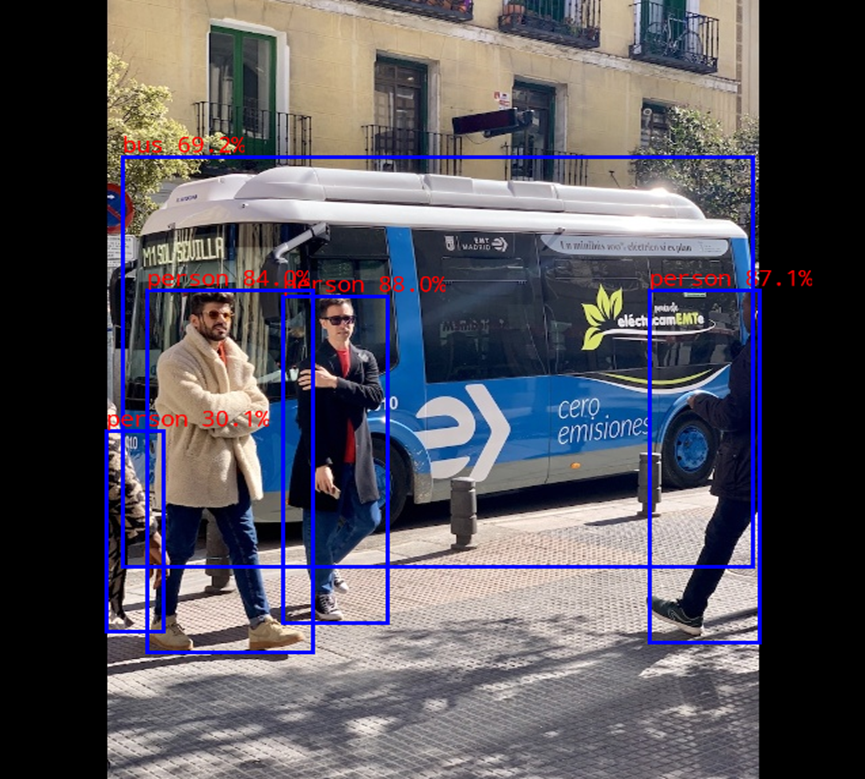
4.3.2 DeepSeek Model Deployment
4.3.2.1 Model Conversion
Enter RKLLM-Toolkit Conda Environment
forlinx@ubuntu:~$ source ~/miniforge3/bin/activate # Miniforge installation directory.
(base) forlinx@ubuntu:~$ conda activate RKLLM-Toolkit
Download the Model
Download theDeepSeek-R1-Distill-Qwen-1.5Bmodel from https://huggingface.co/deepseek-ai/DeepSeek-R1-Distill-Qwen-1.5B/tree/main. 
Name the downloaded folder asDeepSeek-R1-Distill-Qwen-1.5B, and transfer it to the virtual machine path/home/forlinx/rknn-llm/examples.
Model Conversion
Navigate to the file path where the export_rkllm.py script is located.
(RKLLM-Toolkit) forlinx@ubuntu:~$ cd /home/forlinx/rknn-llm/examples/rkllm_api_demo/export
Modify the model path in theexport_rkllm.pyscript to the actual path, and confirm the target platform and the number of NPU cores. 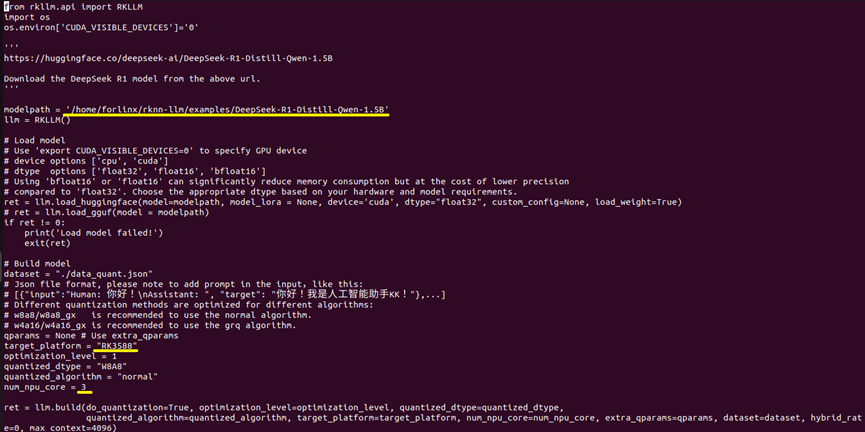
(RKLLM-Toolkit) forlinx@ubuntu:~/rknn-llm/examples/rkllm_api_demo/export$ python3 generate_data_quant.py -m /home/forlinx/rknn-llm/examples/DeepSeek-R1-Distill-Qwen-1.5B
(RKLLM-Toolkit) forlinx@ubuntu:~/rknn-llm/examples/rkllm_api_demo/export$ python export_rkllm.py
4.3.2.2 Model Deployment
Model Dependency Library Compilation.
The DeepSeek model requires libgomp support. A compilation method is provided here. Please refer to the method below to compile the library file themselves and then place it into the board. Alternatively, you can find the DeepSeek content in the link, download the pre-compiled library file, and copy it into the board.
The following describes how to compile it yourself.
Set up the compilation environment
Refer to section 3-3.3.2 to obtain the cross-compilation toolchain and set up the compilation environment.
Compilation
$ mkdir work
$ cd work
$ wget https://ftp.gnu.org/gnu/gcc/gcc-12.4.0/gcc-12.4.0.tar.xz
$ tar xf gcc-12.4.0.tar.xz
$ cd gcc-12.4.0/libgomp/
libgomp$ mkdir build && cd build
libgomp/build$ ../configure --prefix=$PWD/install --host=aarch64-forlinx-linux --disable-multilib
libgomp/build$ make -j$(nproc)
libgomp/build$ make install
Port to the board
After completing the compilation according to the above method, the required library files will be generated in theinstall/lib/directory.
$ ls -l install/lib/
total 824
drwxrwxr-x 3 forlinx forlinx    4096  6月 12 17:44 gcc
-rw-r--r-- 1 forlinx forlinx 2713574  6月 12 17:44 libgomp.a
-rwxr-xr-x 1 forlinx forlinx    1013  6月 12 17:44 libgomp.la
lrwxrwxrwx 1 forlinx forlinx      16  6月 12 17:44 libgomp.so -> libgomp.so.1.0.0
lrwxrwxrwx 1 forlinx forlinx      16  6月 12 17:44 libgomp.so.1 -> libgomp.so.1.0.0
-rwxr-xr-x 1 forlinx forlinx 1350208  6月 12 17:44 libgomp.so.1.0.0
-rw-r--r-- 1 forlinx forlinx     169  6月 12 17:44 libgomp.spec
You can see that the generated library files are all linked tolibgomp.so.1.0.0. You only need to copy this library file to the appropriate/usr/lib/libgomp.so.1location on the board.
For example, using thescpcommand:
Ensure the compilation host can connect to the board card. You can use the ping command to test.
For example, if the board card's IP is 192.168.0.232:
libgomp/build$ ping 192.168.0.232

If the above command returns a response, transfer the file to the board card using the scp command (make sure the scp command is available on your host):
libgomp/build$ scp install/lib64/libgomp.so.1.0.0 [email protected]:/usr/lib/libgomp.so.1
If you do not have thescpcommand, you can also copy the file from the host to the board using a USB drive. It should be noted that after copying to the board’s/usr/lib/directory, you need to rename it.libgomp.so.1
Installing the Cross Compiler
⚠️Note: The cross compiler mentioned in this section is not the same as the cross-compilation toolchain described in the compilation manual. Please download the cross compiler dedicated to compiling this AI model as described below.
forlinx@ubuntu:~$ mkdir -p ~/opts/
forlinx@ubuntu:~$ cd ~/opts/
forlinx@ubuntu:~/opts$ wget https://developer.arm.com/-/media/Files/downloads/gnu-a/10.2-2020.11/binrel/gcc-arm-10.2-2020.11-x86_64-aarch64-none-linux-gnu.tar.xz
forlinx@ubuntu:~/opts$ tar -xvf gcc-arm-10.2-2020.11-x86_64-aarch64-none-linux-gnu.tar.xz
# Verify that the installation was successful and check the C compiler version
forlinx@ubuntu:~/opts$ ~/opts/gcc-arm-10.2-2020.11-x86_64-aarch64-none-linux-gnu/bin/aarch64-none-linux-gnu-gcc --version
Compilation
forlinx@ubuntu:~/opts$ cd ~/rknn-llm/examples/rkllm_api_demo/deploy
forlinx@ubuntu:~/rknn-llm/examples/rkllm_api_demo/deploy$ chmod +x build-linux.sh
forlinx@ubuntu:~/rknn-llm/examples/rkllm_api_demo/deploy$ ./build-linux.sh
Operation on Board
Copy the model files DeepSeek-R1-Distill-Qwen-1.5B_W8A8_RK3588.rkllmfrom the rknn-llm/examples/rkllm_api_demo/exportdirectory to the specified rknn-llm/examples/rkllm_api_demo/deploy/install subdirectory, and then push the final folderdemo_Linux_aarch64to the board-side/home/forlinx/directory.
forlinx@ok3588:~# cd /home/forlinx/demo_Linux_aarch64
forlinx@ok3588:/home/forlinx/demo_Linux_aarch64# chmod +x llm_demo
forlinx@ok3588:/home/forlinx/demo_Linux_aarch64# export LD_LIBRARY_PATH=./lib
forlinx@ok3588:/home/forlinx/demo_Linux_aarch64# ./llm_demo model/DeepSeek-R1-Distill-Qwen-1.5B_W8A8_RK3588.rkllm 1024 2048
The running results are as follows:
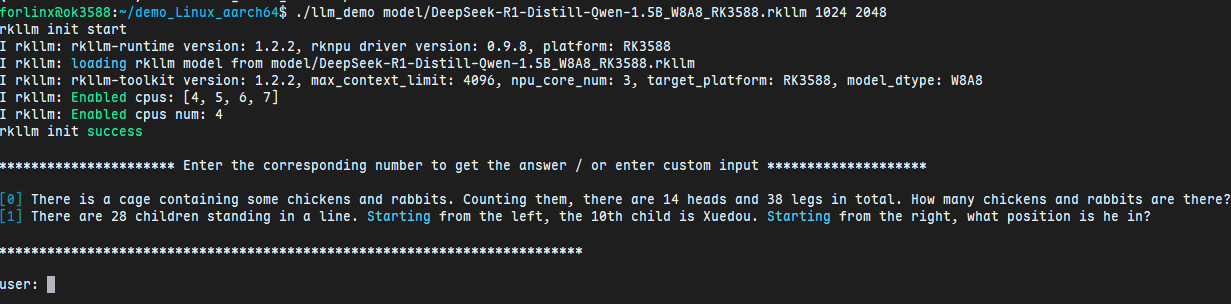
4.4 RKNN Toolkit2 Supported Operator List
For the list of ONNX operators, PyTorch operators, Caffe operators, TensorFlow operators, and Darknet operators supported by RKNN Toolkit2, please refer to the relevant documentationrknn-toolkit2\doc\RKNNToolKit2_OP_Support-2.3.2.md.
Resource Download & Technical Support
1. Accessing Resources
You can easily download the materials you need by visiting our Resource Download Center (Note: Please obtain the download password from your designated sales representative.)
2. After-Sales & Technical Support
For any inquiries regarding after-sales service or technical support, please reach out to our dedicated team:
Phone: +86 312 3102650
Email (General Support): support@forlinx.com
Email (Linux Platform): linux@forlinx.com
Email (Android Platform): android@forlinx.com